How to change the Wordpress database table prefix
A simple guide, to explain how to change the Wordpress database table prefix of your WordPress installation from its 'wp_' into something else .
It is recommended that you change this because all your login details are stored in this database, making it a popular target for hackers. Changing the prefix will make it harder for them to break in.
Step 1: Change the table prefix in wp-config.php
This is done via the CPanel > File Manager:
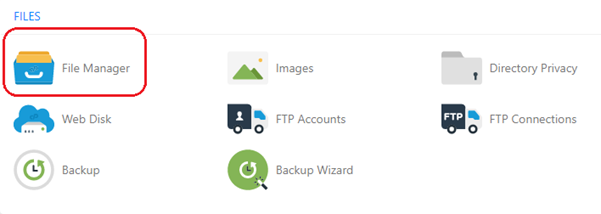 In file manager, navigate to the root folder and identify the wp-config.php file. Right-click on and select edit or select Edit in the menu bar at the top of your screen.
Locate the following entry:
[code language="text"]
$table_prefix = 'wp_';
[/code]
Replace 'wp_' with something else; in this case, we replaced it with 'xyz_':
[code language="text"]
$table_prefix = 'xyz_';
[/code]
Step 2: Change the table prefix in the database
Open your database in PhpMyAdmin:
In file manager, navigate to the root folder and identify the wp-config.php file. Right-click on and select edit or select Edit in the menu bar at the top of your screen.
Locate the following entry:
[code language="text"]
$table_prefix = 'wp_';
[/code]
Replace 'wp_' with something else; in this case, we replaced it with 'xyz_':
[code language="text"]
$table_prefix = 'xyz_';
[/code]
Step 2: Change the table prefix in the database
Open your database in PhpMyAdmin:
 Select the ‘Structures’ tab
Type 'wp_' in the filter edit box
In the dropdown selection choose ‘Replace table prefix’:
[caption id="attachment_9353" align="alignnone" width="1919"]
Select the ‘Structures’ tab
Type 'wp_' in the filter edit box
In the dropdown selection choose ‘Replace table prefix’:
[caption id="attachment_9353" align="alignnone" width="1919"]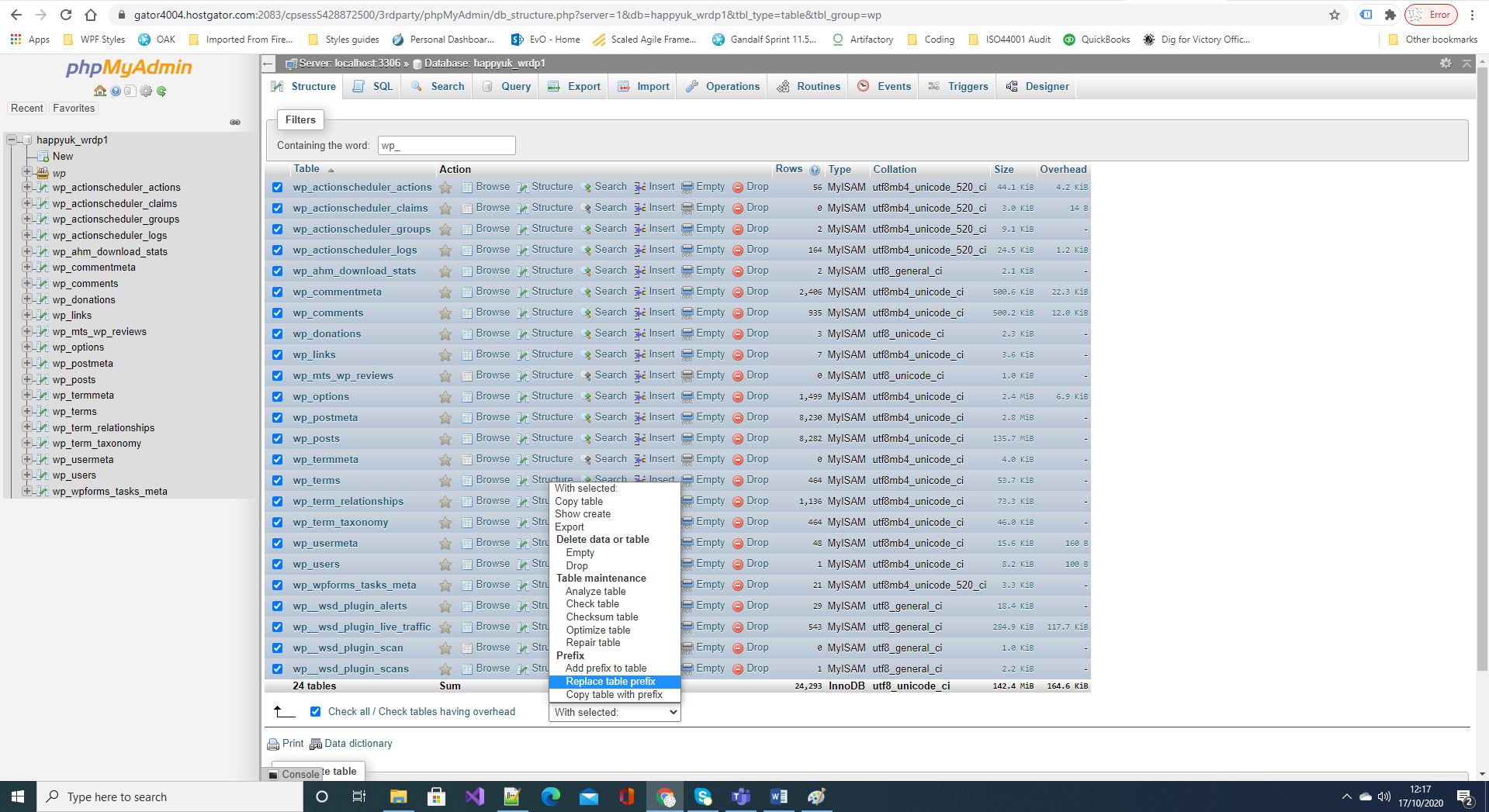 Wordpress database table prefix[/caption]
Once ‘Replace table prefix’ has been selected type in 'wp_' in the 'From' field, and the new prefix in the 'To' field, in this example, 'xyz_'. Click Continue to make the change as shown:
[caption id="attachment_9350" align="alignnone" width="1917"]
Wordpress database table prefix[/caption]
Once ‘Replace table prefix’ has been selected type in 'wp_' in the 'From' field, and the new prefix in the 'To' field, in this example, 'xyz_'. Click Continue to make the change as shown:
[caption id="attachment_9350" align="alignnone" width="1917"]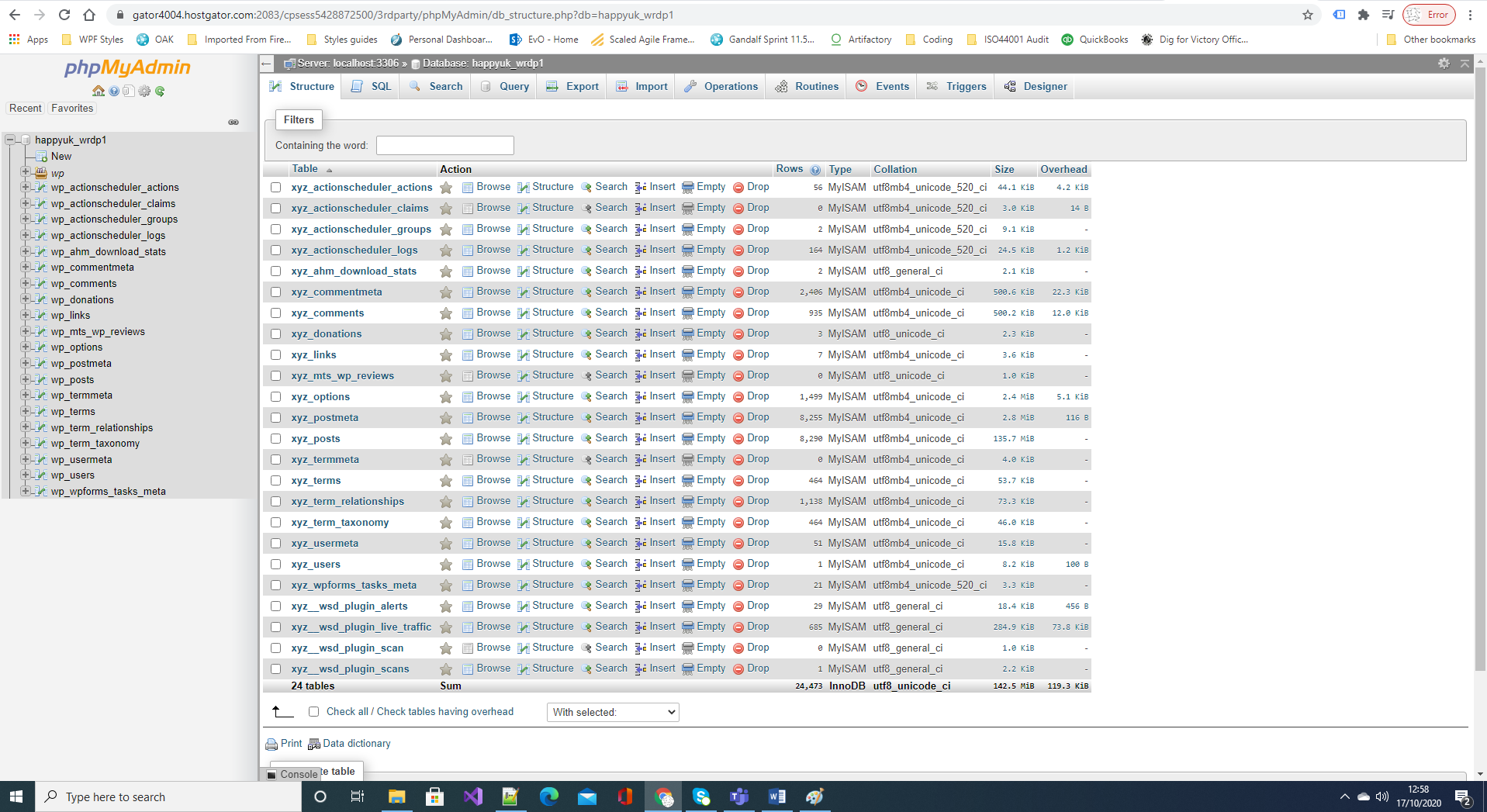 Wordpress database table prefix[/caption]
Step 3: Replace all references to the old prefix
In some settings that are stored in your database, WordPress still refers to the old table prefix. To complete changing the prefix, you need to replace these with your new prefix.
Click on the SQL tab in the menu at the top of the screen.
Copy and paste in the following commands:
[code language="text"]
update NEWPREFIX_usermeta set meta_key = 'NEWPREFIX_capabilities' where meta_key = 'OLDPREFIX_capabilities';
update NEWPREFIX_usermeta set meta_key = 'NEWPREFIX_user_level' where meta_key = 'OLDPREFIX_user_level';
update NEWPREFIX_usermeta set meta_key = 'NEWPREFIX_autosave_draft_ids' where meta_key = 'OLDPREFIX_autosave_draft_ids';
update NEWPREFIX_options set option_name = 'NEWPREFIX_user_roles' where option_name = 'OLDPREFIX_user_roles';
[/code]
Replace instances of 'NEWPREFIX_' with your new prefix name eg 'xyz_'
Replace instances of 'OLDPREFIX_' with the old prefix name 'wp_'
[code language="text"]
update xyz_usermeta set meta_key = 'xyz_capabilities' where meta_key = 'wp_capabilities';
update xyz_usermeta set meta_key = 'xyz_user_level' where meta_key = 'wp_user_level';
update xyz_usermeta set meta_key = 'xyz_autosave_draft_ids' where meta_key = 'wp_autosave_draft_ids';
update xyz_options set option_name = 'xyz_user_roles' where option_name = 'wp_user_roles';
[/code]
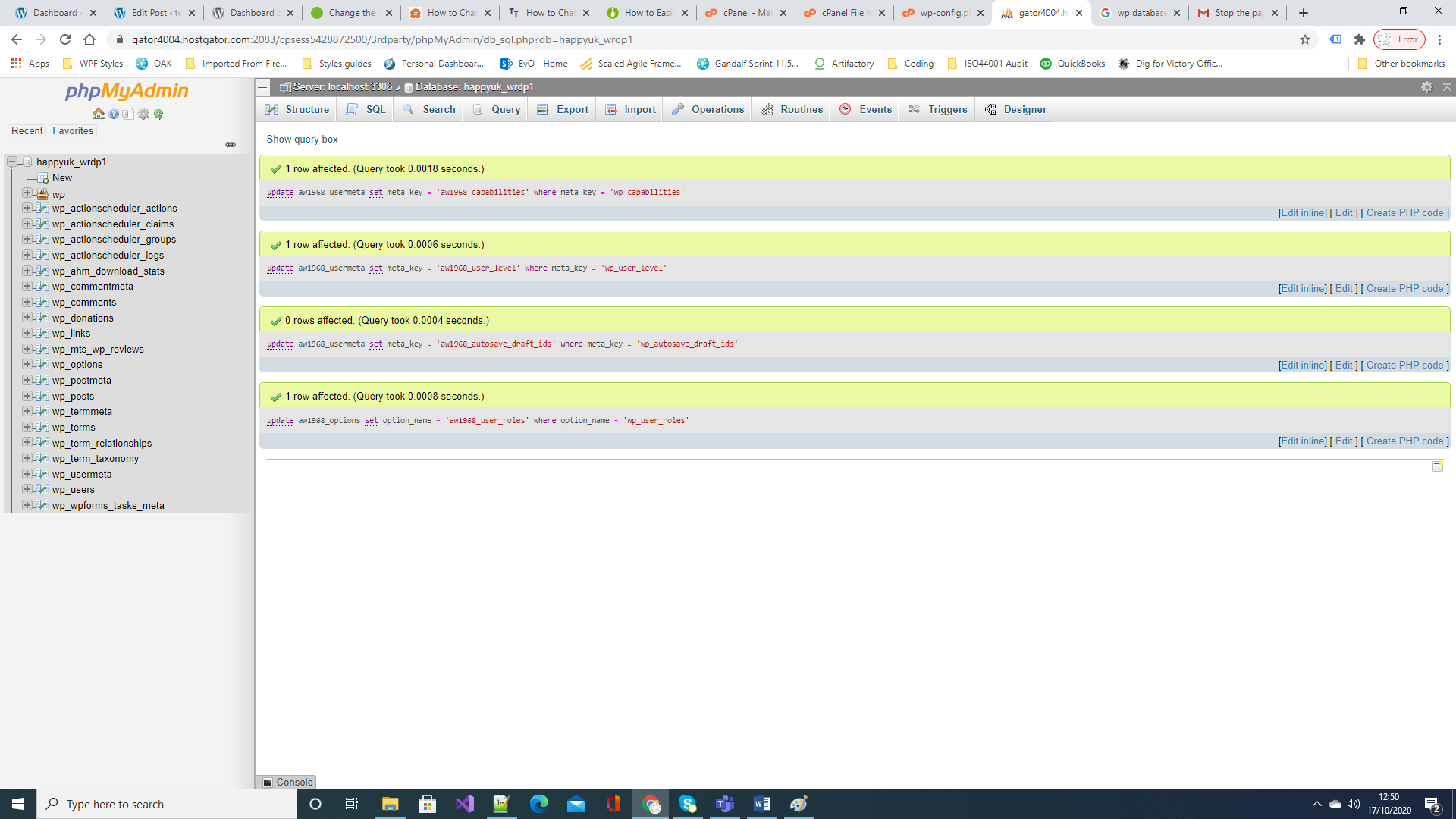
Click on the 'Go' button to run the commands and complete the change. The prefix of the WordPress tables has now been changed:
Wordpress database table prefix[/caption]
Step 3: Replace all references to the old prefix
In some settings that are stored in your database, WordPress still refers to the old table prefix. To complete changing the prefix, you need to replace these with your new prefix.
Click on the SQL tab in the menu at the top of the screen.
Copy and paste in the following commands:
[code language="text"]
update NEWPREFIX_usermeta set meta_key = 'NEWPREFIX_capabilities' where meta_key = 'OLDPREFIX_capabilities';
update NEWPREFIX_usermeta set meta_key = 'NEWPREFIX_user_level' where meta_key = 'OLDPREFIX_user_level';
update NEWPREFIX_usermeta set meta_key = 'NEWPREFIX_autosave_draft_ids' where meta_key = 'OLDPREFIX_autosave_draft_ids';
update NEWPREFIX_options set option_name = 'NEWPREFIX_user_roles' where option_name = 'OLDPREFIX_user_roles';
[/code]
Replace instances of 'NEWPREFIX_' with your new prefix name eg 'xyz_'
Replace instances of 'OLDPREFIX_' with the old prefix name 'wp_'
[code language="text"]
update xyz_usermeta set meta_key = 'xyz_capabilities' where meta_key = 'wp_capabilities';
update xyz_usermeta set meta_key = 'xyz_user_level' where meta_key = 'wp_user_level';
update xyz_usermeta set meta_key = 'xyz_autosave_draft_ids' where meta_key = 'wp_autosave_draft_ids';
update xyz_options set option_name = 'xyz_user_roles' where option_name = 'wp_user_roles';
[/code]
Click on the 'Go' button to run the commands and complete the change. The prefix of the WordPress tables has now been changed:
In file manager, navigate to the root folder and identify the wp-config.php file. Right-click on and select edit or select Edit in the menu bar at the top of your screen.
Locate the following entry:
[code language="text"]
$table_prefix = 'wp_';
[/code]
Replace 'wp_' with something else; in this case, we replaced it with 'xyz_':
[code language="text"]
$table_prefix = 'xyz_';
[/code]
Step 2: Change the table prefix in the database
Open your database in PhpMyAdmin:
Select the ‘Structures’ tab
Type 'wp_' in the filter edit box
In the dropdown selection choose ‘Replace table prefix’:
[caption id="attachment_9353" align="alignnone" width="1919"] Wordpress database table prefix[/caption]
Once ‘Replace table prefix’ has been selected type in 'wp_' in the 'From' field, and the new prefix in the 'To' field, in this example, 'xyz_'. Click Continue to make the change as shown:
[caption id="attachment_9350" align="alignnone" width="1917"] Wordpress database table prefix[/caption]
Step 3: Replace all references to the old prefix
In some settings that are stored in your database, WordPress still refers to the old table prefix. To complete changing the prefix, you need to replace these with your new prefix.
Click on the SQL tab in the menu at the top of the screen.
Copy and paste in the following commands:
[code language="text"]
update NEWPREFIX_usermeta set meta_key = 'NEWPREFIX_capabilities' where meta_key = 'OLDPREFIX_capabilities';
update NEWPREFIX_usermeta set meta_key = 'NEWPREFIX_user_level' where meta_key = 'OLDPREFIX_user_level';
update NEWPREFIX_usermeta set meta_key = 'NEWPREFIX_autosave_draft_ids' where meta_key = 'OLDPREFIX_autosave_draft_ids';
update NEWPREFIX_options set option_name = 'NEWPREFIX_user_roles' where option_name = 'OLDPREFIX_user_roles';
[/code]
Replace instances of 'NEWPREFIX_' with your new prefix name eg 'xyz_'
Replace instances of 'OLDPREFIX_' with the old prefix name 'wp_'
[code language="text"]
update xyz_usermeta set meta_key = 'xyz_capabilities' where meta_key = 'wp_capabilities';
update xyz_usermeta set meta_key = 'xyz_user_level' where meta_key = 'wp_user_level';
update xyz_usermeta set meta_key = 'xyz_autosave_draft_ids' where meta_key = 'wp_autosave_draft_ids';
update xyz_options set option_name = 'xyz_user_roles' where option_name = 'wp_user_roles';
[/code]
Click on the 'Go' button to run the commands and complete the change. The prefix of the WordPress tables has now been changed:


Comments
Post a Comment