Using flex to layout items in css
Some recipes for using flex to reliably align items in your html files.
The collection of recipes can also be found as a collection my CodePen site.
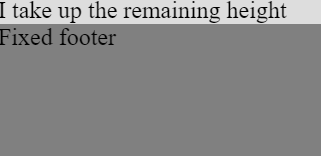
1. Make a div box occupy available height, fixed footer
HTML
[code language="html"]
<div class="outer">
<div class="inner_remaining">
I take up the remaining height
</div>
<div class="footer">
Fixed footer
</div>
</div>
[/code]
CSS
[code language="css"]
html,
body {
height: 100%;
width: 100%;
margin: 0;
}
.outer {
display: flex;
flex-flow: column;
height: 100%;
}
.footer {
height: 100px;
background-color: grey;
}
.inner_remaining {
background-color: #DDDDDD;
flex-grow : 1;
}
[/code]
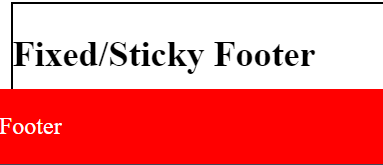
 2. Fixed / sticky footer example
HTML
[code language="html"]
<div class="box">
<h2>Fixed/Sticky Footer</h2>
<p>The footer is placed at the bottom of the page.</p>
<div class="footer">
<p>Footer</p>
</div>
</div>
[/code]
CSS
[code language="css"]
.footer {
position: fixed;
left: 0;
bottom: 0;
width: 100%;
background-color: red;
color: white;
text-align: left;
}
.box {
border: solid black 1px;
width: 400px;
}
[/code]
2. Fixed / sticky footer example
HTML
[code language="html"]
<div class="box">
<h2>Fixed/Sticky Footer</h2>
<p>The footer is placed at the bottom of the page.</p>
<div class="footer">
<p>Footer</p>
</div>
</div>
[/code]
CSS
[code language="css"]
.footer {
position: fixed;
left: 0;
bottom: 0;
width: 100%;
background-color: red;
color: white;
text-align: left;
}
.box {
border: solid black 1px;
width: 400px;
}
[/code]
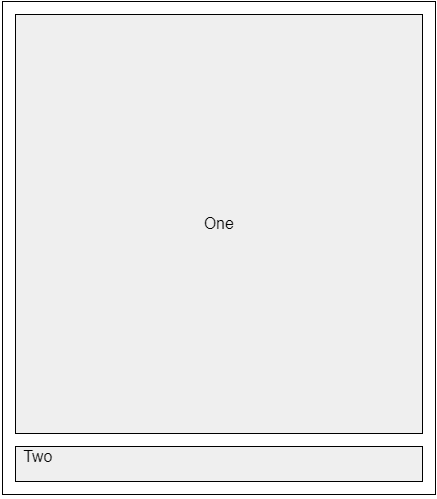
 3. Aligning Last Item to the Bottom, fixed box height
HTML
[code language="html"]
<div class="box">
<button class="body">One</button>
<button class="footer">Two</button>
</div>
[/code]
CSS
[code language="css"]
.box {
padding: 5px;
display:flex;
border: 1px solid black;
height: 400px;
width:350px;
flex-direction:column;
flex: 1 0 auto; // Grow, don't shrink
}
.body {
border: 1px solid black;
margin: 5px;
flex: 1 0 auto; // Grow, don't shrink
overflow: auto
}
.footer {
border: 1px solid black;
height: 30px;
display: flex;
margin: 5px;
}
[/code]
3. Aligning Last Item to the Bottom, fixed box height
HTML
[code language="html"]
<div class="box">
<button class="body">One</button>
<button class="footer">Two</button>
</div>
[/code]
CSS
[code language="css"]
.box {
padding: 5px;
display:flex;
border: 1px solid black;
height: 400px;
width:350px;
flex-direction:column;
flex: 1 0 auto; // Grow, don't shrink
}
.body {
border: 1px solid black;
margin: 5px;
flex: 1 0 auto; // Grow, don't shrink
overflow: auto
}
.footer {
border: 1px solid black;
height: 30px;
display: flex;
margin: 5px;
}
[/code]
 4. Using flex to fill the remaining space horizontally
HTML
[code language="html"]
<div class="box">
<button class="button1">One</button>
<button class="button2">Two</button>
</div>
[/code]
CSS
[code language="css"]
.box {
padding: 5px;
display: flex;
border: 1px solid black;
width: 400px;
flex-direction:row;
}
.button1 {
border: 1px solid black;
height: 30px;
justify-content: center;
margin: 5px;
flex: 1 0 auto; // Grow, don't shrink
}
.button2 {
border: 1px solid black;
height: 30px;
width: 80px;
justify-content: center;
margin: 5px;
}
[/code]
4. Using flex to fill the remaining space horizontally
HTML
[code language="html"]
<div class="box">
<button class="button1">One</button>
<button class="button2">Two</button>
</div>
[/code]
CSS
[code language="css"]
.box {
padding: 5px;
display: flex;
border: 1px solid black;
width: 400px;
flex-direction:row;
}
.button1 {
border: 1px solid black;
height: 30px;
justify-content: center;
margin: 5px;
flex: 1 0 auto; // Grow, don't shrink
}
.button2 {
border: 1px solid black;
height: 30px;
width: 80px;
justify-content: center;
margin: 5px;
}
[/code]
 5. Using grid to layout items
HTML
[code language="html"]
<div class="box">
<button class="button">One</button>
<button class="button">Two</button>
<button class="button">Three</button>
<button class="button">Four</button>
<button class="button">Five</button>
<button class="button">Six</button>
<button class="button">Seven</button>
<button class="button">Eight</button>
<button class="button">Nine</button>
<button class="button">Ten</button>
</div>
[/code]
CSS
[code language="css"]
.box {
padding: 5px;
display: grid;
border: 1px solid black;
width: 350px;
grid-template-columns: repeat(auto-fill,minmax(100px, 1fr));
}
.button {
border: 1px solid black;
height: 30px;
display: flex;
justify-content: center;
align-items: center;
margin: 5px;
}
[/code]
5. Using grid to layout items
HTML
[code language="html"]
<div class="box">
<button class="button">One</button>
<button class="button">Two</button>
<button class="button">Three</button>
<button class="button">Four</button>
<button class="button">Five</button>
<button class="button">Six</button>
<button class="button">Seven</button>
<button class="button">Eight</button>
<button class="button">Nine</button>
<button class="button">Ten</button>
</div>
[/code]
CSS
[code language="css"]
.box {
padding: 5px;
display: grid;
border: 1px solid black;
width: 350px;
grid-template-columns: repeat(auto-fill,minmax(100px, 1fr));
}
.button {
border: 1px solid black;
height: 30px;
display: flex;
justify-content: center;
align-items: center;
margin: 5px;
}
[/code]
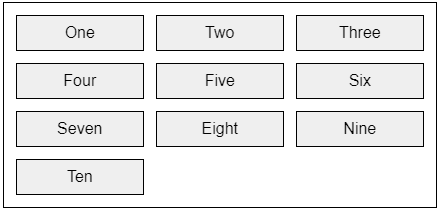 6. Achieving gutters between flexbox items
HTML
[code language="html"]
<div class="wrapper">
<div class="box">
<button>One</button>
<button>Two</button>
<button>Three</button>
<button>Four</button>
<button>Five</button>
<button>Six</button>
<button>Seven</button>
<button>Eight</button>
<button>Nine</button>
</div>
</div>
[/code]
CSS
[code language="css"]
.wrapper {
border: 1px solid black;
width: 500px;
height: 80px;
padding: 5px;
}
.box {
display: flex;
flex-wrap: wrap;
margin:-5px;
}
.box>* {
flex: 0 1 160px;
margin: 5px;
}
[/code]
6. Achieving gutters between flexbox items
HTML
[code language="html"]
<div class="wrapper">
<div class="box">
<button>One</button>
<button>Two</button>
<button>Three</button>
<button>Four</button>
<button>Five</button>
<button>Six</button>
<button>Seven</button>
<button>Eight</button>
<button>Nine</button>
</div>
</div>
[/code]
CSS
[code language="css"]
.wrapper {
border: 1px solid black;
width: 500px;
height: 80px;
padding: 5px;
}
.box {
display: flex;
flex-wrap: wrap;
margin:-5px;
}
.box>* {
flex: 0 1 160px;
margin: 5px;
}
[/code]
 7. Controlling flexbox layouts using percentages
HTML
[code language="html"]
<div class="box">
<button>One</button>
<button>Two</button>
<button>Three</button>
<button>Four</button>
<button>Five</button>
<button>Six</button>
<button>Seven</button>
<button>Eight</button>
<button>Nine</button>
<button>Ten</button>
</div>
[/code]
CSS
[code language="css"]
.box {
width: 500px;
display: flex;
flex-wrap: wrap;
border: 1px solid black;
padding: 5px;
}
.box >* {
flex: 0 0 25%;
}
[/code]
7. Controlling flexbox layouts using percentages
HTML
[code language="html"]
<div class="box">
<button>One</button>
<button>Two</button>
<button>Three</button>
<button>Four</button>
<button>Five</button>
<button>Six</button>
<button>Seven</button>
<button>Eight</button>
<button>Nine</button>
<button>Ten</button>
</div>
[/code]
CSS
[code language="css"]
.box {
width: 500px;
display: flex;
flex-wrap: wrap;
border: 1px solid black;
padding: 5px;
}
.box >* {
flex: 0 0 25%;
}
[/code]
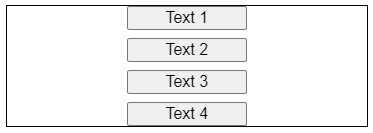
 8. Vertically and evenly distribute items using flex and justify-content
HTML
[code language="html"]
<div class="outer">
<button class="button">Text 1</button>
<button class="button">Text 2</button>
<button class="button">Text 3</button>
<button class="button">Text 4</button>
</div>
[/code]
CSS
[code language="css"]
.outer {
height: 100px;
width: 300px;
border: 1px solid black;
display: flex;
flex-direction: column;
justify-content: space-between;
align-items: center;
}
.button {
height: 20px;
width: 100px;
}
[/code]
8. Vertically and evenly distribute items using flex and justify-content
HTML
[code language="html"]
<div class="outer">
<button class="button">Text 1</button>
<button class="button">Text 2</button>
<button class="button">Text 3</button>
<button class="button">Text 4</button>
</div>
[/code]
CSS
[code language="css"]
.outer {
height: 100px;
width: 300px;
border: 1px solid black;
display: flex;
flex-direction: column;
justify-content: space-between;
align-items: center;
}
.button {
height: 20px;
width: 100px;
}
[/code]
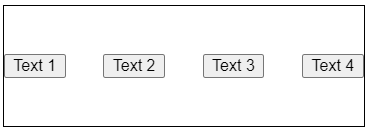
 9. Horizontally and evenly distribute items using flex and justify-content
HTML
[code language="html"]
<div class="outer">
<button class="button">Text 1</button>
<button class="button">Text 2</button>
<button class="button">Text 3</button>
<button class="button">Text 4</button>
</div>
[/code]
CSS
[code language="css"]
.outer {
height: 100px;
width: 300px;
border: 1px solid black;
display: flex;
align-items:center;
justify-content: space-between;
}
.button {
height: 20px;
}
[/code]
9. Horizontally and evenly distribute items using flex and justify-content
HTML
[code language="html"]
<div class="outer">
<button class="button">Text 1</button>
<button class="button">Text 2</button>
<button class="button">Text 3</button>
<button class="button">Text 4</button>
</div>
[/code]
CSS
[code language="css"]
.outer {
height: 100px;
width: 300px;
border: 1px solid black;
display: flex;
align-items:center;
justify-content: space-between;
}
.button {
height: 20px;
}
[/code]
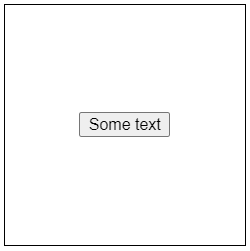
 10. Using flex to center html content horizontally and vertically
HTML
[code language="html"]
<div class="outer">
<button>Some text</button>
</div>
[/code]
CSS
[code language="css"]
.outer {
height: 200px;
width: 200px;
border: 1px solid black;
display: flex;
align-items:center;
justify-content: center;
}
[/code]
10. Using flex to center html content horizontally and vertically
HTML
[code language="html"]
<div class="outer">
<button>Some text</button>
</div>
[/code]
CSS
[code language="css"]
.outer {
height: 200px;
width: 200px;
border: 1px solid black;
display: flex;
align-items:center;
justify-content: center;
}
[/code]
2. Fixed / sticky footer example
HTML
[code language="html"]
<div class="box">
<h2>Fixed/Sticky Footer</h2>
<p>The footer is placed at the bottom of the page.</p>
<div class="footer">
<p>Footer</p>
</div>
</div>
[/code]
CSS
[code language="css"]
.footer {
position: fixed;
left: 0;
bottom: 0;
width: 100%;
background-color: red;
color: white;
text-align: left;
}
.box {
border: solid black 1px;
width: 400px;
}
[/code]
3. Aligning Last Item to the Bottom, fixed box height
HTML
[code language="html"]
<div class="box">
<button class="body">One</button>
<button class="footer">Two</button>
</div>
[/code]
CSS
[code language="css"]
.box {
padding: 5px;
display:flex;
border: 1px solid black;
height: 400px;
width:350px;
flex-direction:column;
flex: 1 0 auto; // Grow, don't shrink
}
.body {
border: 1px solid black;
margin: 5px;
flex: 1 0 auto; // Grow, don't shrink
overflow: auto
}
.footer {
border: 1px solid black;
height: 30px;
display: flex;
margin: 5px;
}
[/code]
4. Using flex to fill the remaining space horizontally
HTML
[code language="html"]
<div class="box">
<button class="button1">One</button>
<button class="button2">Two</button>
</div>
[/code]
CSS
[code language="css"]
.box {
padding: 5px;
display: flex;
border: 1px solid black;
width: 400px;
flex-direction:row;
}
.button1 {
border: 1px solid black;
height: 30px;
justify-content: center;
margin: 5px;
flex: 1 0 auto; // Grow, don't shrink
}
.button2 {
border: 1px solid black;
height: 30px;
width: 80px;
justify-content: center;
margin: 5px;
}
[/code]
5. Using grid to layout items
HTML
[code language="html"]
<div class="box">
<button class="button">One</button>
<button class="button">Two</button>
<button class="button">Three</button>
<button class="button">Four</button>
<button class="button">Five</button>
<button class="button">Six</button>
<button class="button">Seven</button>
<button class="button">Eight</button>
<button class="button">Nine</button>
<button class="button">Ten</button>
</div>
[/code]
CSS
[code language="css"]
.box {
padding: 5px;
display: grid;
border: 1px solid black;
width: 350px;
grid-template-columns: repeat(auto-fill,minmax(100px, 1fr));
}
.button {
border: 1px solid black;
height: 30px;
display: flex;
justify-content: center;
align-items: center;
margin: 5px;
}
[/code]
6. Achieving gutters between flexbox items
HTML
[code language="html"]
<div class="wrapper">
<div class="box">
<button>One</button>
<button>Two</button>
<button>Three</button>
<button>Four</button>
<button>Five</button>
<button>Six</button>
<button>Seven</button>
<button>Eight</button>
<button>Nine</button>
</div>
</div>
[/code]
CSS
[code language="css"]
.wrapper {
border: 1px solid black;
width: 500px;
height: 80px;
padding: 5px;
}
.box {
display: flex;
flex-wrap: wrap;
margin:-5px;
}
.box>* {
flex: 0 1 160px;
margin: 5px;
}
[/code]
7. Controlling flexbox layouts using percentages
HTML
[code language="html"]
<div class="box">
<button>One</button>
<button>Two</button>
<button>Three</button>
<button>Four</button>
<button>Five</button>
<button>Six</button>
<button>Seven</button>
<button>Eight</button>
<button>Nine</button>
<button>Ten</button>
</div>
[/code]
CSS
[code language="css"]
.box {
width: 500px;
display: flex;
flex-wrap: wrap;
border: 1px solid black;
padding: 5px;
}
.box >* {
flex: 0 0 25%;
}
[/code]
8. Vertically and evenly distribute items using flex and justify-content
HTML
[code language="html"]
<div class="outer">
<button class="button">Text 1</button>
<button class="button">Text 2</button>
<button class="button">Text 3</button>
<button class="button">Text 4</button>
</div>
[/code]
CSS
[code language="css"]
.outer {
height: 100px;
width: 300px;
border: 1px solid black;
display: flex;
flex-direction: column;
justify-content: space-between;
align-items: center;
}
.button {
height: 20px;
width: 100px;
}
[/code]
9. Horizontally and evenly distribute items using flex and justify-content
HTML
[code language="html"]
<div class="outer">
<button class="button">Text 1</button>
<button class="button">Text 2</button>
<button class="button">Text 3</button>
<button class="button">Text 4</button>
</div>
[/code]
CSS
[code language="css"]
.outer {
height: 100px;
width: 300px;
border: 1px solid black;
display: flex;
align-items:center;
justify-content: space-between;
}
.button {
height: 20px;
}
[/code]
10. Using flex to center html content horizontally and vertically
HTML
[code language="html"]
<div class="outer">
<button>Some text</button>
</div>
[/code]
CSS
[code language="css"]
.outer {
height: 200px;
width: 200px;
border: 1px solid black;
display: flex;
align-items:center;
justify-content: center;
}
[/code]


Comments
Post a Comment