Dragging shapes with the mouse in WPF / MVVM
In a recent project I was interested in Dragging shapes with the mouse in a WPF / MVVM Visual Studio project.
This post contains an example on how to drag a rectangle from from one canvas location to another using the WPF / MVVM architecture.
This project uses Microsoft Visual Studio Community 2019.
Step 1: Create a new WPF project:
[caption id="attachment_9221" align="alignnone" width="900"]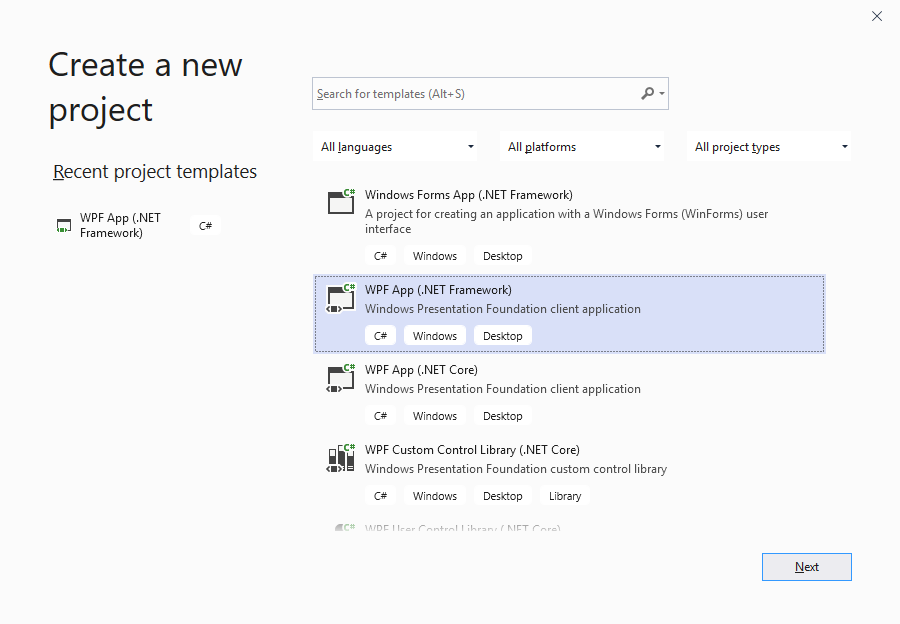 Dragging shapes with the mouse[/caption]
Step 2: Add event-handling and event-raising infrastructure
Just add the following classes to your project:
EventArgs.cs
[code language="csharp"]
using System;
namespace Canvas1
{
public class EventArgs<T> : EventArgs
{
public EventArgs(T value)
{
Value = value;
}
public T Value { get; private set; }
}
}
[/code]
EventRaiser.cs
[code language="csharp"]
using System;
namespace Canvas1
{
public static class EventRaiser
{
public static void Raise(this EventHandler handler, object sender)
{
handler?.Invoke(sender, EventArgs.Empty);
}
public static void Raise<T>(this EventHandler<EventArgs<T>> handler, object sender, T value)
{
handler?.Invoke(sender, new EventArgs<T>(value));
}
public static void Raise<T>(this EventHandler<T> handler, object sender, T value) where T : EventArgs
{
handler?.Invoke(sender, value);
}
public static void Raise<T>(this EventHandler<EventArgs<T>> handler, object sender, EventArgs<T> value)
{
handler?.Invoke(sender, value);
}
}
}
[/code]
RelayCommand.cs
[code language="csharp"]
using System;
using System.Windows.Input;
namespace Canvas1
{
public class RelayCommand<T> : ICommand
{
private readonly Predicate<T> _canExecute;
private readonly Action<T> _execute;
public RelayCommand(Action<T> execute)
: this(execute, null)
{
_execute = execute;
}
public RelayCommand(Action<T> execute, Predicate<T> canExecute)
{
if (execute == null)
throw new ArgumentNullException(nameof(execute));
_execute = execute;
_canExecute = canExecute;
}
#region ICommand Members
public bool CanExecute(object parameter)
{
return (_canExecute == null) || _canExecute((T)parameter);
}
public void Execute(object parameter)
{
_execute((T)parameter);
}
public event EventHandler CanExecuteChanged
{
add { CommandManager.RequerySuggested += value; }
remove { CommandManager.RequerySuggested -= value; }
}
#endregion
}
public class RelayCommand : ICommand
{
private readonly Predicate<object> _canExecute;
private readonly Action<object> _execute;
public RelayCommand(Action<object> execute)
: this(execute, null)
{
_execute = execute;
}
public RelayCommand(Action<object> execute, Predicate<object> canExecute)
{
if (execute == null)
throw new ArgumentNullException("execute");
_execute = execute;
_canExecute = canExecute;
}
#region ICommand Members
public bool CanExecute(object parameter)
{
return (_canExecute == null) || _canExecute(parameter);
}
public void Execute(object parameter)
{
_execute(parameter);
}
// Ensures WPF commanding infrastructure asks all RelayCommand objects whether their
// associated views should be enabled whenever a command is invoked
public event EventHandler CanExecuteChanged
{
add
{
CommandManager.RequerySuggested += value;
CanExecuteChangedInternal += value;
}
remove
{
CommandManager.RequerySuggested -= value;
CanExecuteChangedInternal -= value;
}
}
#endregion
private event EventHandler CanExecuteChangedInternal;
public void RaiseCanExecuteChanged()
{
CanExecuteChangedInternal.Raise(this);
}
}
}
[/code]
Step 3: Use a dependency property to obtain mouse x,y coordinates
MouseBehaviour.cs
[code language="csharp"]
using System.Windows;
using System.Windows.Controls;
using System.Windows.Input;
using System.Windows.Interactivity;
namespace Canvas1
{
public class MouseBehaviour : Behavior<Panel>
{
public static readonly DependencyProperty MouseYProperty = DependencyProperty.Register(
"MouseY", typeof(double), typeof(MouseBehaviour), new PropertyMetadata(default(double)));
public static readonly DependencyProperty MouseXProperty = DependencyProperty.Register(
"MouseX", typeof(double), typeof(MouseBehaviour), new PropertyMetadata(default(double)));
public double MouseY
{
get { return (double)GetValue(MouseYProperty); }
set { SetValue(MouseYProperty, value); }
}
public double MouseX
{
get { return (double)GetValue(MouseXProperty); }
set { SetValue(MouseXProperty, value); }
}
protected override void OnAttached()
{
AssociatedObject.MouseMove += AssociatedObjectOnMouseMove;
}
protected override void OnDetaching()
{
AssociatedObject.MouseMove -= AssociatedObjectOnMouseMove;
}
private void AssociatedObjectOnMouseMove(object sender, MouseEventArgs mouseEventArgs)
{
var pos = mouseEventArgs.GetPosition(AssociatedObject);
MouseX = pos.X;
MouseY = pos.Y;
}
}
}
[/code]
Step 4: Add necessary references
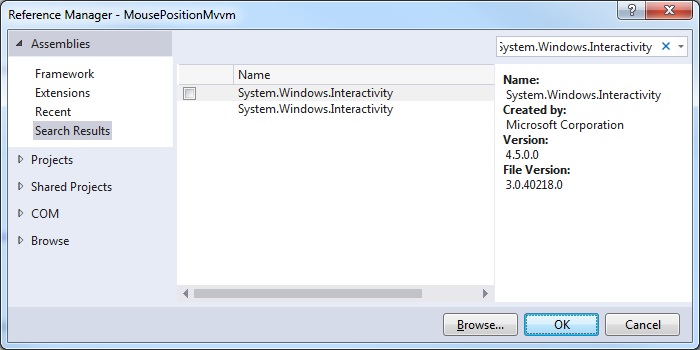
In this example we need to add a reference to System.Windows.Interactivity.
This will allow us to continuously monitor the mouse position as it is being moved around the screen.
Right-click your References folder and select Add reference... (Sometimes this library will need to be installed via NuGet package manager)
Dragging shapes with the mouse[/caption]
Step 2: Add event-handling and event-raising infrastructure
Just add the following classes to your project:
EventArgs.cs
[code language="csharp"]
using System;
namespace Canvas1
{
public class EventArgs<T> : EventArgs
{
public EventArgs(T value)
{
Value = value;
}
public T Value { get; private set; }
}
}
[/code]
EventRaiser.cs
[code language="csharp"]
using System;
namespace Canvas1
{
public static class EventRaiser
{
public static void Raise(this EventHandler handler, object sender)
{
handler?.Invoke(sender, EventArgs.Empty);
}
public static void Raise<T>(this EventHandler<EventArgs<T>> handler, object sender, T value)
{
handler?.Invoke(sender, new EventArgs<T>(value));
}
public static void Raise<T>(this EventHandler<T> handler, object sender, T value) where T : EventArgs
{
handler?.Invoke(sender, value);
}
public static void Raise<T>(this EventHandler<EventArgs<T>> handler, object sender, EventArgs<T> value)
{
handler?.Invoke(sender, value);
}
}
}
[/code]
RelayCommand.cs
[code language="csharp"]
using System;
using System.Windows.Input;
namespace Canvas1
{
public class RelayCommand<T> : ICommand
{
private readonly Predicate<T> _canExecute;
private readonly Action<T> _execute;
public RelayCommand(Action<T> execute)
: this(execute, null)
{
_execute = execute;
}
public RelayCommand(Action<T> execute, Predicate<T> canExecute)
{
if (execute == null)
throw new ArgumentNullException(nameof(execute));
_execute = execute;
_canExecute = canExecute;
}
#region ICommand Members
public bool CanExecute(object parameter)
{
return (_canExecute == null) || _canExecute((T)parameter);
}
public void Execute(object parameter)
{
_execute((T)parameter);
}
public event EventHandler CanExecuteChanged
{
add { CommandManager.RequerySuggested += value; }
remove { CommandManager.RequerySuggested -= value; }
}
#endregion
}
public class RelayCommand : ICommand
{
private readonly Predicate<object> _canExecute;
private readonly Action<object> _execute;
public RelayCommand(Action<object> execute)
: this(execute, null)
{
_execute = execute;
}
public RelayCommand(Action<object> execute, Predicate<object> canExecute)
{
if (execute == null)
throw new ArgumentNullException("execute");
_execute = execute;
_canExecute = canExecute;
}
#region ICommand Members
public bool CanExecute(object parameter)
{
return (_canExecute == null) || _canExecute(parameter);
}
public void Execute(object parameter)
{
_execute(parameter);
}
// Ensures WPF commanding infrastructure asks all RelayCommand objects whether their
// associated views should be enabled whenever a command is invoked
public event EventHandler CanExecuteChanged
{
add
{
CommandManager.RequerySuggested += value;
CanExecuteChangedInternal += value;
}
remove
{
CommandManager.RequerySuggested -= value;
CanExecuteChangedInternal -= value;
}
}
#endregion
private event EventHandler CanExecuteChangedInternal;
public void RaiseCanExecuteChanged()
{
CanExecuteChangedInternal.Raise(this);
}
}
}
[/code]
Step 3: Use a dependency property to obtain mouse x,y coordinates
MouseBehaviour.cs
[code language="csharp"]
using System.Windows;
using System.Windows.Controls;
using System.Windows.Input;
using System.Windows.Interactivity;
namespace Canvas1
{
public class MouseBehaviour : Behavior<Panel>
{
public static readonly DependencyProperty MouseYProperty = DependencyProperty.Register(
"MouseY", typeof(double), typeof(MouseBehaviour), new PropertyMetadata(default(double)));
public static readonly DependencyProperty MouseXProperty = DependencyProperty.Register(
"MouseX", typeof(double), typeof(MouseBehaviour), new PropertyMetadata(default(double)));
public double MouseY
{
get { return (double)GetValue(MouseYProperty); }
set { SetValue(MouseYProperty, value); }
}
public double MouseX
{
get { return (double)GetValue(MouseXProperty); }
set { SetValue(MouseXProperty, value); }
}
protected override void OnAttached()
{
AssociatedObject.MouseMove += AssociatedObjectOnMouseMove;
}
protected override void OnDetaching()
{
AssociatedObject.MouseMove -= AssociatedObjectOnMouseMove;
}
private void AssociatedObjectOnMouseMove(object sender, MouseEventArgs mouseEventArgs)
{
var pos = mouseEventArgs.GetPosition(AssociatedObject);
MouseX = pos.X;
MouseY = pos.Y;
}
}
}
[/code]
Step 4: Add necessary references
In this example we need to add a reference to System.Windows.Interactivity.
This will allow us to continuously monitor the mouse position as it is being moved around the screen.
Right-click your References folder and select Add reference... (Sometimes this library will need to be installed via NuGet package manager)
 Step 5: Add the Main Window View Model (MVVM) class
MainWindowViewModel.cs
[code language="csharp"]
using System;
using System.ComponentModel;
using System.Diagnostics;
using System.Windows.Input;
namespace Canvas1
{
public class MainWindowViewModel : INotifyPropertyChanged
{
bool captured = false;
public ICommand _leftButtonDownCommand;
public ICommand _leftButtonUpCommand;
public ICommand _previewMouseMove;
public ICommand _leftMouseButtonUp;
public MainWindowViewModel()
{
PanelX = 100;
PanelY = 100;
RectX = PanelX - 50.0;
RectY = PanelY - 50.0;
}
public ICommand PreviewMouseMove
{
get
{
return _previewMouseMove ?? (_previewMouseMove = new RelayCommand(
x =>
{
if (captured)
{
RectX = PanelX - 50.0;
RectY = PanelY - 50.0;
}
}));
}
}
public ICommand LeftMouseButtonUp
{
get
{
return _leftMouseButtonUp ?? (_leftMouseButtonUp = new RelayCommand(
x =>
{
captured = false;
}));
}
}
public ICommand LeftMouseButtonDown
{
get
{
return _leftButtonDownCommand ?? (_leftButtonDownCommand = new RelayCommand(
x =>
{
captured = true;
}));
}
}
private double _panelX;
private double _panelY;
private double _rectX;
private double _rectY;
public double RectX
{
get { return _rectX; }
set
{
if (value.Equals(_rectX)) return;
_rectX = value;
OnPropertyChanged("RectX");
}
}
public double RectY
{
get { return _rectY; }
set
{
if (value.Equals(_rectY)) return;
_rectY = value;
OnPropertyChanged("RectY");
}
}
public double PanelX
{
get { return _panelX; }
set
{
if (value.Equals(_panelX)) return;
_panelX = value;
OnPropertyChanged("PanelX");
}
}
public double PanelY
{
get { return _panelY; }
set
{
if (value.Equals(_panelY)) return;
_panelY = value;
OnPropertyChanged("PanelY");
}
}
public event PropertyChangedEventHandler PropertyChanged;
protected void OnPropertyChanged(string propertyName)
{
VerifyPropertyName(propertyName);
var handler = PropertyChanged;
handler?.Invoke(this, new PropertyChangedEventArgs(propertyName));
}
[Conditional("DEBUG")]
private void VerifyPropertyName(string propertyName)
{
if (TypeDescriptor.GetProperties(this)[propertyName] == null)
throw new ArgumentNullException(GetType().Name + " does not contain property: " + propertyName);
}
}
}
[/code]
Step 6: Create an example WPF window
MainWindow.xaml
[code language="csharp"]
<Window x:Class="Canvas1.MainWindow"
xmlns="http://schemas.microsoft.com/winfx/2006/xaml/presentation"
xmlns:x="http://schemas.microsoft.com/winfx/2006/xaml"
xmlns:d="http://schemas.microsoft.com/expression/blend/2008"
xmlns:local="clr-namespace:Canvas1"
xmlns:mc="http://schemas.openxmlformats.org/markup-compatibility/2006"
xmlns:i="clr-namespace:System.Windows.Interactivity;assembly=System.Windows.Interactivity"
mc:Ignorable="d"
Title="MainWindow" Height="450" Width="525">
<Window.DataContext>
<local:MainWindowViewModel />
</Window.DataContext>
<Grid>
<DockPanel>
<!--Un-comment if you want to view the coordinates-->
<!--<StackPanel DockPanel.Dock="Top" Orientation="Horizontal">
<TextBlock Text="{Binding PanelX, StringFormat='X={0}'}" />
<TextBlock Text="{Binding PanelY, StringFormat='y={0}'}" />
</StackPanel>-->
<Canvas x:Name="LayoutRoot" Background="White">
<i:Interaction.Behaviors>
<local:MouseBehaviour
MouseX="{Binding PanelX, Mode=OneWayToSource}"
MouseY="{Binding PanelY, Mode=OneWayToSource}"
/>
</i:Interaction.Behaviors>
<Rectangle
x:Name="testSquare"
Fill="Red" Height="100"
Stroke="Black"
Width="100"
HorizontalAlignment="Left"
VerticalAlignment="Bottom"
Canvas.Left="{Binding RectX, Mode=TwoWay}"
Canvas.Top="{Binding RectY, Mode=TwoWay}" >
<i:Interaction.Triggers>
<i:EventTrigger EventName="PreviewMouseDown" >
<i:InvokeCommandAction
Command="{Binding ElementName=testSquare, Path=DataContext.LeftMouseButtonDown}"
CommandParameter="{Binding}" />
</i:EventTrigger>
<i:EventTrigger EventName="PreviewMouseUp" >
<i:InvokeCommandAction
Command="{Binding ElementName=testSquare, Path=DataContext.LeftMouseButtonUp}"
CommandParameter="{Binding}" />
</i:EventTrigger>
<i:EventTrigger EventName="PreviewMouseMove" >
<i:InvokeCommandAction
Command="{Binding ElementName=testSquare, Path=DataContext.PreviewMouseMove}"
CommandParameter="{Binding}" />
</i:EventTrigger>
</i:Interaction.Triggers>
</Rectangle>
</Canvas>
</DockPanel>
</Grid>
</Window>
[/code]
Demonstration:
Video of application as follows:
[embed]https://youtu.be/WFy5JlL2OWY[/embed]
Step 5: Add the Main Window View Model (MVVM) class
MainWindowViewModel.cs
[code language="csharp"]
using System;
using System.ComponentModel;
using System.Diagnostics;
using System.Windows.Input;
namespace Canvas1
{
public class MainWindowViewModel : INotifyPropertyChanged
{
bool captured = false;
public ICommand _leftButtonDownCommand;
public ICommand _leftButtonUpCommand;
public ICommand _previewMouseMove;
public ICommand _leftMouseButtonUp;
public MainWindowViewModel()
{
PanelX = 100;
PanelY = 100;
RectX = PanelX - 50.0;
RectY = PanelY - 50.0;
}
public ICommand PreviewMouseMove
{
get
{
return _previewMouseMove ?? (_previewMouseMove = new RelayCommand(
x =>
{
if (captured)
{
RectX = PanelX - 50.0;
RectY = PanelY - 50.0;
}
}));
}
}
public ICommand LeftMouseButtonUp
{
get
{
return _leftMouseButtonUp ?? (_leftMouseButtonUp = new RelayCommand(
x =>
{
captured = false;
}));
}
}
public ICommand LeftMouseButtonDown
{
get
{
return _leftButtonDownCommand ?? (_leftButtonDownCommand = new RelayCommand(
x =>
{
captured = true;
}));
}
}
private double _panelX;
private double _panelY;
private double _rectX;
private double _rectY;
public double RectX
{
get { return _rectX; }
set
{
if (value.Equals(_rectX)) return;
_rectX = value;
OnPropertyChanged("RectX");
}
}
public double RectY
{
get { return _rectY; }
set
{
if (value.Equals(_rectY)) return;
_rectY = value;
OnPropertyChanged("RectY");
}
}
public double PanelX
{
get { return _panelX; }
set
{
if (value.Equals(_panelX)) return;
_panelX = value;
OnPropertyChanged("PanelX");
}
}
public double PanelY
{
get { return _panelY; }
set
{
if (value.Equals(_panelY)) return;
_panelY = value;
OnPropertyChanged("PanelY");
}
}
public event PropertyChangedEventHandler PropertyChanged;
protected void OnPropertyChanged(string propertyName)
{
VerifyPropertyName(propertyName);
var handler = PropertyChanged;
handler?.Invoke(this, new PropertyChangedEventArgs(propertyName));
}
[Conditional("DEBUG")]
private void VerifyPropertyName(string propertyName)
{
if (TypeDescriptor.GetProperties(this)[propertyName] == null)
throw new ArgumentNullException(GetType().Name + " does not contain property: " + propertyName);
}
}
}
[/code]
Step 6: Create an example WPF window
MainWindow.xaml
[code language="csharp"]
<Window x:Class="Canvas1.MainWindow"
xmlns="http://schemas.microsoft.com/winfx/2006/xaml/presentation"
xmlns:x="http://schemas.microsoft.com/winfx/2006/xaml"
xmlns:d="http://schemas.microsoft.com/expression/blend/2008"
xmlns:local="clr-namespace:Canvas1"
xmlns:mc="http://schemas.openxmlformats.org/markup-compatibility/2006"
xmlns:i="clr-namespace:System.Windows.Interactivity;assembly=System.Windows.Interactivity"
mc:Ignorable="d"
Title="MainWindow" Height="450" Width="525">
<Window.DataContext>
<local:MainWindowViewModel />
</Window.DataContext>
<Grid>
<DockPanel>
<!--Un-comment if you want to view the coordinates-->
<!--<StackPanel DockPanel.Dock="Top" Orientation="Horizontal">
<TextBlock Text="{Binding PanelX, StringFormat='X={0}'}" />
<TextBlock Text="{Binding PanelY, StringFormat='y={0}'}" />
</StackPanel>-->
<Canvas x:Name="LayoutRoot" Background="White">
<i:Interaction.Behaviors>
<local:MouseBehaviour
MouseX="{Binding PanelX, Mode=OneWayToSource}"
MouseY="{Binding PanelY, Mode=OneWayToSource}"
/>
</i:Interaction.Behaviors>
<Rectangle
x:Name="testSquare"
Fill="Red" Height="100"
Stroke="Black"
Width="100"
HorizontalAlignment="Left"
VerticalAlignment="Bottom"
Canvas.Left="{Binding RectX, Mode=TwoWay}"
Canvas.Top="{Binding RectY, Mode=TwoWay}" >
<i:Interaction.Triggers>
<i:EventTrigger EventName="PreviewMouseDown" >
<i:InvokeCommandAction
Command="{Binding ElementName=testSquare, Path=DataContext.LeftMouseButtonDown}"
CommandParameter="{Binding}" />
</i:EventTrigger>
<i:EventTrigger EventName="PreviewMouseUp" >
<i:InvokeCommandAction
Command="{Binding ElementName=testSquare, Path=DataContext.LeftMouseButtonUp}"
CommandParameter="{Binding}" />
</i:EventTrigger>
<i:EventTrigger EventName="PreviewMouseMove" >
<i:InvokeCommandAction
Command="{Binding ElementName=testSquare, Path=DataContext.PreviewMouseMove}"
CommandParameter="{Binding}" />
</i:EventTrigger>
</i:Interaction.Triggers>
</Rectangle>
</Canvas>
</DockPanel>
</Grid>
</Window>
[/code]
Demonstration:
Video of application as follows:
[embed]https://youtu.be/WFy5JlL2OWY[/embed]
Dragging shapes with the mouse[/caption]
Step 2: Add event-handling and event-raising infrastructure
Just add the following classes to your project:
EventArgs.cs
[code language="csharp"]
using System;
namespace Canvas1
{
public class EventArgs<T> : EventArgs
{
public EventArgs(T value)
{
Value = value;
}
public T Value { get; private set; }
}
}
[/code]
EventRaiser.cs
[code language="csharp"]
using System;
namespace Canvas1
{
public static class EventRaiser
{
public static void Raise(this EventHandler handler, object sender)
{
handler?.Invoke(sender, EventArgs.Empty);
}
public static void Raise<T>(this EventHandler<EventArgs<T>> handler, object sender, T value)
{
handler?.Invoke(sender, new EventArgs<T>(value));
}
public static void Raise<T>(this EventHandler<T> handler, object sender, T value) where T : EventArgs
{
handler?.Invoke(sender, value);
}
public static void Raise<T>(this EventHandler<EventArgs<T>> handler, object sender, EventArgs<T> value)
{
handler?.Invoke(sender, value);
}
}
}
[/code]
RelayCommand.cs
[code language="csharp"]
using System;
using System.Windows.Input;
namespace Canvas1
{
public class RelayCommand<T> : ICommand
{
private readonly Predicate<T> _canExecute;
private readonly Action<T> _execute;
public RelayCommand(Action<T> execute)
: this(execute, null)
{
_execute = execute;
}
public RelayCommand(Action<T> execute, Predicate<T> canExecute)
{
if (execute == null)
throw new ArgumentNullException(nameof(execute));
_execute = execute;
_canExecute = canExecute;
}
#region ICommand Members
public bool CanExecute(object parameter)
{
return (_canExecute == null) || _canExecute((T)parameter);
}
public void Execute(object parameter)
{
_execute((T)parameter);
}
public event EventHandler CanExecuteChanged
{
add { CommandManager.RequerySuggested += value; }
remove { CommandManager.RequerySuggested -= value; }
}
#endregion
}
public class RelayCommand : ICommand
{
private readonly Predicate<object> _canExecute;
private readonly Action<object> _execute;
public RelayCommand(Action<object> execute)
: this(execute, null)
{
_execute = execute;
}
public RelayCommand(Action<object> execute, Predicate<object> canExecute)
{
if (execute == null)
throw new ArgumentNullException("execute");
_execute = execute;
_canExecute = canExecute;
}
#region ICommand Members
public bool CanExecute(object parameter)
{
return (_canExecute == null) || _canExecute(parameter);
}
public void Execute(object parameter)
{
_execute(parameter);
}
// Ensures WPF commanding infrastructure asks all RelayCommand objects whether their
// associated views should be enabled whenever a command is invoked
public event EventHandler CanExecuteChanged
{
add
{
CommandManager.RequerySuggested += value;
CanExecuteChangedInternal += value;
}
remove
{
CommandManager.RequerySuggested -= value;
CanExecuteChangedInternal -= value;
}
}
#endregion
private event EventHandler CanExecuteChangedInternal;
public void RaiseCanExecuteChanged()
{
CanExecuteChangedInternal.Raise(this);
}
}
}
[/code]
Step 3: Use a dependency property to obtain mouse x,y coordinates
MouseBehaviour.cs
[code language="csharp"]
using System.Windows;
using System.Windows.Controls;
using System.Windows.Input;
using System.Windows.Interactivity;
namespace Canvas1
{
public class MouseBehaviour : Behavior<Panel>
{
public static readonly DependencyProperty MouseYProperty = DependencyProperty.Register(
"MouseY", typeof(double), typeof(MouseBehaviour), new PropertyMetadata(default(double)));
public static readonly DependencyProperty MouseXProperty = DependencyProperty.Register(
"MouseX", typeof(double), typeof(MouseBehaviour), new PropertyMetadata(default(double)));
public double MouseY
{
get { return (double)GetValue(MouseYProperty); }
set { SetValue(MouseYProperty, value); }
}
public double MouseX
{
get { return (double)GetValue(MouseXProperty); }
set { SetValue(MouseXProperty, value); }
}
protected override void OnAttached()
{
AssociatedObject.MouseMove += AssociatedObjectOnMouseMove;
}
protected override void OnDetaching()
{
AssociatedObject.MouseMove -= AssociatedObjectOnMouseMove;
}
private void AssociatedObjectOnMouseMove(object sender, MouseEventArgs mouseEventArgs)
{
var pos = mouseEventArgs.GetPosition(AssociatedObject);
MouseX = pos.X;
MouseY = pos.Y;
}
}
}
[/code]
Step 4: Add necessary references
In this example we need to add a reference to System.Windows.Interactivity.
This will allow us to continuously monitor the mouse position as it is being moved around the screen.
Right-click your References folder and select Add reference... (Sometimes this library will need to be installed via NuGet package manager)
Step 5: Add the Main Window View Model (MVVM) class
MainWindowViewModel.cs
[code language="csharp"]
using System;
using System.ComponentModel;
using System.Diagnostics;
using System.Windows.Input;
namespace Canvas1
{
public class MainWindowViewModel : INotifyPropertyChanged
{
bool captured = false;
public ICommand _leftButtonDownCommand;
public ICommand _leftButtonUpCommand;
public ICommand _previewMouseMove;
public ICommand _leftMouseButtonUp;
public MainWindowViewModel()
{
PanelX = 100;
PanelY = 100;
RectX = PanelX - 50.0;
RectY = PanelY - 50.0;
}
public ICommand PreviewMouseMove
{
get
{
return _previewMouseMove ?? (_previewMouseMove = new RelayCommand(
x =>
{
if (captured)
{
RectX = PanelX - 50.0;
RectY = PanelY - 50.0;
}
}));
}
}
public ICommand LeftMouseButtonUp
{
get
{
return _leftMouseButtonUp ?? (_leftMouseButtonUp = new RelayCommand(
x =>
{
captured = false;
}));
}
}
public ICommand LeftMouseButtonDown
{
get
{
return _leftButtonDownCommand ?? (_leftButtonDownCommand = new RelayCommand(
x =>
{
captured = true;
}));
}
}
private double _panelX;
private double _panelY;
private double _rectX;
private double _rectY;
public double RectX
{
get { return _rectX; }
set
{
if (value.Equals(_rectX)) return;
_rectX = value;
OnPropertyChanged("RectX");
}
}
public double RectY
{
get { return _rectY; }
set
{
if (value.Equals(_rectY)) return;
_rectY = value;
OnPropertyChanged("RectY");
}
}
public double PanelX
{
get { return _panelX; }
set
{
if (value.Equals(_panelX)) return;
_panelX = value;
OnPropertyChanged("PanelX");
}
}
public double PanelY
{
get { return _panelY; }
set
{
if (value.Equals(_panelY)) return;
_panelY = value;
OnPropertyChanged("PanelY");
}
}
public event PropertyChangedEventHandler PropertyChanged;
protected void OnPropertyChanged(string propertyName)
{
VerifyPropertyName(propertyName);
var handler = PropertyChanged;
handler?.Invoke(this, new PropertyChangedEventArgs(propertyName));
}
[Conditional("DEBUG")]
private void VerifyPropertyName(string propertyName)
{
if (TypeDescriptor.GetProperties(this)[propertyName] == null)
throw new ArgumentNullException(GetType().Name + " does not contain property: " + propertyName);
}
}
}
[/code]
Step 6: Create an example WPF window
MainWindow.xaml
[code language="csharp"]
<Window x:Class="Canvas1.MainWindow"
xmlns="http://schemas.microsoft.com/winfx/2006/xaml/presentation"
xmlns:x="http://schemas.microsoft.com/winfx/2006/xaml"
xmlns:d="http://schemas.microsoft.com/expression/blend/2008"
xmlns:local="clr-namespace:Canvas1"
xmlns:mc="http://schemas.openxmlformats.org/markup-compatibility/2006"
xmlns:i="clr-namespace:System.Windows.Interactivity;assembly=System.Windows.Interactivity"
mc:Ignorable="d"
Title="MainWindow" Height="450" Width="525">
<Window.DataContext>
<local:MainWindowViewModel />
</Window.DataContext>
<Grid>
<DockPanel>
<!--Un-comment if you want to view the coordinates-->
<!--<StackPanel DockPanel.Dock="Top" Orientation="Horizontal">
<TextBlock Text="{Binding PanelX, StringFormat='X={0}'}" />
<TextBlock Text="{Binding PanelY, StringFormat='y={0}'}" />
</StackPanel>-->
<Canvas x:Name="LayoutRoot" Background="White">
<i:Interaction.Behaviors>
<local:MouseBehaviour
MouseX="{Binding PanelX, Mode=OneWayToSource}"
MouseY="{Binding PanelY, Mode=OneWayToSource}"
/>
</i:Interaction.Behaviors>
<Rectangle
x:Name="testSquare"
Fill="Red" Height="100"
Stroke="Black"
Width="100"
HorizontalAlignment="Left"
VerticalAlignment="Bottom"
Canvas.Left="{Binding RectX, Mode=TwoWay}"
Canvas.Top="{Binding RectY, Mode=TwoWay}" >
<i:Interaction.Triggers>
<i:EventTrigger EventName="PreviewMouseDown" >
<i:InvokeCommandAction
Command="{Binding ElementName=testSquare, Path=DataContext.LeftMouseButtonDown}"
CommandParameter="{Binding}" />
</i:EventTrigger>
<i:EventTrigger EventName="PreviewMouseUp" >
<i:InvokeCommandAction
Command="{Binding ElementName=testSquare, Path=DataContext.LeftMouseButtonUp}"
CommandParameter="{Binding}" />
</i:EventTrigger>
<i:EventTrigger EventName="PreviewMouseMove" >
<i:InvokeCommandAction
Command="{Binding ElementName=testSquare, Path=DataContext.PreviewMouseMove}"
CommandParameter="{Binding}" />
</i:EventTrigger>
</i:Interaction.Triggers>
</Rectangle>
</Canvas>
</DockPanel>
</Grid>
</Window>
[/code]
Demonstration:
Video of application as follows:
[embed]https://youtu.be/WFy5JlL2OWY[/embed]


Comments
Post a Comment