Using TypeScript in Visual Studio 2017
See this link for very similar instructions:
https://www.typescriptlang.org/docs/handbook/asp-net-core.html
Step 1: Create a new Asp.Net Core project
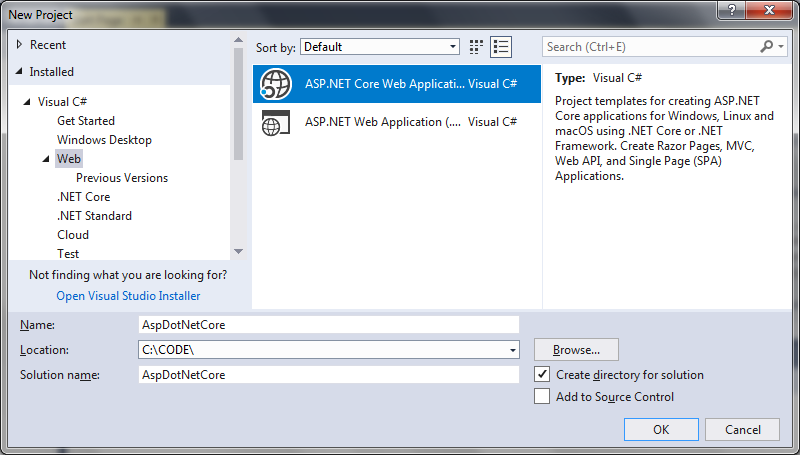 Select Empty project:
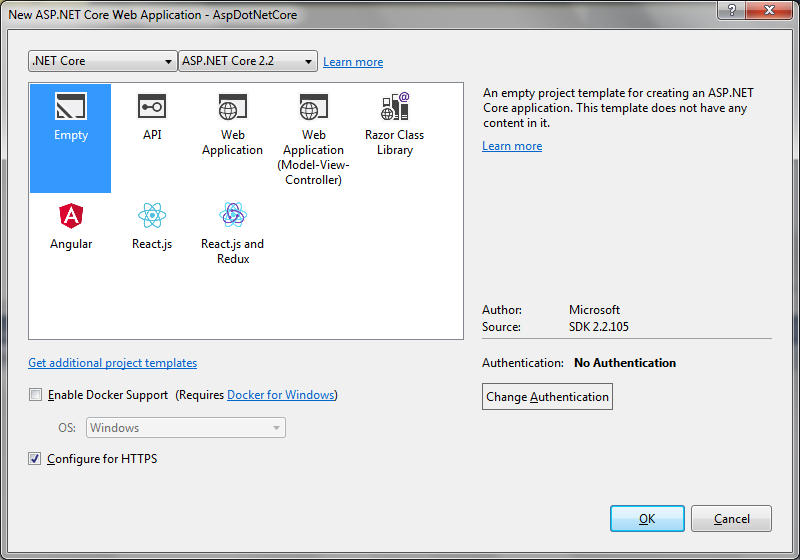 Click OK.
Step 2: Add Microsoft.AspNetCore.StaticFiles via NuGet
Right click on Dependencies and select Manage NuGet Packages:
Click OK.
Step 2: Add Microsoft.AspNetCore.StaticFiles via NuGet
Right click on Dependencies and select Manage NuGet Packages:
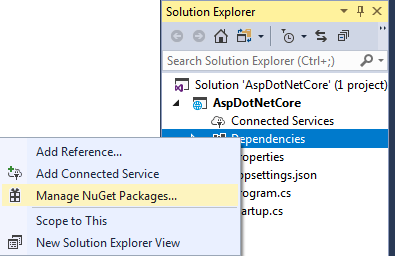 Select Browse and search for 'Microsoft.AspNetCore.StaticFiles':
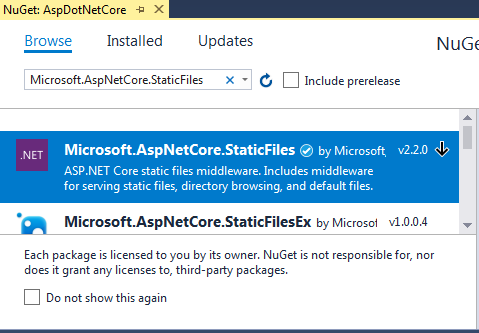 Select this item and click Install.
Step 3: Add a scripts folder for TypeScript
First update the body of Configure in Startup.cs file as shown:
Startup.cs
[code language="csharp"]
using Microsoft.AspNetCore.Builder;
using Microsoft.Extensions.DependencyInjection;
namespace AspDotNetCore
{
public class Startup
{
// This method gets called by the runtime. Use this method to add services to the container.
// For more information on how to configure your application, visit https://go.microsoft.com/fwlink/?LinkID=398940
public void ConfigureServices(IServiceCollection services)
{
}
// This method gets called by the runtime. Use this method to configure the HTTP request pipeline.
public void Configure(IApplicationBuilder app)
{
app.UseDefaultFiles();
app.UseStaticFiles();
}
}
}
[/code]
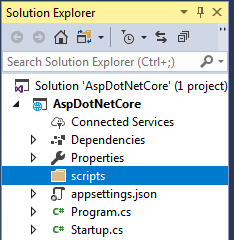
Right click on the project, select Add > New Folder.
Rename it to scripts:
Select this item and click Install.
Step 3: Add a scripts folder for TypeScript
First update the body of Configure in Startup.cs file as shown:
Startup.cs
[code language="csharp"]
using Microsoft.AspNetCore.Builder;
using Microsoft.Extensions.DependencyInjection;
namespace AspDotNetCore
{
public class Startup
{
// This method gets called by the runtime. Use this method to add services to the container.
// For more information on how to configure your application, visit https://go.microsoft.com/fwlink/?LinkID=398940
public void ConfigureServices(IServiceCollection services)
{
}
// This method gets called by the runtime. Use this method to configure the HTTP request pipeline.
public void Configure(IApplicationBuilder app)
{
app.UseDefaultFiles();
app.UseStaticFiles();
}
}
}
[/code]
Right click on the project, select Add > New Folder.
Rename it to scripts:
 Right click on scripts and select Add > New Item.
Choose TypeScript File (it may be in the .NET Core section) and name the file app.ts.
Right click on scripts and select Add > New Item.
Choose TypeScript File (it may be in the .NET Core section) and name the file app.ts.
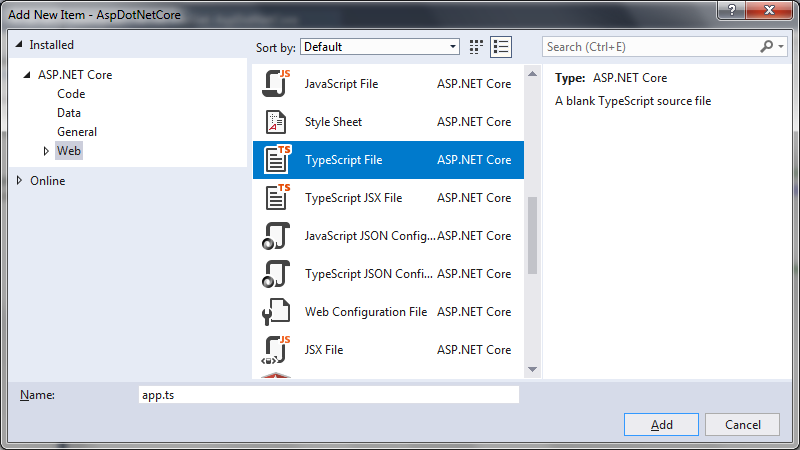 Type the following code into app.ts.
app.ts
[code language="js"]
function sayHello() {
const compiler = (document.getElementById("compiler") as HTMLInputElement).value;
const framework = (document.getElementById("framework") as HTMLInputElement).value;
return `Hello from ${compiler} and ${framework}!`;
}
[/code]
Step 4: Configure the TypeScript compiler
We need to configure TypeScript on how to build.
Right click on the scripts folder and click Add > New Item. Choose TypeScript Configuration File and use the default name tsconfig.json:
Type the following code into app.ts.
app.ts
[code language="js"]
function sayHello() {
const compiler = (document.getElementById("compiler") as HTMLInputElement).value;
const framework = (document.getElementById("framework") as HTMLInputElement).value;
return `Hello from ${compiler} and ${framework}!`;
}
[/code]
Step 4: Configure the TypeScript compiler
We need to configure TypeScript on how to build.
Right click on the scripts folder and click Add > New Item. Choose TypeScript Configuration File and use the default name tsconfig.json:
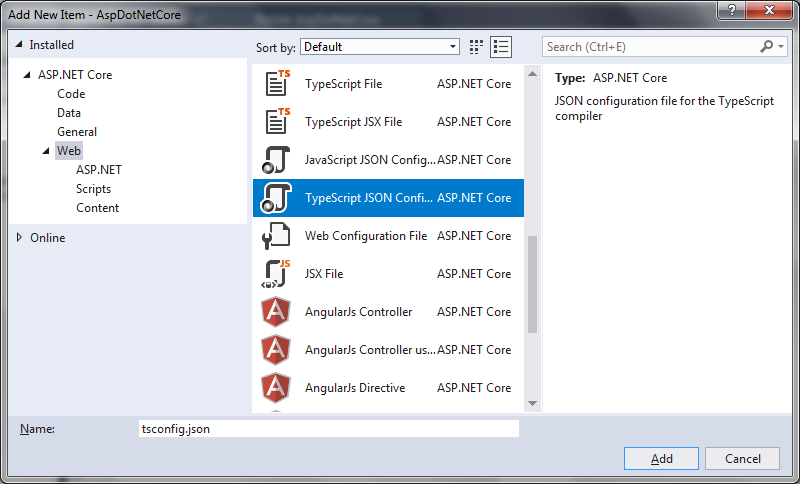 Replace the default tsconfig.json with the following:
tsconfig.json
[code language="js"]
{
"compilerOptions": {
"noImplicitAny": true,
"noEmitOnError": true,
"sourceMap": true,
"target": "es5"
},
"files": [
"./app.ts"
],
"compileOnSave": true
}
[/code]
Step 5: Set up NPM
Set up NPM so we can download JavaScript packages.
Right click on the project and click Add > New Item.
Choose NPM Configuration File and use the default name package.json:
Replace the default tsconfig.json with the following:
tsconfig.json
[code language="js"]
{
"compilerOptions": {
"noImplicitAny": true,
"noEmitOnError": true,
"sourceMap": true,
"target": "es5"
},
"files": [
"./app.ts"
],
"compileOnSave": true
}
[/code]
Step 5: Set up NPM
Set up NPM so we can download JavaScript packages.
Right click on the project and click Add > New Item.
Choose NPM Configuration File and use the default name package.json:
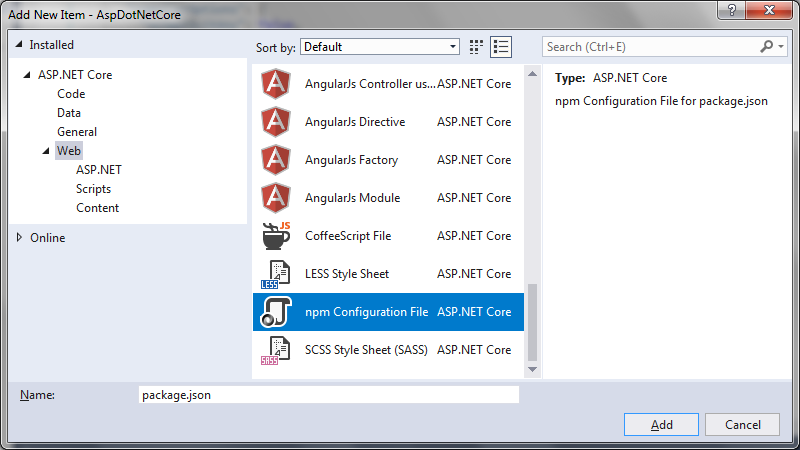 Inside "devDependencies" add “gulp” and “del”:
package.json
[code language="xml"]
{
"version": "1.0.0",
"name": "asp.net",
"private": true,
"devDependencies": {
"gulp": "3.9.0",
"del": "2.2.0"
}
}
[/code]
Visual Studio should start installing gulp and del as soon as you save the file. If not, right-click package.json and then Restore Packages.
Step 6: Set up gulp
Right click on the project and select Add > New item. Select a Javascript file and name it as gulpfile.js.
Put the following code inside. The first line tells Visual Studio to run the task ‘default’ after the build finishes. It will also run the ‘clean’ task when you ask Visual Studio to clean the build.
gulpfile.js
[code language="js"]
/// <binding AfterBuild='default' Clean='clean' />
/*
This file is the main entry point for defining Gulp tasks and using Gulp plugins.
Click here to learn more. http://go.microsoft.com/fwlink/?LinkId=518007
*/
var gulp = require('gulp');
var del = require('del');
var paths = {
scripts: ['scripts/**/*.js', 'scripts/**/*.ts', 'scripts/**/*.map'],
};
gulp.task('clean', function () {
return del(['wwwroot/scripts/**/*']);
});
gulp.task('default', function () {
gulp.src(paths.scripts).pipe(gulp.dest('wwwroot/scripts'))
});
[/code]
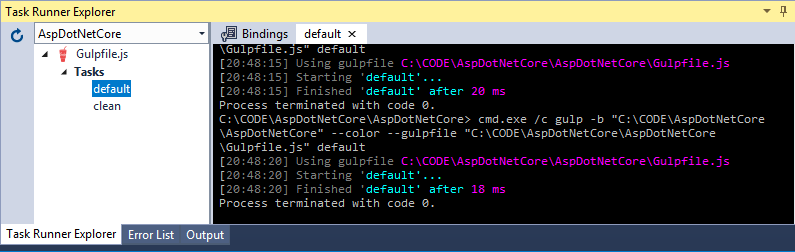
Right-click on gulpfile.js and click Task Runner Explorer. If ‘default’ and ‘clean’ tasks don’t show up, refresh the explorer:
Inside "devDependencies" add “gulp” and “del”:
package.json
[code language="xml"]
{
"version": "1.0.0",
"name": "asp.net",
"private": true,
"devDependencies": {
"gulp": "3.9.0",
"del": "2.2.0"
}
}
[/code]
Visual Studio should start installing gulp and del as soon as you save the file. If not, right-click package.json and then Restore Packages.
Step 6: Set up gulp
Right click on the project and select Add > New item. Select a Javascript file and name it as gulpfile.js.
Put the following code inside. The first line tells Visual Studio to run the task ‘default’ after the build finishes. It will also run the ‘clean’ task when you ask Visual Studio to clean the build.
gulpfile.js
[code language="js"]
/// <binding AfterBuild='default' Clean='clean' />
/*
This file is the main entry point for defining Gulp tasks and using Gulp plugins.
Click here to learn more. http://go.microsoft.com/fwlink/?LinkId=518007
*/
var gulp = require('gulp');
var del = require('del');
var paths = {
scripts: ['scripts/**/*.js', 'scripts/**/*.ts', 'scripts/**/*.map'],
};
gulp.task('clean', function () {
return del(['wwwroot/scripts/**/*']);
});
gulp.task('default', function () {
gulp.src(paths.scripts).pipe(gulp.dest('wwwroot/scripts'))
});
[/code]
Right-click on gulpfile.js and click Task Runner Explorer. If ‘default’ and ‘clean’ tasks don’t show up, refresh the explorer:
 Step 7: Write an HTML page
Write click on the project item called wwwroot and add a New Item named index.html.
Use the following code for index.html:
index.html
[code language="html"]
<!DOCTYPE html>
<html>
<head>
<meta charset="utf-8" />
<script src="scripts/app.js"></script>
<title></title>
</head>
<body>
<div id="message"></div>
<div>
Compiler: <input id="compiler" value="TypeScript" onkeyup="document.getElementById('message').innerText = sayHello()" /><br />
Framework: <input id="framework" value="ASP.NET" onkeyup="document.getElementById('message').innerText = sayHello()" />
</div>
</body>
</html>
[/code]
Step 8: Run the project
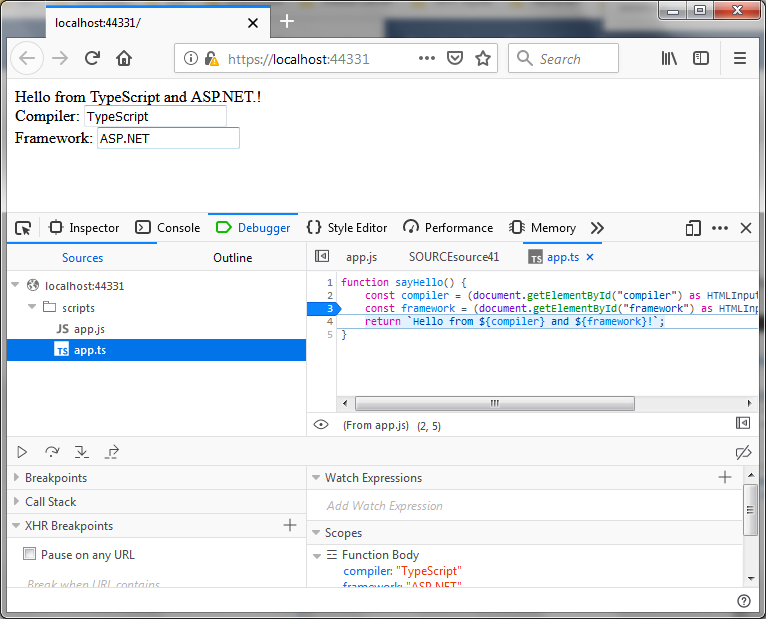
Run the project. When the browser appears you will see some text boxes as shown.
Stick a breakpoint somewhere inside scripts.app.ts.
Type something into one of the textboxes and observe that the breakpoint is hit as shown in the Firefox browser I am using:
Step 7: Write an HTML page
Write click on the project item called wwwroot and add a New Item named index.html.
Use the following code for index.html:
index.html
[code language="html"]
<!DOCTYPE html>
<html>
<head>
<meta charset="utf-8" />
<script src="scripts/app.js"></script>
<title></title>
</head>
<body>
<div id="message"></div>
<div>
Compiler: <input id="compiler" value="TypeScript" onkeyup="document.getElementById('message').innerText = sayHello()" /><br />
Framework: <input id="framework" value="ASP.NET" onkeyup="document.getElementById('message').innerText = sayHello()" />
</div>
</body>
</html>
[/code]
Step 8: Run the project
Run the project. When the browser appears you will see some text boxes as shown.
Stick a breakpoint somewhere inside scripts.app.ts.
Type something into one of the textboxes and observe that the breakpoint is hit as shown in the Firefox browser I am using:
Select Empty project:
Click OK.
Step 2: Add Microsoft.AspNetCore.StaticFiles via NuGet
Right click on Dependencies and select Manage NuGet Packages:
Select Browse and search for 'Microsoft.AspNetCore.StaticFiles':
Select this item and click Install.
Step 3: Add a scripts folder for TypeScript
First update the body of Configure in Startup.cs file as shown:
Startup.cs
[code language="csharp"]
using Microsoft.AspNetCore.Builder;
using Microsoft.Extensions.DependencyInjection;
namespace AspDotNetCore
{
public class Startup
{
// This method gets called by the runtime. Use this method to add services to the container.
// For more information on how to configure your application, visit https://go.microsoft.com/fwlink/?LinkID=398940
public void ConfigureServices(IServiceCollection services)
{
}
// This method gets called by the runtime. Use this method to configure the HTTP request pipeline.
public void Configure(IApplicationBuilder app)
{
app.UseDefaultFiles();
app.UseStaticFiles();
}
}
}
[/code]
Right click on the project, select Add > New Folder.
Rename it to scripts:
Right click on scripts and select Add > New Item.
Choose TypeScript File (it may be in the .NET Core section) and name the file app.ts.
Type the following code into app.ts.
app.ts
[code language="js"]
function sayHello() {
const compiler = (document.getElementById("compiler") as HTMLInputElement).value;
const framework = (document.getElementById("framework") as HTMLInputElement).value;
return `Hello from ${compiler} and ${framework}!`;
}
[/code]
Step 4: Configure the TypeScript compiler
We need to configure TypeScript on how to build.
Right click on the scripts folder and click Add > New Item. Choose TypeScript Configuration File and use the default name tsconfig.json:
Replace the default tsconfig.json with the following:
tsconfig.json
[code language="js"]
{
"compilerOptions": {
"noImplicitAny": true,
"noEmitOnError": true,
"sourceMap": true,
"target": "es5"
},
"files": [
"./app.ts"
],
"compileOnSave": true
}
[/code]
Step 5: Set up NPM
Set up NPM so we can download JavaScript packages.
Right click on the project and click Add > New Item.
Choose NPM Configuration File and use the default name package.json:
Inside "devDependencies" add “gulp” and “del”:
package.json
[code language="xml"]
{
"version": "1.0.0",
"name": "asp.net",
"private": true,
"devDependencies": {
"gulp": "3.9.0",
"del": "2.2.0"
}
}
[/code]
Visual Studio should start installing gulp and del as soon as you save the file. If not, right-click package.json and then Restore Packages.
Step 6: Set up gulp
Right click on the project and select Add > New item. Select a Javascript file and name it as gulpfile.js.
Put the following code inside. The first line tells Visual Studio to run the task ‘default’ after the build finishes. It will also run the ‘clean’ task when you ask Visual Studio to clean the build.
gulpfile.js
[code language="js"]
/// <binding AfterBuild='default' Clean='clean' />
/*
This file is the main entry point for defining Gulp tasks and using Gulp plugins.
Click here to learn more. http://go.microsoft.com/fwlink/?LinkId=518007
*/
var gulp = require('gulp');
var del = require('del');
var paths = {
scripts: ['scripts/**/*.js', 'scripts/**/*.ts', 'scripts/**/*.map'],
};
gulp.task('clean', function () {
return del(['wwwroot/scripts/**/*']);
});
gulp.task('default', function () {
gulp.src(paths.scripts).pipe(gulp.dest('wwwroot/scripts'))
});
[/code]
Right-click on gulpfile.js and click Task Runner Explorer. If ‘default’ and ‘clean’ tasks don’t show up, refresh the explorer:
Step 7: Write an HTML page
Write click on the project item called wwwroot and add a New Item named index.html.
Use the following code for index.html:
index.html
[code language="html"]
<!DOCTYPE html>
<html>
<head>
<meta charset="utf-8" />
<script src="scripts/app.js"></script>
<title></title>
</head>
<body>
<div id="message"></div>
<div>
Compiler: <input id="compiler" value="TypeScript" onkeyup="document.getElementById('message').innerText = sayHello()" /><br />
Framework: <input id="framework" value="ASP.NET" onkeyup="document.getElementById('message').innerText = sayHello()" />
</div>
</body>
</html>
[/code]
Step 8: Run the project
Run the project. When the browser appears you will see some text boxes as shown.
Stick a breakpoint somewhere inside scripts.app.ts.
Type something into one of the textboxes and observe that the breakpoint is hit as shown in the Firefox browser I am using:


Comments
Post a Comment