How to use alternate portrait and landscape orientations in a Word document
Some instructions on how to use alternate portrait and landscape orientations in a Word document.
Just as a simple illustration: suppose we want to configure a 3-page Word document to have a first page with portrait-style orientation, followed by a second page with landscape orientation and then a third page that is in portrait mode once again.
So our Word document is currently structured as follows:
Page 1
Contains some text that is easily accommodated by the portrait page orientation:
[caption id="attachment_8840" align="alignnone" width="713"]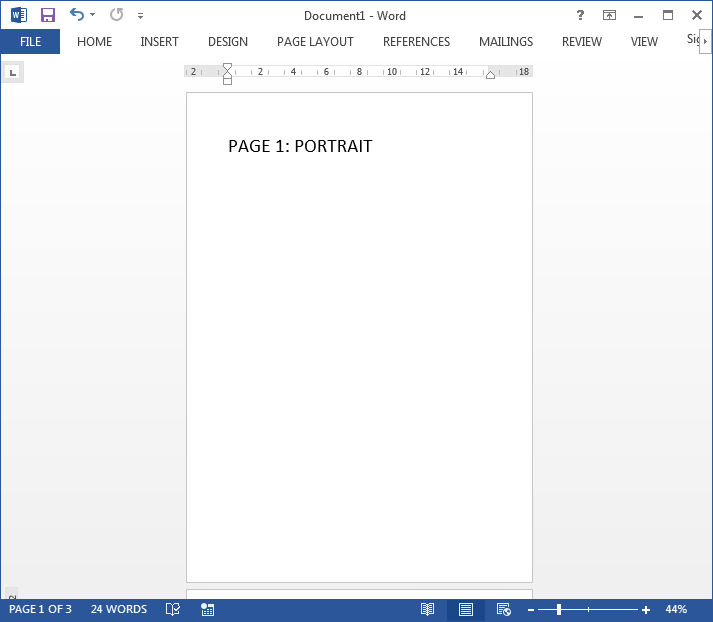 portrait and landscape[/caption]
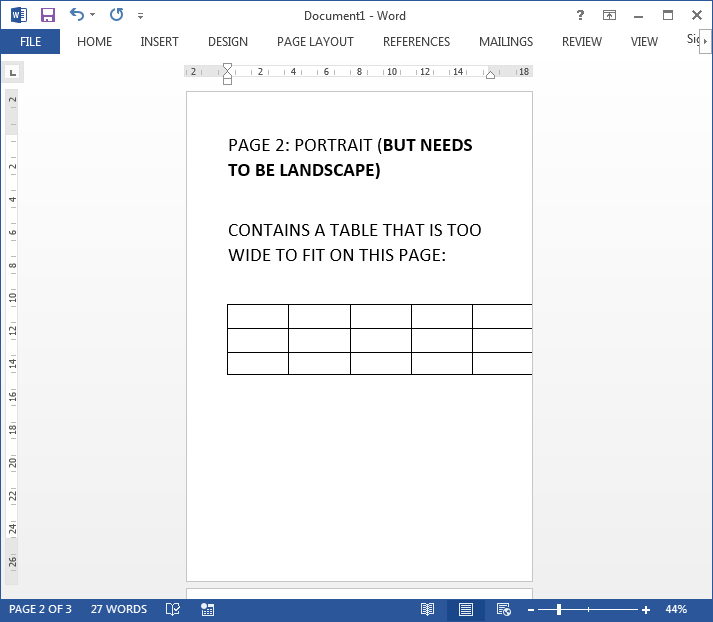
Page 2
Contains text plus a table that is too wide to fit on a page with portrait orientation.
This page (and only this page) we wish to change to landscape orientation in order to fit the table:
portrait and landscape[/caption]
Page 2
Contains text plus a table that is too wide to fit on a page with portrait orientation.
This page (and only this page) we wish to change to landscape orientation in order to fit the table:
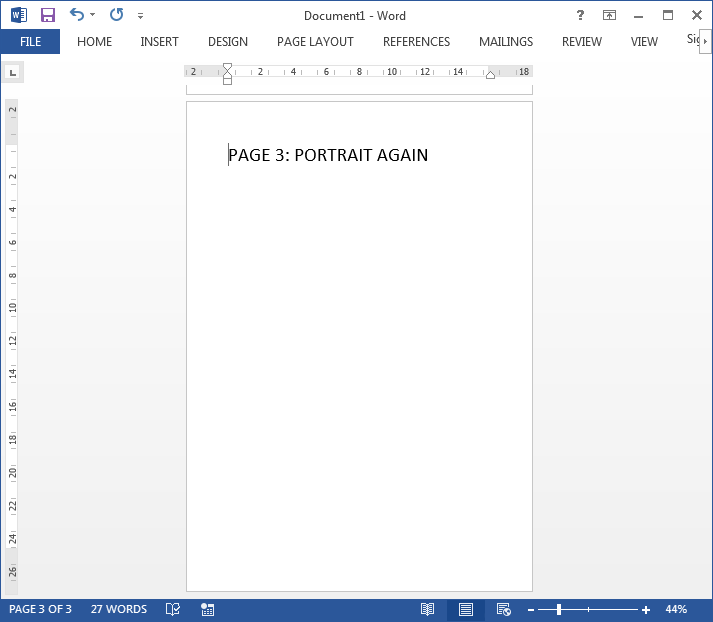
 Page 3
And the third page that we wish to keep as portrait again:
Page 3
And the third page that we wish to keep as portrait again:
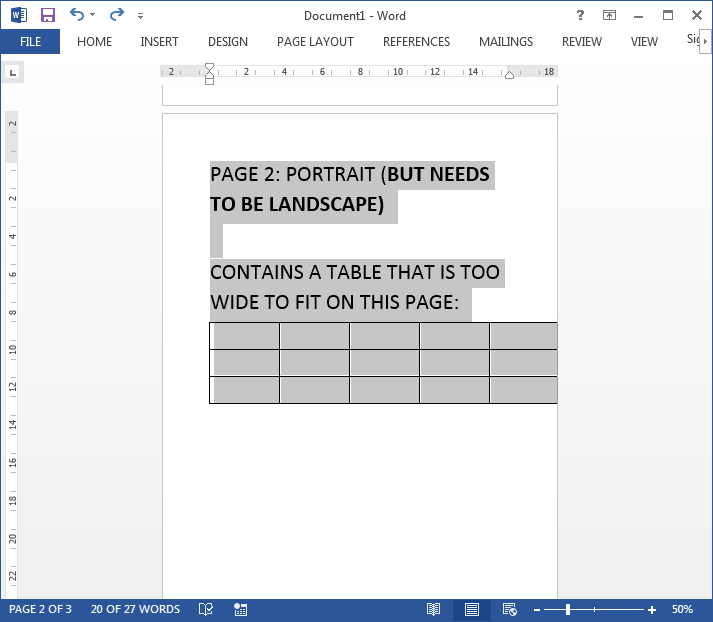
 To change page 2 to landscape without impacting pages 1 and 3, go to page 2, and select the text and table in this page:
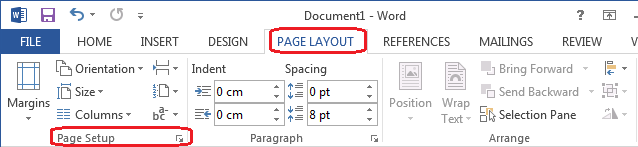
 Then select the 'Page Layout' tab, followed by the small arrow next to Page Setup:
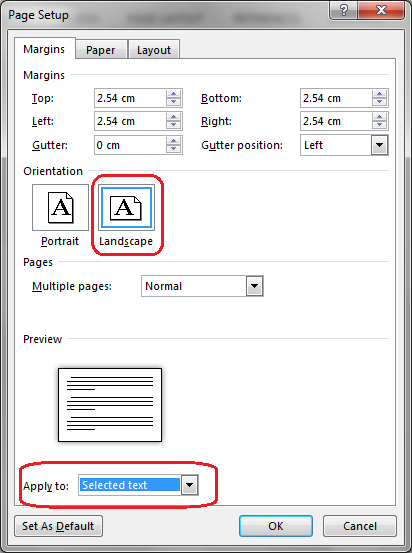
 Then in page setup make sure Landscape is selected, and also Apply to Selected Text:
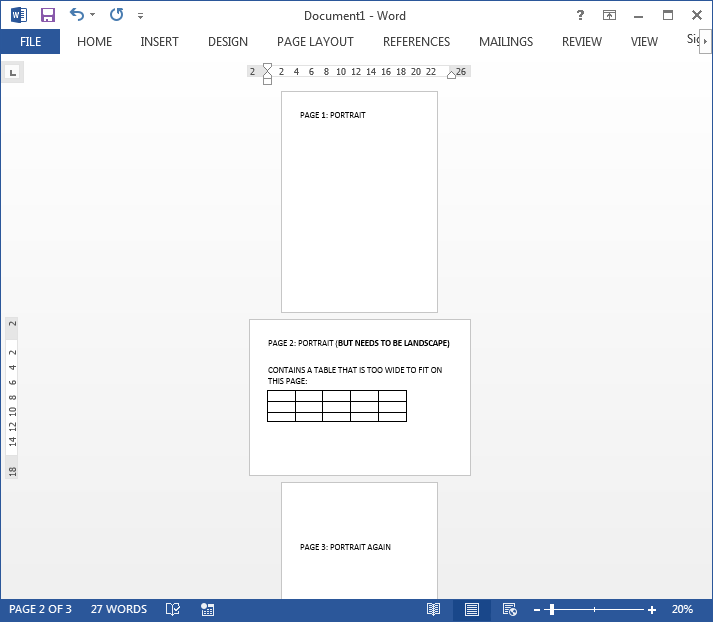
 Then click OK, so that the second page is now landscape as shown:
portrait and landscape[/caption]
Page 2
Contains text plus a table that is too wide to fit on a page with portrait orientation.
This page (and only this page) we wish to change to landscape orientation in order to fit the table:
Page 3
And the third page that we wish to keep as portrait again:
To change page 2 to landscape without impacting pages 1 and 3, go to page 2, and select the text and table in this page:
Then select the 'Page Layout' tab, followed by the small arrow next to Page Setup:
Then in page setup make sure Landscape is selected, and also Apply to Selected Text:
Then click OK, so that the second page is now landscape as shown:


Comments
Post a Comment