Getting started with SQL Server Management Studio
A few instructions on how to fire up SQL Server Management Studio (SSMS) in order to create a database, create a database table and perform various operations
Creating a new database
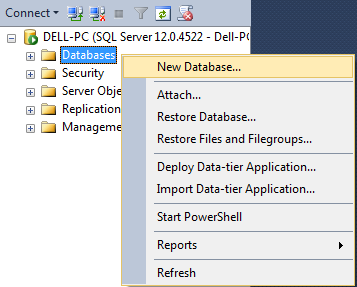
Open SSMS, right-click on Databases and select New Database...
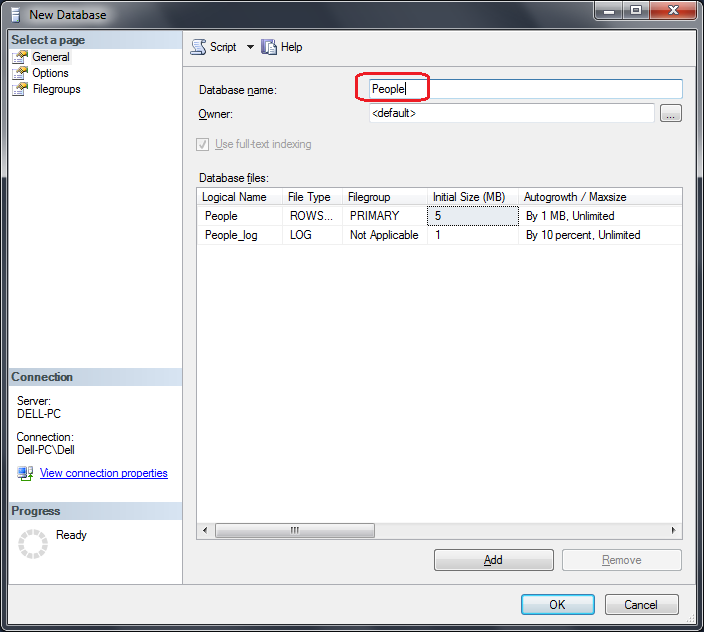
 Give the database a name ('People' in this example) and select OK:
 Creating a new database table
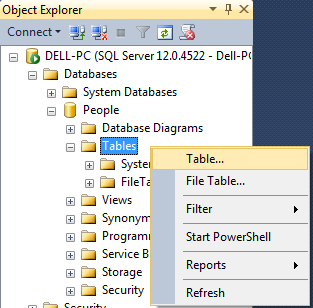
In the Object Explorer, select the database you created, right-click on Tables and select Table... (or New Table... in more recent versions of SSMS)
Creating a new database table
In the Object Explorer, select the database you created, right-click on Tables and select Table... (or New Table... in more recent versions of SSMS)
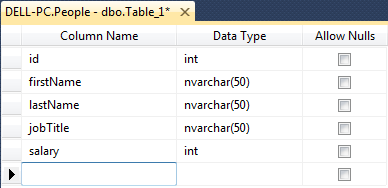
 You can fill in the column names and their data types like so
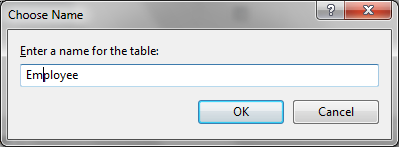
 Save the table by selecting Ctrl+S or via File > Save Table
 Making a column a primary key
Select the column (in this case the column id)
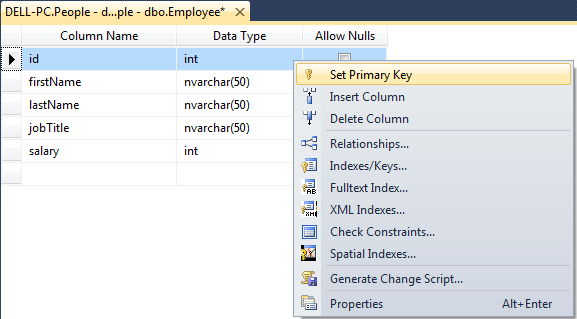
Right click and select Set Primary Key:
Making a column a primary key
Select the column (in this case the column id)
Right click and select Set Primary Key:
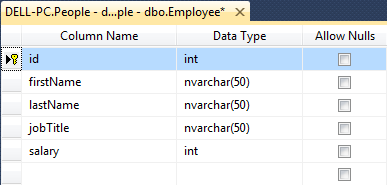
 So that the symbol for the primary key then appears in the column as shown:
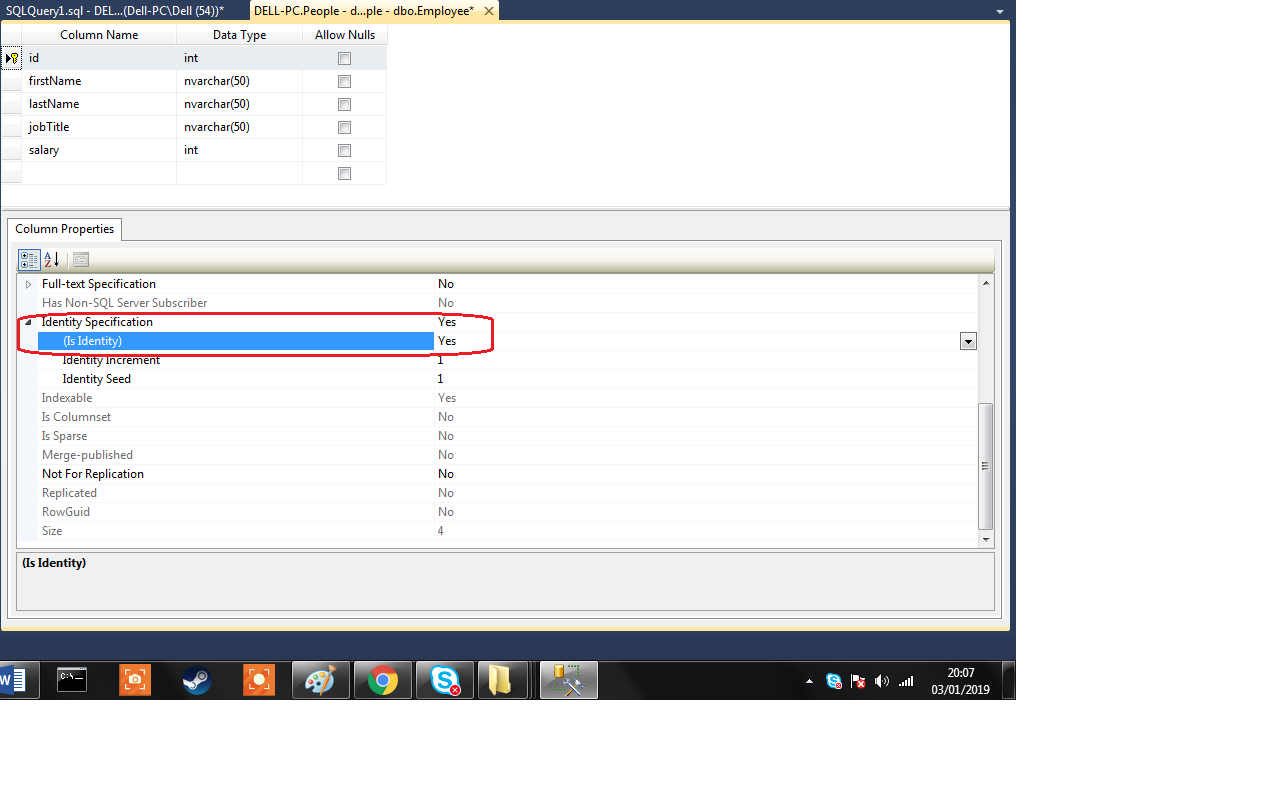
 Also make sure the column property 'Is Identity' is set to Yes for id
 Unable to modify the database table?
In some versions of SSMS, you may get an error like the following when you attempt to modify a table you have already created and saved:
"Saving changes is not permitted. The changes you have made require the following table to be dropped and re-created"
This StackOverflow link was useful:
https://stackoverflow.com/questions/4064149/cannot-modify-table-using-microsoft-sql-server-management-studio-2008
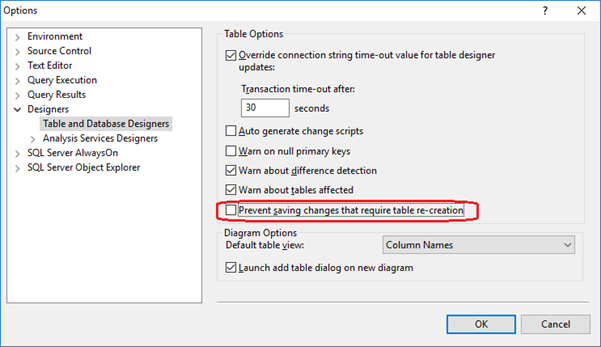
If you have this option, select select Tools -> Options -> Designers->Table and database designers and uncheck "Prevent saving changes that require table re-creation"
Unable to modify the database table?
In some versions of SSMS, you may get an error like the following when you attempt to modify a table you have already created and saved:
"Saving changes is not permitted. The changes you have made require the following table to be dropped and re-created"
This StackOverflow link was useful:
https://stackoverflow.com/questions/4064149/cannot-modify-table-using-microsoft-sql-server-management-studio-2008
If you have this option, select select Tools -> Options -> Designers->Table and database designers and uncheck "Prevent saving changes that require table re-creation"
 Inserting new row into a table
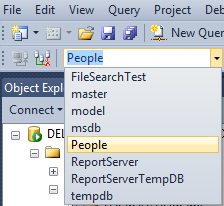
Make sure the 'People' database is selected in the drop down list:
Inserting new row into a table
Make sure the 'People' database is selected in the drop down list:
 For example, the Employee table created earlier. Select New Query and enter the following SQL script into the text editor:
[code language="sql"]
insert into Employee(firstName, lastName, title, salary)
values ('Jeff', 'Jones', 'Plumber', '30000');
[/code]
Simply repeat to create more entries
Modifying an existing row in a table
[code language="sql"]
update Employee
set jobTitle = 'Painter'
where firstName = 'Henry' and lastName = 'Webb'
[/code]
Using Group by
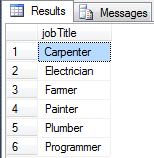
To obtain the unique groups of job titles:
[code language="sql"]
select jobTitle from Employee
group by jobTitle
[/code]
Returns the unique list of professions as shown:
For example, the Employee table created earlier. Select New Query and enter the following SQL script into the text editor:
[code language="sql"]
insert into Employee(firstName, lastName, title, salary)
values ('Jeff', 'Jones', 'Plumber', '30000');
[/code]
Simply repeat to create more entries
Modifying an existing row in a table
[code language="sql"]
update Employee
set jobTitle = 'Painter'
where firstName = 'Henry' and lastName = 'Webb'
[/code]
Using Group by
To obtain the unique groups of job titles:
[code language="sql"]
select jobTitle from Employee
group by jobTitle
[/code]
Returns the unique list of professions as shown:
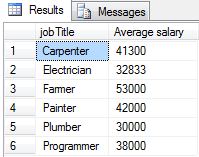
 using group by to get the average salary, grouped by job title:
[code language="sql"]
select jobTitle, AVG(salary) as 'Average salary'
from Employee
group by jobTitle
[/code]
Giving average salaries per job title as shown:
using group by to get the average salary, grouped by job title:
[code language="sql"]
select jobTitle, AVG(salary) as 'Average salary'
from Employee
group by jobTitle
[/code]
Giving average salaries per job title as shown:
Give the database a name ('People' in this example) and select OK:
Creating a new database table
In the Object Explorer, select the database you created, right-click on Tables and select Table... (or New Table... in more recent versions of SSMS)
You can fill in the column names and their data types like so
Save the table by selecting Ctrl+S or via File > Save Table
Making a column a primary key
Select the column (in this case the column id)
Right click and select Set Primary Key:
So that the symbol for the primary key then appears in the column as shown:
Also make sure the column property 'Is Identity' is set to Yes for id
Unable to modify the database table?
In some versions of SSMS, you may get an error like the following when you attempt to modify a table you have already created and saved:
"Saving changes is not permitted. The changes you have made require the following table to be dropped and re-created"
This StackOverflow link was useful:
https://stackoverflow.com/questions/4064149/cannot-modify-table-using-microsoft-sql-server-management-studio-2008
If you have this option, select select Tools -> Options -> Designers->Table and database designers and uncheck "Prevent saving changes that require table re-creation"
Inserting new row into a table
Make sure the 'People' database is selected in the drop down list:
For example, the Employee table created earlier. Select New Query and enter the following SQL script into the text editor:
[code language="sql"]
insert into Employee(firstName, lastName, title, salary)
values ('Jeff', 'Jones', 'Plumber', '30000');
[/code]
Simply repeat to create more entries
Modifying an existing row in a table
[code language="sql"]
update Employee
set jobTitle = 'Painter'
where firstName = 'Henry' and lastName = 'Webb'
[/code]
Using Group by
To obtain the unique groups of job titles:
[code language="sql"]
select jobTitle from Employee
group by jobTitle
[/code]
Returns the unique list of professions as shown:
using group by to get the average salary, grouped by job title:
[code language="sql"]
select jobTitle, AVG(salary) as 'Average salary'
from Employee
group by jobTitle
[/code]
Giving average salaries per job title as shown:


Comments
Post a Comment