How to remove lines containing specific text in Notepad++ using the Bookmarks method
How to use Notepad++ to remove all lines containing a specific text.
First install Notepad++ if you have not already done so, given that it really is a powerful piece of software:
https://notepad-plus-plus.org/download/
Now we can demonstrate an example with the following XML-style text:
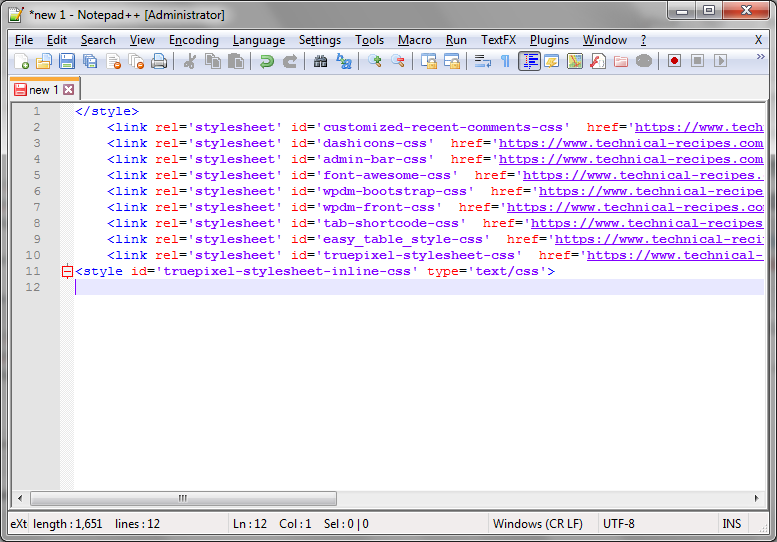 Suppose we wish to remove all lines containing the text "wpdm"
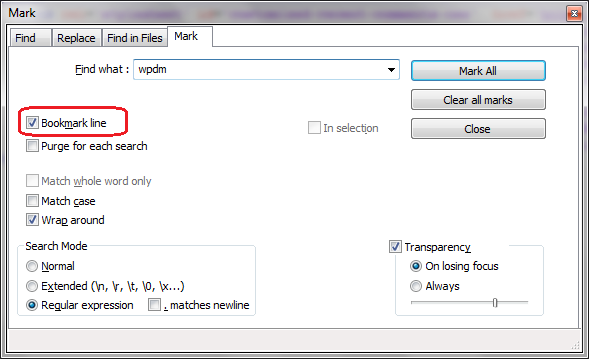
To do this select Control+F to fire up the Find dialog. Select the Mark tab, enter the text you wish to search for and make sure the Bookmark line checkbox is set:
Suppose we wish to remove all lines containing the text "wpdm"
To do this select Control+F to fire up the Find dialog. Select the Mark tab, enter the text you wish to search for and make sure the Bookmark line checkbox is set:
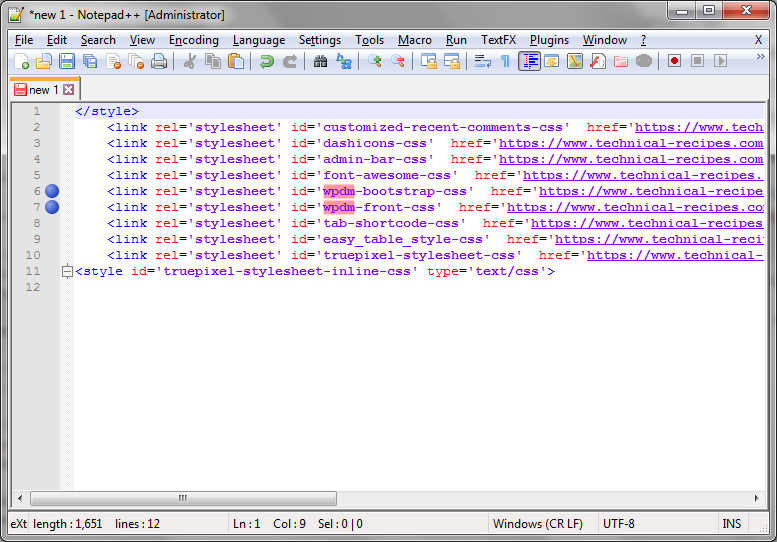
 Select the Mark all button and close the dialog. Observe that all lines containing "wpdm" are bookmarked:
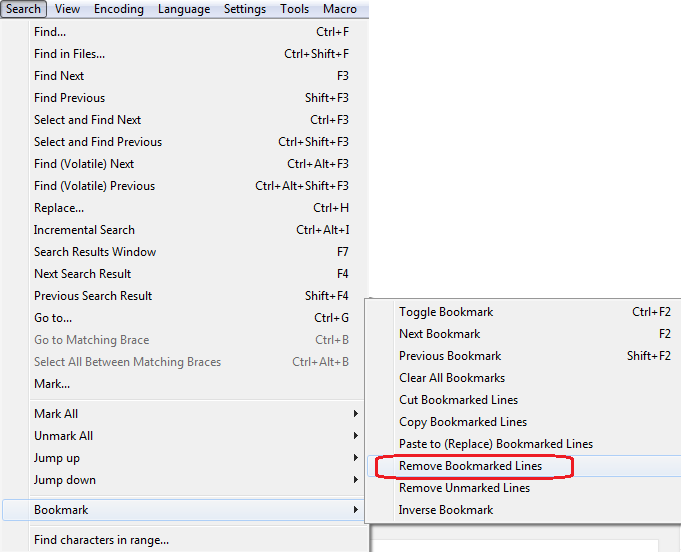
 To remove the bookmarked lines, select Search > Bookmarks > Remove bookmarked lines:
 So that the bookmarked lines are removed as shown:
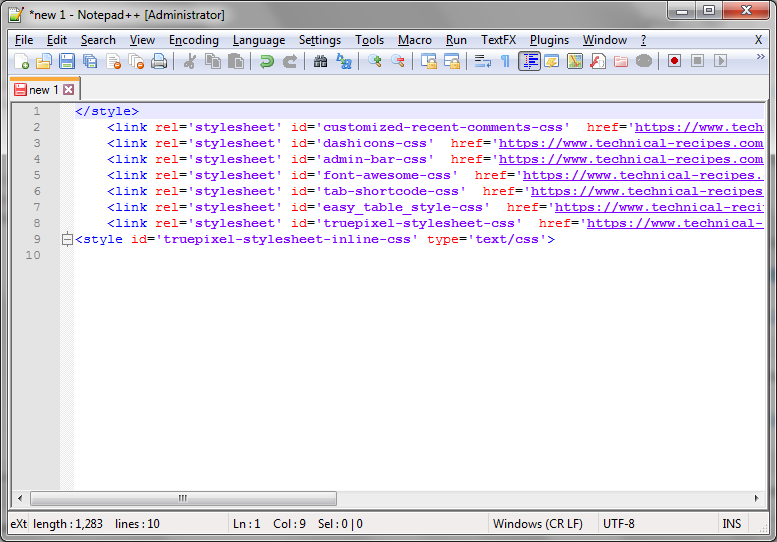
Suppose we wish to remove all lines containing the text "wpdm"
To do this select Control+F to fire up the Find dialog. Select the Mark tab, enter the text you wish to search for and make sure the Bookmark line checkbox is set:
Select the Mark all button and close the dialog. Observe that all lines containing "wpdm" are bookmarked:
To remove the bookmarked lines, select Search > Bookmarks > Remove bookmarked lines:
So that the bookmarked lines are removed as shown:


Comments
Post a Comment