How to use Parallel.For in a progress bar in WPF
This post shows how performance improvements are obtainable by replacing the use of a traditional 'for' loop with Parallel.For, part of the Task Parallel Library (TPL).
Step 1: Create a new Visual Studio WPF application
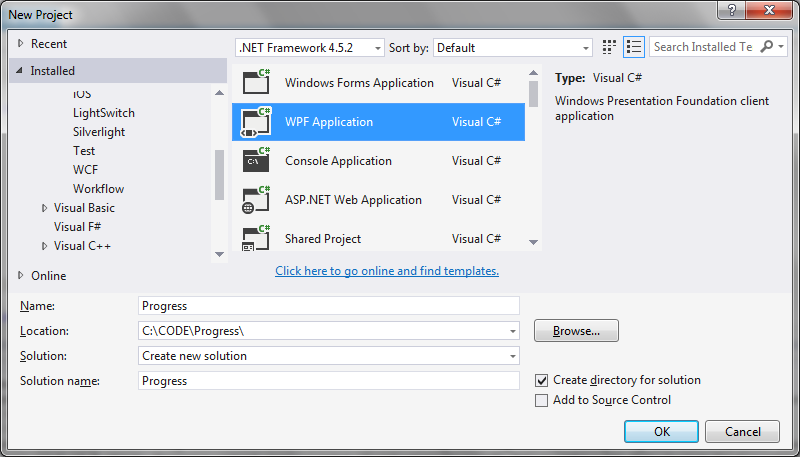 Step 2: Add event handling classes
These are classes to enable us to bind a command of a button for example. To do this you need to bind a property that is an implementation of an ICommand.
RelayCommand.cs
[code language="csharp"]
using System;
using System.Windows.Input;
namespace Progress
{
public class RelayCommand<T> : ICommand
{
private readonly Predicate<T> _canExecute;
private readonly Action<T> _execute;
public RelayCommand(Action<T> execute)
: this(execute, null)
{
_execute = execute;
}
public RelayCommand(Action<T> execute, Predicate<T> canExecute)
{
if (execute == null)
throw new ArgumentNullException("execute");
_execute = execute;
_canExecute = canExecute;
}
public bool CanExecute(object parameter)
{
return _canExecute == null || _canExecute((T) parameter);
}
public void Execute(object parameter)
{
_execute((T) parameter);
}
public event EventHandler CanExecuteChanged
{
add { CommandManager.RequerySuggested += value; }
remove { CommandManager.RequerySuggested -= value; }
}
}
public class RelayCommand : ICommand
{
private readonly Predicate<object> _canExecute;
private readonly Action<object> _execute;
public RelayCommand(Action<object> execute)
: this(execute, null)
{
_execute = execute;
}
public RelayCommand(Action<object> execute, Predicate<object> canExecute)
{
if (execute == null)
throw new ArgumentNullException("execute");
_execute = execute;
_canExecute = canExecute;
}
public bool CanExecute(object parameter)
{
return _canExecute == null || _canExecute(parameter);
}
public void Execute(object parameter)
{
_execute(parameter);
}
// Ensures WPF commanding infrastructure asks all RelayCommand objects whether their
// associated views should be enabled whenever a command is invoked
public event EventHandler CanExecuteChanged
{
add
{
CommandManager.RequerySuggested += value;
CanExecuteChangedInternal += value;
}
remove
{
CommandManager.RequerySuggested -= value;
CanExecuteChangedInternal -= value;
}
}
private event EventHandler CanExecuteChangedInternal;
public void RaiseCanExecuteChanged()
{
CanExecuteChangedInternal.Raise(this);
}
}
}
[/code]
EventArgs.cs
[code language="csharp"]
using System;
namespace Progress
{
public class EventArgs<T> : EventArgs
{
public EventArgs(T value)
{
Value = value;
}
public T Value { get; }
}
}
[/code]
EventRaiser.cs
[code language="csharp"]
using System;
namespace Progress
{
public static class EventRaiser
{
public static void Raise(this EventHandler handler, object sender)
{
if (handler != null)
handler(sender, EventArgs.Empty);
}
public static void Raise<T>(this EventHandler<EventArgs<T>> handler, object sender, T value)
{
if (handler != null)
handler(sender, new EventArgs<T>(value));
}
public static void Raise<T>(this EventHandler<T> handler, object sender, T value) where T : EventArgs
{
if (handler != null)
handler(sender, value);
}
public static void Raise<T>(this EventHandler<EventArgs<T>> handler, object sender, EventArgs<T> value)
{
if (handler != null)
handler(sender, value);
}
}
}
[/code]
Step 3: Create the user interface
To demonstrate use of the Parallel.For I use an interface with a progress bar which displays the percentage of a task to perform a certain number of file related operations. The task is started and paused by means of the button control below it.
XAML code shown below, we will get to the control bindings a little later.
MainWindow.xaml
[code language="xml"]
<Window x:Class="Progress.MainWindow"
xmlns="http://schemas.microsoft.com/winfx/2006/xaml/presentation"
xmlns:x="http://schemas.microsoft.com/winfx/2006/xaml"
xmlns:d="http://schemas.microsoft.com/expression/blend/2008"
xmlns:mc="http://schemas.openxmlformats.org/markup-compatibility/2006"
xmlns:progress="clr-namespace:Progress"
mc:Ignorable="d"
Title="MainWindow" Height="350" Width="525">
<Window.DataContext>
<progress:MainWindowViewModel></progress:MainWindowViewModel>
</Window.DataContext>
<Grid >
<Grid.RowDefinitions>
<RowDefinition Height="*" />
<RowDefinition Height="*" />
</Grid.RowDefinitions>
<ProgressBar
Value="{Binding CurrentProgress, Mode=OneWay}"
Visibility="Visible"
VerticalAlignment="Center"
Grid.Row="0"
Height="60" Width="300"
Minimum="0" Maximum="100"
Name="pbStatus" />
<Button
Grid.Row="1"
Width="150" Height="50"
Command="{Binding Command}"
Content="{Binding ButtonLabel}"/>
</Grid>
</Window>
[/code]
Step 4: Create the view model class
As per the MVVM design pattern
[code language="csharp"]
using System.ComponentModel;
using System.Diagnostics;
using System.Drawing;
using System.IO;
using System.Threading.Tasks;
using System.Windows.Input;
namespace Progress
{
public class MainWindowViewModel : BaseViewModel
{
private static int _counter = 0;
private static bool _isRunning;
private string _buttonLabel;
private ICommand _command;
private int currentProgress;
private readonly BackgroundWorker _worker = new BackgroundWorker();
public MainWindowViewModel()
{
_worker.DoWork += DoWork;
_worker.ProgressChanged += ProgressChanged;
_worker.WorkerReportsProgress = true;
_worker.WorkerSupportsCancellation = true;
CurrentProgress = 0;
_isRunning = true;
ButtonLabel = "GO";
}
public ICommand Command
{
get
{
return _command ?? (_command = new RelayCommand(x =>
{
_isRunning = !_isRunning;
if (!_isRunning)
DoStuff();
else
ButtonLabel = "PAUSED";
}));
}
}
public int CurrentProgress
{
get { return currentProgress; }
private set
{
if (currentProgress != value)
{
currentProgress = value;
OnPropertyChanged("CurrentProgress");
}
}
}
public string ButtonLabel
{
get { return _buttonLabel; }
private set
{
if (_buttonLabel != value)
{
_buttonLabel = value;
OnPropertyChanged("ButtonLabel");
}
}
}
private void ProgressChanged(object sender, ProgressChangedEventArgs e)
{
CurrentProgress = e.ProgressPercentage;
}
private void DoWork(object sender, DoWorkEventArgs e)
{
// A simple source for demonstration purposes. Modify this path as necessary.
var files = Directory.GetFiles(@"c:\dump\100", "*.jpg");
var totalFiles = files.Length;
const string newDir = @"C:\dump\100flipped";
Directory.CreateDirectory(newDir);
CurrentProgress = 0;
var countLock = new object();
var time = Stopwatch.StartNew();
Parallel.For(_counter, files.Length, (i, state) => {
if (_isRunning)
{
state.Break();
}
var currentFile = files[i];
// The more computational work you do here, the greater
// the speedup compared to a sequential foreach loop.
DoTheWork(currentFile, newDir);
_counter++;
var percentage = (double)_counter / totalFiles * 100.0;
lock (countLock) { _worker?.ReportProgress((int)percentage); }
});
time.Stop();
var milliseconds = time.ElapsedMilliseconds;
_isRunning = true;
}
private void DoTheWork(string currentFile, string newDir)
{
var filename = Path.GetFileName(currentFile);
var bitmap = new Bitmap(currentFile);
bitmap.RotateFlip(RotateFlipType.Rotate180FlipNone);
if (filename == null) return;
bitmap.Save(Path.Combine(newDir, filename));
}
private void DoStuff()
{
ButtonLabel = "GO";
object countLock = new object();
lock (countLock)
{
_worker.RunWorkerAsync();
}
}
}
}
[/code]
On running see that the progress is updated as the operation progresses:
Step 2: Add event handling classes
These are classes to enable us to bind a command of a button for example. To do this you need to bind a property that is an implementation of an ICommand.
RelayCommand.cs
[code language="csharp"]
using System;
using System.Windows.Input;
namespace Progress
{
public class RelayCommand<T> : ICommand
{
private readonly Predicate<T> _canExecute;
private readonly Action<T> _execute;
public RelayCommand(Action<T> execute)
: this(execute, null)
{
_execute = execute;
}
public RelayCommand(Action<T> execute, Predicate<T> canExecute)
{
if (execute == null)
throw new ArgumentNullException("execute");
_execute = execute;
_canExecute = canExecute;
}
public bool CanExecute(object parameter)
{
return _canExecute == null || _canExecute((T) parameter);
}
public void Execute(object parameter)
{
_execute((T) parameter);
}
public event EventHandler CanExecuteChanged
{
add { CommandManager.RequerySuggested += value; }
remove { CommandManager.RequerySuggested -= value; }
}
}
public class RelayCommand : ICommand
{
private readonly Predicate<object> _canExecute;
private readonly Action<object> _execute;
public RelayCommand(Action<object> execute)
: this(execute, null)
{
_execute = execute;
}
public RelayCommand(Action<object> execute, Predicate<object> canExecute)
{
if (execute == null)
throw new ArgumentNullException("execute");
_execute = execute;
_canExecute = canExecute;
}
public bool CanExecute(object parameter)
{
return _canExecute == null || _canExecute(parameter);
}
public void Execute(object parameter)
{
_execute(parameter);
}
// Ensures WPF commanding infrastructure asks all RelayCommand objects whether their
// associated views should be enabled whenever a command is invoked
public event EventHandler CanExecuteChanged
{
add
{
CommandManager.RequerySuggested += value;
CanExecuteChangedInternal += value;
}
remove
{
CommandManager.RequerySuggested -= value;
CanExecuteChangedInternal -= value;
}
}
private event EventHandler CanExecuteChangedInternal;
public void RaiseCanExecuteChanged()
{
CanExecuteChangedInternal.Raise(this);
}
}
}
[/code]
EventArgs.cs
[code language="csharp"]
using System;
namespace Progress
{
public class EventArgs<T> : EventArgs
{
public EventArgs(T value)
{
Value = value;
}
public T Value { get; }
}
}
[/code]
EventRaiser.cs
[code language="csharp"]
using System;
namespace Progress
{
public static class EventRaiser
{
public static void Raise(this EventHandler handler, object sender)
{
if (handler != null)
handler(sender, EventArgs.Empty);
}
public static void Raise<T>(this EventHandler<EventArgs<T>> handler, object sender, T value)
{
if (handler != null)
handler(sender, new EventArgs<T>(value));
}
public static void Raise<T>(this EventHandler<T> handler, object sender, T value) where T : EventArgs
{
if (handler != null)
handler(sender, value);
}
public static void Raise<T>(this EventHandler<EventArgs<T>> handler, object sender, EventArgs<T> value)
{
if (handler != null)
handler(sender, value);
}
}
}
[/code]
Step 3: Create the user interface
To demonstrate use of the Parallel.For I use an interface with a progress bar which displays the percentage of a task to perform a certain number of file related operations. The task is started and paused by means of the button control below it.
XAML code shown below, we will get to the control bindings a little later.
MainWindow.xaml
[code language="xml"]
<Window x:Class="Progress.MainWindow"
xmlns="http://schemas.microsoft.com/winfx/2006/xaml/presentation"
xmlns:x="http://schemas.microsoft.com/winfx/2006/xaml"
xmlns:d="http://schemas.microsoft.com/expression/blend/2008"
xmlns:mc="http://schemas.openxmlformats.org/markup-compatibility/2006"
xmlns:progress="clr-namespace:Progress"
mc:Ignorable="d"
Title="MainWindow" Height="350" Width="525">
<Window.DataContext>
<progress:MainWindowViewModel></progress:MainWindowViewModel>
</Window.DataContext>
<Grid >
<Grid.RowDefinitions>
<RowDefinition Height="*" />
<RowDefinition Height="*" />
</Grid.RowDefinitions>
<ProgressBar
Value="{Binding CurrentProgress, Mode=OneWay}"
Visibility="Visible"
VerticalAlignment="Center"
Grid.Row="0"
Height="60" Width="300"
Minimum="0" Maximum="100"
Name="pbStatus" />
<Button
Grid.Row="1"
Width="150" Height="50"
Command="{Binding Command}"
Content="{Binding ButtonLabel}"/>
</Grid>
</Window>
[/code]
Step 4: Create the view model class
As per the MVVM design pattern
[code language="csharp"]
using System.ComponentModel;
using System.Diagnostics;
using System.Drawing;
using System.IO;
using System.Threading.Tasks;
using System.Windows.Input;
namespace Progress
{
public class MainWindowViewModel : BaseViewModel
{
private static int _counter = 0;
private static bool _isRunning;
private string _buttonLabel;
private ICommand _command;
private int currentProgress;
private readonly BackgroundWorker _worker = new BackgroundWorker();
public MainWindowViewModel()
{
_worker.DoWork += DoWork;
_worker.ProgressChanged += ProgressChanged;
_worker.WorkerReportsProgress = true;
_worker.WorkerSupportsCancellation = true;
CurrentProgress = 0;
_isRunning = true;
ButtonLabel = "GO";
}
public ICommand Command
{
get
{
return _command ?? (_command = new RelayCommand(x =>
{
_isRunning = !_isRunning;
if (!_isRunning)
DoStuff();
else
ButtonLabel = "PAUSED";
}));
}
}
public int CurrentProgress
{
get { return currentProgress; }
private set
{
if (currentProgress != value)
{
currentProgress = value;
OnPropertyChanged("CurrentProgress");
}
}
}
public string ButtonLabel
{
get { return _buttonLabel; }
private set
{
if (_buttonLabel != value)
{
_buttonLabel = value;
OnPropertyChanged("ButtonLabel");
}
}
}
private void ProgressChanged(object sender, ProgressChangedEventArgs e)
{
CurrentProgress = e.ProgressPercentage;
}
private void DoWork(object sender, DoWorkEventArgs e)
{
// A simple source for demonstration purposes. Modify this path as necessary.
var files = Directory.GetFiles(@"c:\dump\100", "*.jpg");
var totalFiles = files.Length;
const string newDir = @"C:\dump\100flipped";
Directory.CreateDirectory(newDir);
CurrentProgress = 0;
var countLock = new object();
var time = Stopwatch.StartNew();
Parallel.For(_counter, files.Length, (i, state) => {
if (_isRunning)
{
state.Break();
}
var currentFile = files[i];
// The more computational work you do here, the greater
// the speedup compared to a sequential foreach loop.
DoTheWork(currentFile, newDir);
_counter++;
var percentage = (double)_counter / totalFiles * 100.0;
lock (countLock) { _worker?.ReportProgress((int)percentage); }
});
time.Stop();
var milliseconds = time.ElapsedMilliseconds;
_isRunning = true;
}
private void DoTheWork(string currentFile, string newDir)
{
var filename = Path.GetFileName(currentFile);
var bitmap = new Bitmap(currentFile);
bitmap.RotateFlip(RotateFlipType.Rotate180FlipNone);
if (filename == null) return;
bitmap.Save(Path.Combine(newDir, filename));
}
private void DoStuff()
{
ButtonLabel = "GO";
object countLock = new object();
lock (countLock)
{
_worker.RunWorkerAsync();
}
}
}
}
[/code]
On running see that the progress is updated as the operation progresses:
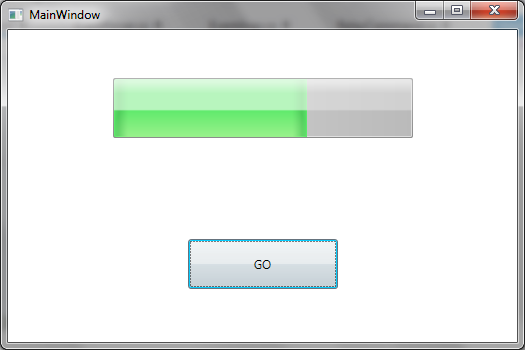 On running in the debugger the time taken to complete all the operations is 7555 milliseconds.
 On using an ordinary 'for' loop, so that we do not take advantage of the available parallelisation, the performance is significantly reduced.
So replace the Parallel.For code:
[code language="csharp"]
Parallel.For(_counter, files.Length, (i, state) => {
if (_isRunning)
{
state.Break();
}
var currentFile = files[i];
// The more computational work you do here, the greater
// the speedup compared to a sequential foreach loop.
DoTheWork(currentFile, newDir);
_counter++;
var percentage = (double)_counter / totalFiles * 100.0;
lock (countLock) { _worker?.ReportProgress((int)percentage); }
});
[/code]
replacing it with an ordinary 'for' loop:
[code language="csharp"]
for (var i = _counter; i < files.Length; ++i)
{
if (_isRunning)
{
break;
}
var currentFile = files[i];
// The more computational work you do here, the greater
// the speedup compared to a sequential foreach loop.
DoTheWork(currentFile, newDir);
_counter++;
var percentage = (double)_counter / totalFiles * 100.0;
lock (countLock) { _worker?.ReportProgress((int)percentage); }
}
[/code]
The performance is significantly reduced compared to the Parallel.For loop:
On using an ordinary 'for' loop, so that we do not take advantage of the available parallelisation, the performance is significantly reduced.
So replace the Parallel.For code:
[code language="csharp"]
Parallel.For(_counter, files.Length, (i, state) => {
if (_isRunning)
{
state.Break();
}
var currentFile = files[i];
// The more computational work you do here, the greater
// the speedup compared to a sequential foreach loop.
DoTheWork(currentFile, newDir);
_counter++;
var percentage = (double)_counter / totalFiles * 100.0;
lock (countLock) { _worker?.ReportProgress((int)percentage); }
});
[/code]
replacing it with an ordinary 'for' loop:
[code language="csharp"]
for (var i = _counter; i < files.Length; ++i)
{
if (_isRunning)
{
break;
}
var currentFile = files[i];
// The more computational work you do here, the greater
// the speedup compared to a sequential foreach loop.
DoTheWork(currentFile, newDir);
_counter++;
var percentage = (double)_counter / totalFiles * 100.0;
lock (countLock) { _worker?.ReportProgress((int)percentage); }
}
[/code]
The performance is significantly reduced compared to the Parallel.For loop:

Step 2: Add event handling classes
These are classes to enable us to bind a command of a button for example. To do this you need to bind a property that is an implementation of an ICommand.
RelayCommand.cs
[code language="csharp"]
using System;
using System.Windows.Input;
namespace Progress
{
public class RelayCommand<T> : ICommand
{
private readonly Predicate<T> _canExecute;
private readonly Action<T> _execute;
public RelayCommand(Action<T> execute)
: this(execute, null)
{
_execute = execute;
}
public RelayCommand(Action<T> execute, Predicate<T> canExecute)
{
if (execute == null)
throw new ArgumentNullException("execute");
_execute = execute;
_canExecute = canExecute;
}
public bool CanExecute(object parameter)
{
return _canExecute == null || _canExecute((T) parameter);
}
public void Execute(object parameter)
{
_execute((T) parameter);
}
public event EventHandler CanExecuteChanged
{
add { CommandManager.RequerySuggested += value; }
remove { CommandManager.RequerySuggested -= value; }
}
}
public class RelayCommand : ICommand
{
private readonly Predicate<object> _canExecute;
private readonly Action<object> _execute;
public RelayCommand(Action<object> execute)
: this(execute, null)
{
_execute = execute;
}
public RelayCommand(Action<object> execute, Predicate<object> canExecute)
{
if (execute == null)
throw new ArgumentNullException("execute");
_execute = execute;
_canExecute = canExecute;
}
public bool CanExecute(object parameter)
{
return _canExecute == null || _canExecute(parameter);
}
public void Execute(object parameter)
{
_execute(parameter);
}
// Ensures WPF commanding infrastructure asks all RelayCommand objects whether their
// associated views should be enabled whenever a command is invoked
public event EventHandler CanExecuteChanged
{
add
{
CommandManager.RequerySuggested += value;
CanExecuteChangedInternal += value;
}
remove
{
CommandManager.RequerySuggested -= value;
CanExecuteChangedInternal -= value;
}
}
private event EventHandler CanExecuteChangedInternal;
public void RaiseCanExecuteChanged()
{
CanExecuteChangedInternal.Raise(this);
}
}
}
[/code]
EventArgs.cs
[code language="csharp"]
using System;
namespace Progress
{
public class EventArgs<T> : EventArgs
{
public EventArgs(T value)
{
Value = value;
}
public T Value { get; }
}
}
[/code]
EventRaiser.cs
[code language="csharp"]
using System;
namespace Progress
{
public static class EventRaiser
{
public static void Raise(this EventHandler handler, object sender)
{
if (handler != null)
handler(sender, EventArgs.Empty);
}
public static void Raise<T>(this EventHandler<EventArgs<T>> handler, object sender, T value)
{
if (handler != null)
handler(sender, new EventArgs<T>(value));
}
public static void Raise<T>(this EventHandler<T> handler, object sender, T value) where T : EventArgs
{
if (handler != null)
handler(sender, value);
}
public static void Raise<T>(this EventHandler<EventArgs<T>> handler, object sender, EventArgs<T> value)
{
if (handler != null)
handler(sender, value);
}
}
}
[/code]
Step 3: Create the user interface
To demonstrate use of the Parallel.For I use an interface with a progress bar which displays the percentage of a task to perform a certain number of file related operations. The task is started and paused by means of the button control below it.
XAML code shown below, we will get to the control bindings a little later.
MainWindow.xaml
[code language="xml"]
<Window x:Class="Progress.MainWindow"
xmlns="http://schemas.microsoft.com/winfx/2006/xaml/presentation"
xmlns:x="http://schemas.microsoft.com/winfx/2006/xaml"
xmlns:d="http://schemas.microsoft.com/expression/blend/2008"
xmlns:mc="http://schemas.openxmlformats.org/markup-compatibility/2006"
xmlns:progress="clr-namespace:Progress"
mc:Ignorable="d"
Title="MainWindow" Height="350" Width="525">
<Window.DataContext>
<progress:MainWindowViewModel></progress:MainWindowViewModel>
</Window.DataContext>
<Grid >
<Grid.RowDefinitions>
<RowDefinition Height="*" />
<RowDefinition Height="*" />
</Grid.RowDefinitions>
<ProgressBar
Value="{Binding CurrentProgress, Mode=OneWay}"
Visibility="Visible"
VerticalAlignment="Center"
Grid.Row="0"
Height="60" Width="300"
Minimum="0" Maximum="100"
Name="pbStatus" />
<Button
Grid.Row="1"
Width="150" Height="50"
Command="{Binding Command}"
Content="{Binding ButtonLabel}"/>
</Grid>
</Window>
[/code]
Step 4: Create the view model class
As per the MVVM design pattern
[code language="csharp"]
using System.ComponentModel;
using System.Diagnostics;
using System.Drawing;
using System.IO;
using System.Threading.Tasks;
using System.Windows.Input;
namespace Progress
{
public class MainWindowViewModel : BaseViewModel
{
private static int _counter = 0;
private static bool _isRunning;
private string _buttonLabel;
private ICommand _command;
private int currentProgress;
private readonly BackgroundWorker _worker = new BackgroundWorker();
public MainWindowViewModel()
{
_worker.DoWork += DoWork;
_worker.ProgressChanged += ProgressChanged;
_worker.WorkerReportsProgress = true;
_worker.WorkerSupportsCancellation = true;
CurrentProgress = 0;
_isRunning = true;
ButtonLabel = "GO";
}
public ICommand Command
{
get
{
return _command ?? (_command = new RelayCommand(x =>
{
_isRunning = !_isRunning;
if (!_isRunning)
DoStuff();
else
ButtonLabel = "PAUSED";
}));
}
}
public int CurrentProgress
{
get { return currentProgress; }
private set
{
if (currentProgress != value)
{
currentProgress = value;
OnPropertyChanged("CurrentProgress");
}
}
}
public string ButtonLabel
{
get { return _buttonLabel; }
private set
{
if (_buttonLabel != value)
{
_buttonLabel = value;
OnPropertyChanged("ButtonLabel");
}
}
}
private void ProgressChanged(object sender, ProgressChangedEventArgs e)
{
CurrentProgress = e.ProgressPercentage;
}
private void DoWork(object sender, DoWorkEventArgs e)
{
// A simple source for demonstration purposes. Modify this path as necessary.
var files = Directory.GetFiles(@"c:\dump\100", "*.jpg");
var totalFiles = files.Length;
const string newDir = @"C:\dump\100flipped";
Directory.CreateDirectory(newDir);
CurrentProgress = 0;
var countLock = new object();
var time = Stopwatch.StartNew();
Parallel.For(_counter, files.Length, (i, state) => {
if (_isRunning)
{
state.Break();
}
var currentFile = files[i];
// The more computational work you do here, the greater
// the speedup compared to a sequential foreach loop.
DoTheWork(currentFile, newDir);
_counter++;
var percentage = (double)_counter / totalFiles * 100.0;
lock (countLock) { _worker?.ReportProgress((int)percentage); }
});
time.Stop();
var milliseconds = time.ElapsedMilliseconds;
_isRunning = true;
}
private void DoTheWork(string currentFile, string newDir)
{
var filename = Path.GetFileName(currentFile);
var bitmap = new Bitmap(currentFile);
bitmap.RotateFlip(RotateFlipType.Rotate180FlipNone);
if (filename == null) return;
bitmap.Save(Path.Combine(newDir, filename));
}
private void DoStuff()
{
ButtonLabel = "GO";
object countLock = new object();
lock (countLock)
{
_worker.RunWorkerAsync();
}
}
}
}
[/code]
On running see that the progress is updated as the operation progresses:
On running in the debugger the time taken to complete all the operations is 7555 milliseconds.
On using an ordinary 'for' loop, so that we do not take advantage of the available parallelisation, the performance is significantly reduced.
So replace the Parallel.For code:
[code language="csharp"]
Parallel.For(_counter, files.Length, (i, state) => {
if (_isRunning)
{
state.Break();
}
var currentFile = files[i];
// The more computational work you do here, the greater
// the speedup compared to a sequential foreach loop.
DoTheWork(currentFile, newDir);
_counter++;
var percentage = (double)_counter / totalFiles * 100.0;
lock (countLock) { _worker?.ReportProgress((int)percentage); }
});
[/code]
replacing it with an ordinary 'for' loop:
[code language="csharp"]
for (var i = _counter; i < files.Length; ++i)
{
if (_isRunning)
{
break;
}
var currentFile = files[i];
// The more computational work you do here, the greater
// the speedup compared to a sequential foreach loop.
DoTheWork(currentFile, newDir);
_counter++;
var percentage = (double)_counter / totalFiles * 100.0;
lock (countLock) { _worker?.ReportProgress((int)percentage); }
}
[/code]
The performance is significantly reduced compared to the Parallel.For loop:


Comments
Post a Comment