Creating and consuming a web service in WCF
Creating the WCF web service in Visual Studio
In this post I am using the WCF Web Service as an example, see this post for an example using using asmx:
https://www.technical-recipes.com/2017/creating-and-consuming-a-web-service-in-c-net/
A useful C# Corner post:
http://www.c-sharpcorner.com/article/create-wcf-web-service-in-visual-studio-2015/
Create a new Visual Studio project
In Visual Studio select the WCF installed template and create a new WCF Service Application:
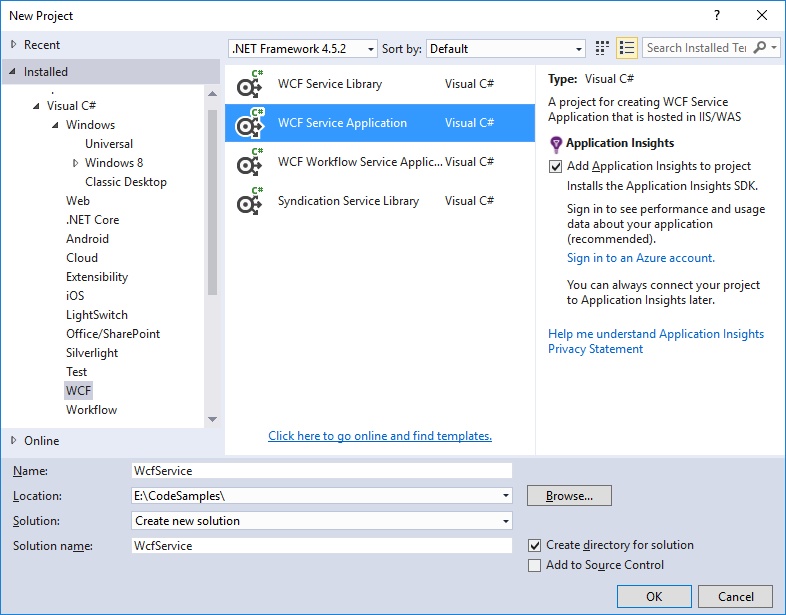 Observe that a number of files are automatically created: IService1.cs, Service1.cs and Web.config, amongst others.,
We will modify the content of these for the purpose of this example:
Observe that a number of files are automatically created: IService1.cs, Service1.cs and Web.config, amongst others.,
We will modify the content of these for the purpose of this example:
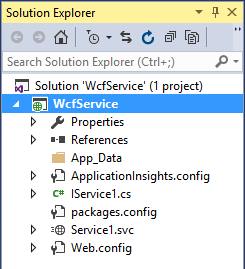 Update the code in IService.cs file, as highlighted below. Notice that is does not do much since I like to keep these recipes extremely simple, understanding the process is more important.
IService1.cs
[code language="csharp"]
using System.Runtime.Serialization;
using System.ServiceModel;
using System.ServiceModel.Web;
namespace WcfService
{
// NOTE: You can use the "Rename" command on the "Refactor" menu to change the interface name "IService1" in both code and config file together.
[ServiceContract]
public interface IService1
{
[OperationContract]
string GetData(int value);
[OperationContract]
CompositeType GetDataUsingDataContract(CompositeType composite);
[OperationContract]
[WebGet(UriTemplate = "/HelloWorld/")]
string HelloWorld();
}
// Use a data contract as illustrated in the sample below to add composite types to service operations.
[DataContract]
public class CompositeType
{
[DataMember]
public bool BoolValue { get; set; } = true;
[DataMember]
public string StringValue { get; set; } = "Hello ";
}
}
[/code]
Once the interface class is done do the concerete implementation in Service1.scv.cs:
Service1.scv.cs
[code language="csharp"]
using System;
namespace WcfService
{
// NOTE: You can use the "Rename" command on the "Refactor" menu to change the class name "Service1" in code, svc and config file together.
// NOTE: In order to launch WCF Test Client for testing this service, please select Service1.svc or Service1.svc.cs at the Solution Explorer and start debugging.
public class Service1 : IService1
{
public string HelloWorld()
{
return "Hello world!";
}
public string GetData(int value)
{
return $"You entered: {value}";
}
public CompositeType GetDataUsingDataContract(CompositeType composite)
{
if (composite == null)
throw new ArgumentNullException(nameof(composite));
if (composite.BoolValue)
composite.StringValue += "Suffix";
return composite;
}
}
}
[/code]
Edit the Web.Config file. Be sure to include the 'endpointBehaviors' and 'add' elements as shown:
Web.Config
[code language="xml"]
<?xml version="1.0"?>
<configuration>
<appSettings>
<add key="aspnet:UseTaskFriendlySynchronizationContext" value="true" />
</appSettings>
<system.web>
<compilation debug="true" targetFramework="4.5.2" />
<httpRuntime targetFramework="4.5.2" />
<httpModules>
<add name="ApplicationInsightsWebTracking"
type="Microsoft.ApplicationInsights.Web.ApplicationInsightsHttpModule, Microsoft.AI.Web" />
</httpModules>
</system.web>
<system.serviceModel>
<behaviors>
<serviceBehaviors>
<behavior>
<!-- To avoid disclosing metadata information, set the values below to false before deployment -->
<serviceMetadata httpGetEnabled="true" httpsGetEnabled="true" />
<!-- To receive exception details in faults for debugging purposes, set the value below to true. Set to false before deployment to avoid disclosing exception information -->
<serviceDebug includeExceptionDetailInFaults="false" />
</behavior>
</serviceBehaviors>
<endpointBehaviors>
<behavior>
<webHttp />
</behavior>
</endpointBehaviors>
</behaviors>
<protocolMapping>
<add binding="webHttpBinding" scheme="http" />
<add binding="basicHttpsBinding" scheme="https" />
</protocolMapping>
<serviceHostingEnvironment aspNetCompatibilityEnabled="true" multipleSiteBindingsEnabled="true" />
</system.serviceModel>
<system.webServer>
<modules runAllManagedModulesForAllRequests="true">
<remove name="ApplicationInsightsWebTracking" />
<add name="ApplicationInsightsWebTracking"
type="Microsoft.ApplicationInsights.Web.ApplicationInsightsHttpModule, Microsoft.AI.Web"
preCondition="managedHandler" />
</modules>
<!--
To browse web app root directory during debugging, set the value below to true.
Set to false before deployment to avoid disclosing web app folder information.
-->
<directoryBrowse enabled="true" />
<validation validateIntegratedModeConfiguration="false" />
</system.webServer>
</configuration>
[/code]
Re-build your project.
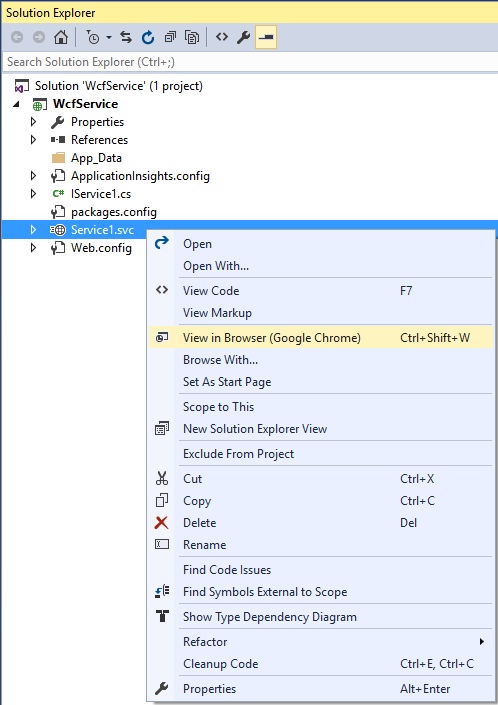
To verify the service, right click on Service1.svc and select to view in a browser:
Update the code in IService.cs file, as highlighted below. Notice that is does not do much since I like to keep these recipes extremely simple, understanding the process is more important.
IService1.cs
[code language="csharp"]
using System.Runtime.Serialization;
using System.ServiceModel;
using System.ServiceModel.Web;
namespace WcfService
{
// NOTE: You can use the "Rename" command on the "Refactor" menu to change the interface name "IService1" in both code and config file together.
[ServiceContract]
public interface IService1
{
[OperationContract]
string GetData(int value);
[OperationContract]
CompositeType GetDataUsingDataContract(CompositeType composite);
[OperationContract]
[WebGet(UriTemplate = "/HelloWorld/")]
string HelloWorld();
}
// Use a data contract as illustrated in the sample below to add composite types to service operations.
[DataContract]
public class CompositeType
{
[DataMember]
public bool BoolValue { get; set; } = true;
[DataMember]
public string StringValue { get; set; } = "Hello ";
}
}
[/code]
Once the interface class is done do the concerete implementation in Service1.scv.cs:
Service1.scv.cs
[code language="csharp"]
using System;
namespace WcfService
{
// NOTE: You can use the "Rename" command on the "Refactor" menu to change the class name "Service1" in code, svc and config file together.
// NOTE: In order to launch WCF Test Client for testing this service, please select Service1.svc or Service1.svc.cs at the Solution Explorer and start debugging.
public class Service1 : IService1
{
public string HelloWorld()
{
return "Hello world!";
}
public string GetData(int value)
{
return $"You entered: {value}";
}
public CompositeType GetDataUsingDataContract(CompositeType composite)
{
if (composite == null)
throw new ArgumentNullException(nameof(composite));
if (composite.BoolValue)
composite.StringValue += "Suffix";
return composite;
}
}
}
[/code]
Edit the Web.Config file. Be sure to include the 'endpointBehaviors' and 'add' elements as shown:
Web.Config
[code language="xml"]
<?xml version="1.0"?>
<configuration>
<appSettings>
<add key="aspnet:UseTaskFriendlySynchronizationContext" value="true" />
</appSettings>
<system.web>
<compilation debug="true" targetFramework="4.5.2" />
<httpRuntime targetFramework="4.5.2" />
<httpModules>
<add name="ApplicationInsightsWebTracking"
type="Microsoft.ApplicationInsights.Web.ApplicationInsightsHttpModule, Microsoft.AI.Web" />
</httpModules>
</system.web>
<system.serviceModel>
<behaviors>
<serviceBehaviors>
<behavior>
<!-- To avoid disclosing metadata information, set the values below to false before deployment -->
<serviceMetadata httpGetEnabled="true" httpsGetEnabled="true" />
<!-- To receive exception details in faults for debugging purposes, set the value below to true. Set to false before deployment to avoid disclosing exception information -->
<serviceDebug includeExceptionDetailInFaults="false" />
</behavior>
</serviceBehaviors>
<endpointBehaviors>
<behavior>
<webHttp />
</behavior>
</endpointBehaviors>
</behaviors>
<protocolMapping>
<add binding="webHttpBinding" scheme="http" />
<add binding="basicHttpsBinding" scheme="https" />
</protocolMapping>
<serviceHostingEnvironment aspNetCompatibilityEnabled="true" multipleSiteBindingsEnabled="true" />
</system.serviceModel>
<system.webServer>
<modules runAllManagedModulesForAllRequests="true">
<remove name="ApplicationInsightsWebTracking" />
<add name="ApplicationInsightsWebTracking"
type="Microsoft.ApplicationInsights.Web.ApplicationInsightsHttpModule, Microsoft.AI.Web"
preCondition="managedHandler" />
</modules>
<!--
To browse web app root directory during debugging, set the value below to true.
Set to false before deployment to avoid disclosing web app folder information.
-->
<directoryBrowse enabled="true" />
<validation validateIntegratedModeConfiguration="false" />
</system.webServer>
</configuration>
[/code]
Re-build your project.
To verify the service, right click on Service1.svc and select to view in a browser:
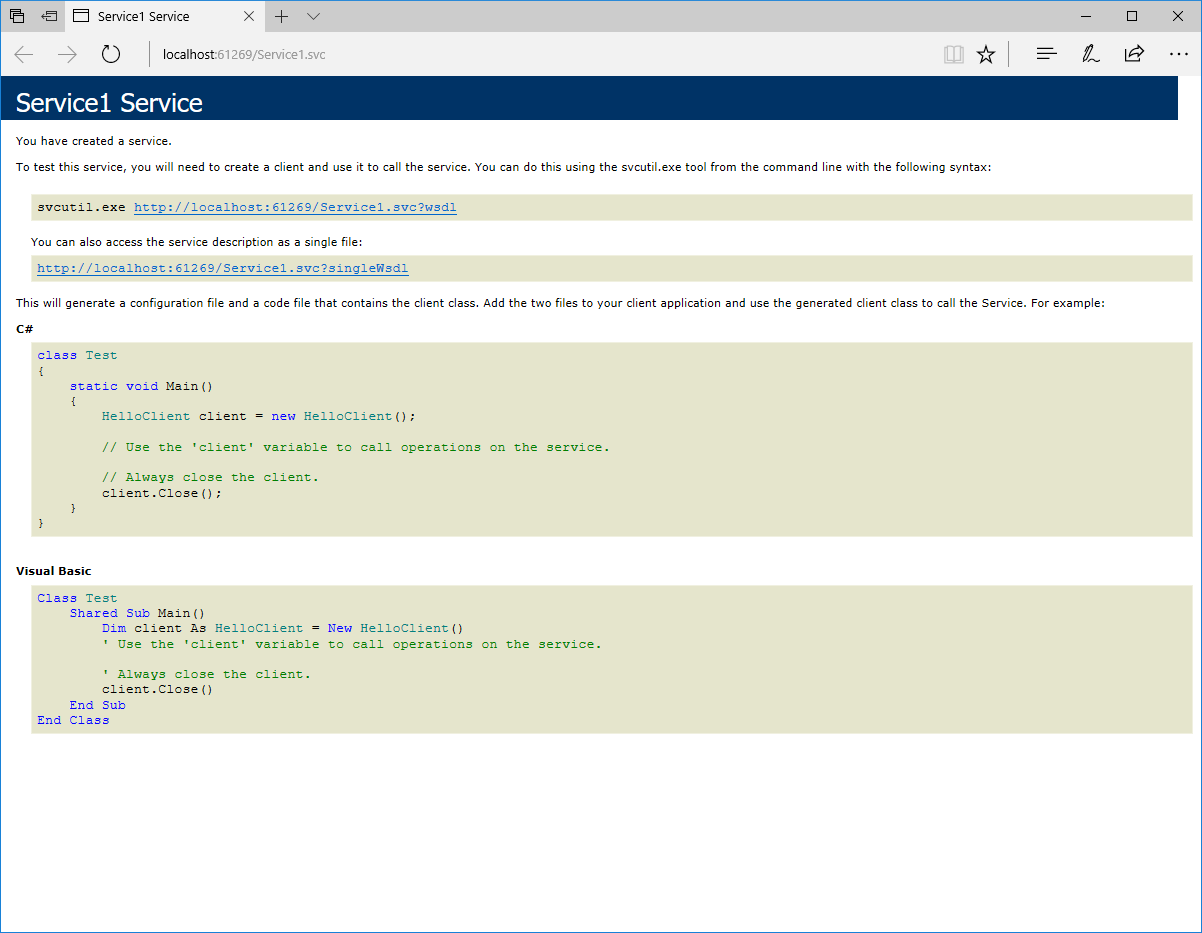
 And see that the service created is as shown:
 Consuming the WCF Web Service
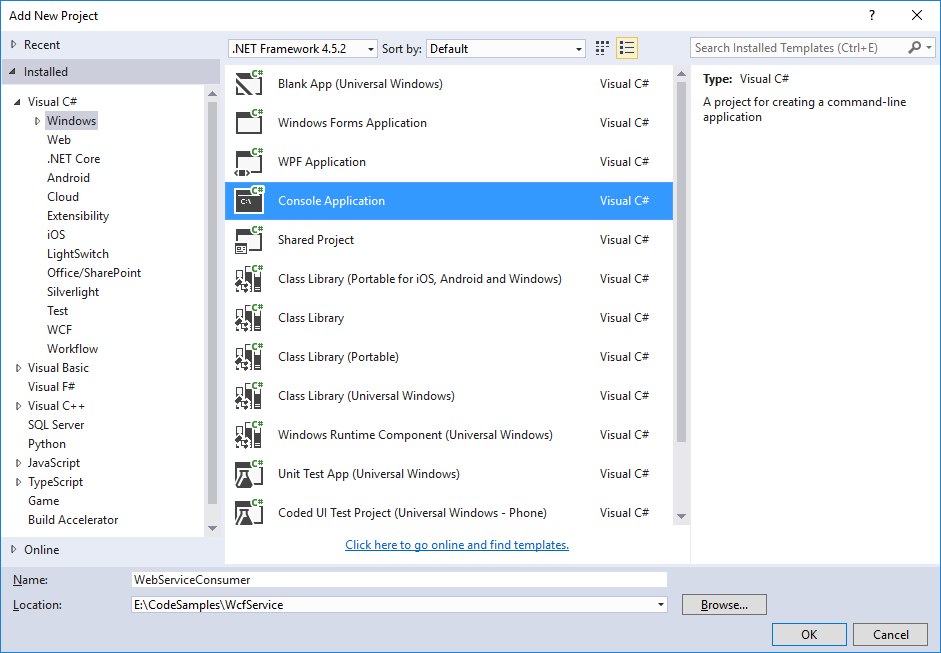
Create a new Console Application in your solution
Consuming the WCF Web Service
Create a new Console Application in your solution
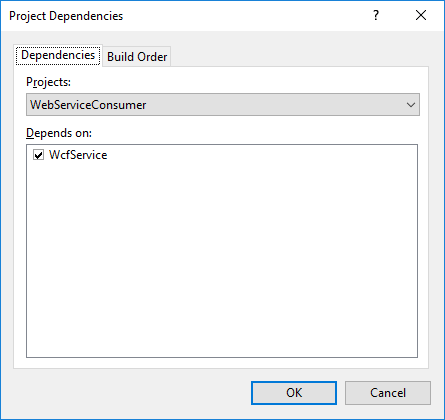
 Set your project dependencies:
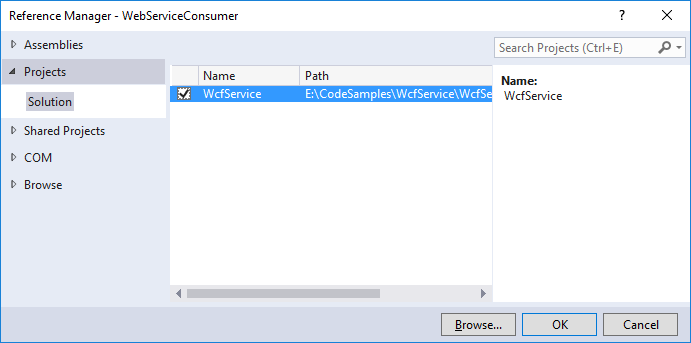
 Set the reference to be used by the console application:
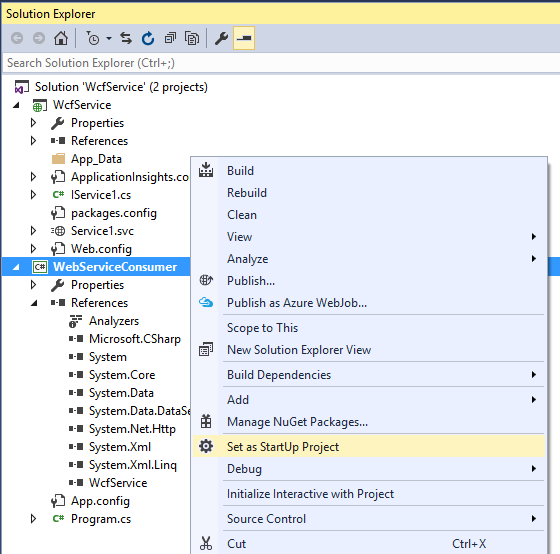
 Set the Console app to be the start up application:
 And finally modify Program.cs in order to consume the service:
[code language="csharp"]
using System;
using WcfService;
namespace WebServiceConsumer
{
internal static class Program
{
private static void Main()
{
var service = new Service1();
Console.Write(service.HelloWorld());
}
}
}
[/code]
And finally modify Program.cs in order to consume the service:
[code language="csharp"]
using System;
using WcfService;
namespace WebServiceConsumer
{
internal static class Program
{
private static void Main()
{
var service = new Service1();
Console.Write(service.HelloWorld());
}
}
}
[/code]
Observe that a number of files are automatically created: IService1.cs, Service1.cs and Web.config, amongst others.,
We will modify the content of these for the purpose of this example:
Update the code in IService.cs file, as highlighted below. Notice that is does not do much since I like to keep these recipes extremely simple, understanding the process is more important.
IService1.cs
[code language="csharp"]
using System.Runtime.Serialization;
using System.ServiceModel;
using System.ServiceModel.Web;
namespace WcfService
{
// NOTE: You can use the "Rename" command on the "Refactor" menu to change the interface name "IService1" in both code and config file together.
[ServiceContract]
public interface IService1
{
[OperationContract]
string GetData(int value);
[OperationContract]
CompositeType GetDataUsingDataContract(CompositeType composite);
[OperationContract]
[WebGet(UriTemplate = "/HelloWorld/")]
string HelloWorld();
}
// Use a data contract as illustrated in the sample below to add composite types to service operations.
[DataContract]
public class CompositeType
{
[DataMember]
public bool BoolValue { get; set; } = true;
[DataMember]
public string StringValue { get; set; } = "Hello ";
}
}
[/code]
Once the interface class is done do the concerete implementation in Service1.scv.cs:
Service1.scv.cs
[code language="csharp"]
using System;
namespace WcfService
{
// NOTE: You can use the "Rename" command on the "Refactor" menu to change the class name "Service1" in code, svc and config file together.
// NOTE: In order to launch WCF Test Client for testing this service, please select Service1.svc or Service1.svc.cs at the Solution Explorer and start debugging.
public class Service1 : IService1
{
public string HelloWorld()
{
return "Hello world!";
}
public string GetData(int value)
{
return $"You entered: {value}";
}
public CompositeType GetDataUsingDataContract(CompositeType composite)
{
if (composite == null)
throw new ArgumentNullException(nameof(composite));
if (composite.BoolValue)
composite.StringValue += "Suffix";
return composite;
}
}
}
[/code]
Edit the Web.Config file. Be sure to include the 'endpointBehaviors' and 'add' elements as shown:
Web.Config
[code language="xml"]
<?xml version="1.0"?>
<configuration>
<appSettings>
<add key="aspnet:UseTaskFriendlySynchronizationContext" value="true" />
</appSettings>
<system.web>
<compilation debug="true" targetFramework="4.5.2" />
<httpRuntime targetFramework="4.5.2" />
<httpModules>
<add name="ApplicationInsightsWebTracking"
type="Microsoft.ApplicationInsights.Web.ApplicationInsightsHttpModule, Microsoft.AI.Web" />
</httpModules>
</system.web>
<system.serviceModel>
<behaviors>
<serviceBehaviors>
<behavior>
<!-- To avoid disclosing metadata information, set the values below to false before deployment -->
<serviceMetadata httpGetEnabled="true" httpsGetEnabled="true" />
<!-- To receive exception details in faults for debugging purposes, set the value below to true. Set to false before deployment to avoid disclosing exception information -->
<serviceDebug includeExceptionDetailInFaults="false" />
</behavior>
</serviceBehaviors>
<endpointBehaviors>
<behavior>
<webHttp />
</behavior>
</endpointBehaviors>
</behaviors>
<protocolMapping>
<add binding="webHttpBinding" scheme="http" />
<add binding="basicHttpsBinding" scheme="https" />
</protocolMapping>
<serviceHostingEnvironment aspNetCompatibilityEnabled="true" multipleSiteBindingsEnabled="true" />
</system.serviceModel>
<system.webServer>
<modules runAllManagedModulesForAllRequests="true">
<remove name="ApplicationInsightsWebTracking" />
<add name="ApplicationInsightsWebTracking"
type="Microsoft.ApplicationInsights.Web.ApplicationInsightsHttpModule, Microsoft.AI.Web"
preCondition="managedHandler" />
</modules>
<!--
To browse web app root directory during debugging, set the value below to true.
Set to false before deployment to avoid disclosing web app folder information.
-->
<directoryBrowse enabled="true" />
<validation validateIntegratedModeConfiguration="false" />
</system.webServer>
</configuration>
[/code]
Re-build your project.
To verify the service, right click on Service1.svc and select to view in a browser:
And see that the service created is as shown:
Consuming the WCF Web Service
Create a new Console Application in your solution
Set your project dependencies:
Set the reference to be used by the console application:
Set the Console app to be the start up application:
And finally modify Program.cs in order to consume the service:
[code language="csharp"]
using System;
using WcfService;
namespace WebServiceConsumer
{
internal static class Program
{
private static void Main()
{
var service = new Service1();
Console.Write(service.HelloWorld());
}
}
}
[/code]


Comments
Post a Comment