Using Eclipse to create a model view presenter project in Java
Some instructions on how to create a very simple Model View Presenter example in Java in the Eclipse development environment.
A reference I found useful, from which I re-use all the code in this post:
http://www.dreamincode.net/forums/topic/353210-swing-passive-model-view-presenter-in-5-minutes/
Step 1: Create a new Eclipse project
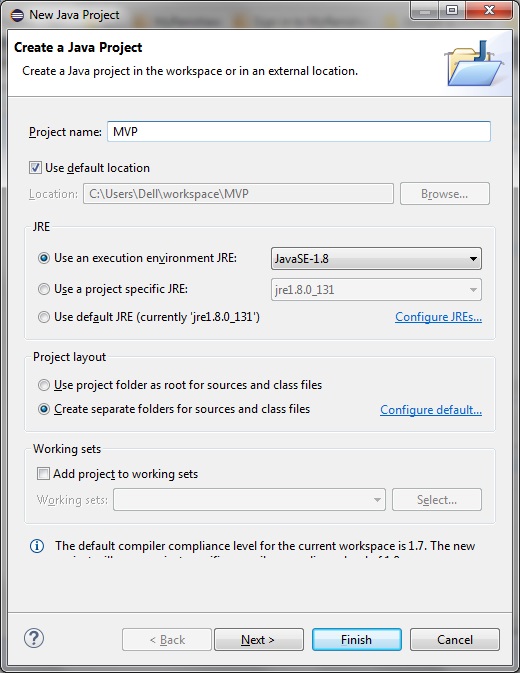
In Eclipse select File > New > Java Project.
Give your project a name and select the JRE execution environment. For this example I am using JRE-8:
 Step 2: Create the Model class
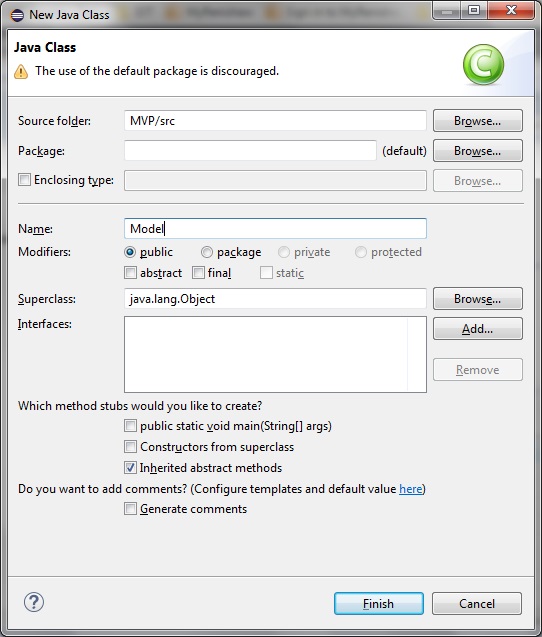
Right-click the src folder in your Eclipse project.
Select New > Class and name it 'Model':
Step 2: Create the Model class
Right-click the src folder in your Eclipse project.
Select New > Class and name it 'Model':
 Model.java
[code language="java"]
public class Model
{
private String password;
public Model()
{
password = "password";
}
public void setPassword(String pass)
{
password = pass;
}
public String getPassword()
{
return password;
}
}
[/code]
Step 3: Create the Presenter class
Same as in Step 2, right-click the src folder in your Eclipse project.
Select New > Class and name it 'Presenter':
Presenter.cs
[code language="java"]
public class Presenter
{
private View view;
private Model model;
public Presenter(View view, Model model)
{
this.view = view;
this.model = model;
}
public void login(String pass)
{
String result = "Incorrect password";
if (model.getPassword().equals(pass))
{
result = "Correct password";
}
view.updateStatusLabel(result);
}
}
[/code]
Step 4: Create the View class
Right-click the src folder in your Eclipse project.
Select New > Class and name it 'View':
View.java
[code language="Java"]
import java.awt.BorderLayout;
import java.awt.Color;
import java.awt.event.ActionEvent;
import javax.swing.Box;
import javax.swing.JButton;
import javax.swing.JFrame;
import javax.swing.JPanel;
import javax.swing.JLabel;
import javax.swing.JTextField;
public class View
{
private Presenter presenter;
private JLabel statusLabel;
private JTextField inputField;
public View()
{
createUI();
}
private void createUI()
{
statusLabel = new JLabel("This updates in reponse to input: ");
inputField = new JTextField(20);
JButton loginButton = new JButton("Login");
loginButton.addActionListener((ActionEvent e) ->
{
presenter.login(inputField.getText());
});
Box topBox = Box.createHorizontalBox();
topBox.add(statusLabel);
topBox.add(Box.createHorizontalStrut(5));
topBox.add(inputField);
topBox.add(Box.createHorizontalStrut(5));
topBox.add(loginButton);
JFrame frame = new JFrame("Passive MVP Swing");
((JPanel)frame.getContentPane()).setBackground(Color.white);
frame.setDefaultCloseOperation(JFrame.EXIT_ON_CLOSE);
frame.add(topBox, BorderLayout.NORTH);
frame.pack();
frame.setVisible(true);
frame.setLocationRelativeTo(null);
}
public void setPresenter(Presenter pres)
{
presenter = pres;
}
public void updateStatusLabel(String text)
{
statusLabel.setText(text);
}
}
[/code]
Step 5: Create the main class
Main.java
[code language="java"]
import javax.swing.SwingUtilities;
public class Main
{
public static void main(String[] args)
{
SwingUtilities.invokeLater(() ->
{
View view = new View();
view.setPresenter(new Presenter(view, new Model()));
});
}
}
[/code]
On compiling and running the program see that a small dialog is launched as shown:
Model.java
[code language="java"]
public class Model
{
private String password;
public Model()
{
password = "password";
}
public void setPassword(String pass)
{
password = pass;
}
public String getPassword()
{
return password;
}
}
[/code]
Step 3: Create the Presenter class
Same as in Step 2, right-click the src folder in your Eclipse project.
Select New > Class and name it 'Presenter':
Presenter.cs
[code language="java"]
public class Presenter
{
private View view;
private Model model;
public Presenter(View view, Model model)
{
this.view = view;
this.model = model;
}
public void login(String pass)
{
String result = "Incorrect password";
if (model.getPassword().equals(pass))
{
result = "Correct password";
}
view.updateStatusLabel(result);
}
}
[/code]
Step 4: Create the View class
Right-click the src folder in your Eclipse project.
Select New > Class and name it 'View':
View.java
[code language="Java"]
import java.awt.BorderLayout;
import java.awt.Color;
import java.awt.event.ActionEvent;
import javax.swing.Box;
import javax.swing.JButton;
import javax.swing.JFrame;
import javax.swing.JPanel;
import javax.swing.JLabel;
import javax.swing.JTextField;
public class View
{
private Presenter presenter;
private JLabel statusLabel;
private JTextField inputField;
public View()
{
createUI();
}
private void createUI()
{
statusLabel = new JLabel("This updates in reponse to input: ");
inputField = new JTextField(20);
JButton loginButton = new JButton("Login");
loginButton.addActionListener((ActionEvent e) ->
{
presenter.login(inputField.getText());
});
Box topBox = Box.createHorizontalBox();
topBox.add(statusLabel);
topBox.add(Box.createHorizontalStrut(5));
topBox.add(inputField);
topBox.add(Box.createHorizontalStrut(5));
topBox.add(loginButton);
JFrame frame = new JFrame("Passive MVP Swing");
((JPanel)frame.getContentPane()).setBackground(Color.white);
frame.setDefaultCloseOperation(JFrame.EXIT_ON_CLOSE);
frame.add(topBox, BorderLayout.NORTH);
frame.pack();
frame.setVisible(true);
frame.setLocationRelativeTo(null);
}
public void setPresenter(Presenter pres)
{
presenter = pres;
}
public void updateStatusLabel(String text)
{
statusLabel.setText(text);
}
}
[/code]
Step 5: Create the main class
Main.java
[code language="java"]
import javax.swing.SwingUtilities;
public class Main
{
public static void main(String[] args)
{
SwingUtilities.invokeLater(() ->
{
View view = new View();
view.setPresenter(new Presenter(view, new Model()));
});
}
}
[/code]
On compiling and running the program see that a small dialog is launched as shown:
 And on entering the correct password ("password") the Presenter updates the View as shown:

Step 2: Create the Model class
Right-click the src folder in your Eclipse project.
Select New > Class and name it 'Model':
Model.java
[code language="java"]
public class Model
{
private String password;
public Model()
{
password = "password";
}
public void setPassword(String pass)
{
password = pass;
}
public String getPassword()
{
return password;
}
}
[/code]
Step 3: Create the Presenter class
Same as in Step 2, right-click the src folder in your Eclipse project.
Select New > Class and name it 'Presenter':
Presenter.cs
[code language="java"]
public class Presenter
{
private View view;
private Model model;
public Presenter(View view, Model model)
{
this.view = view;
this.model = model;
}
public void login(String pass)
{
String result = "Incorrect password";
if (model.getPassword().equals(pass))
{
result = "Correct password";
}
view.updateStatusLabel(result);
}
}
[/code]
Step 4: Create the View class
Right-click the src folder in your Eclipse project.
Select New > Class and name it 'View':
View.java
[code language="Java"]
import java.awt.BorderLayout;
import java.awt.Color;
import java.awt.event.ActionEvent;
import javax.swing.Box;
import javax.swing.JButton;
import javax.swing.JFrame;
import javax.swing.JPanel;
import javax.swing.JLabel;
import javax.swing.JTextField;
public class View
{
private Presenter presenter;
private JLabel statusLabel;
private JTextField inputField;
public View()
{
createUI();
}
private void createUI()
{
statusLabel = new JLabel("This updates in reponse to input: ");
inputField = new JTextField(20);
JButton loginButton = new JButton("Login");
loginButton.addActionListener((ActionEvent e) ->
{
presenter.login(inputField.getText());
});
Box topBox = Box.createHorizontalBox();
topBox.add(statusLabel);
topBox.add(Box.createHorizontalStrut(5));
topBox.add(inputField);
topBox.add(Box.createHorizontalStrut(5));
topBox.add(loginButton);
JFrame frame = new JFrame("Passive MVP Swing");
((JPanel)frame.getContentPane()).setBackground(Color.white);
frame.setDefaultCloseOperation(JFrame.EXIT_ON_CLOSE);
frame.add(topBox, BorderLayout.NORTH);
frame.pack();
frame.setVisible(true);
frame.setLocationRelativeTo(null);
}
public void setPresenter(Presenter pres)
{
presenter = pres;
}
public void updateStatusLabel(String text)
{
statusLabel.setText(text);
}
}
[/code]
Step 5: Create the main class
Main.java
[code language="java"]
import javax.swing.SwingUtilities;
public class Main
{
public static void main(String[] args)
{
SwingUtilities.invokeLater(() ->
{
View view = new View();
view.setPresenter(new Presenter(view, new Model()));
});
}
}
[/code]
On compiling and running the program see that a small dialog is launched as shown:
And on entering the correct password ("password") the Presenter updates the View as shown:


Comments
Post a Comment