Controlling DocumentViewer methods and properties using MVVM
In this post I demonstrate how the methods of a DocumentViewer class may be invoked via MVVM / WPF in order to modify the way an embedded PowerPoint presentation is displayed.
Step 1: Create a new WPF application
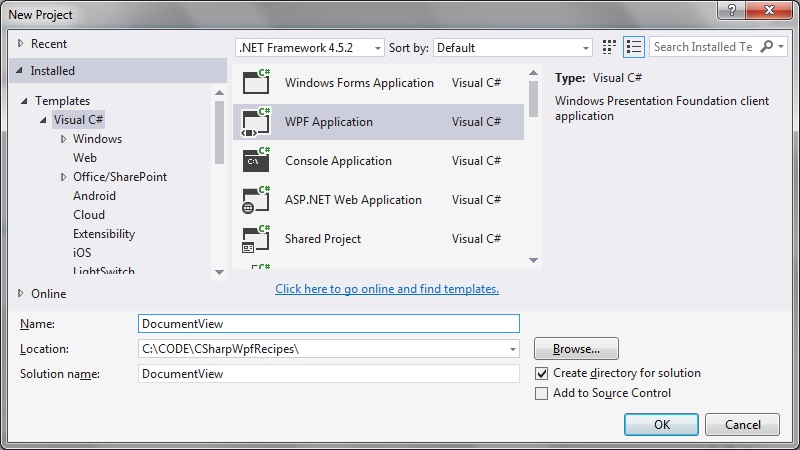 Step 2: Create the Main Window view
Just a simple view to house the DocumentViewer control and a button with which to tell it to launch the PowerPoint presentation.
We will fill in the various command binding a bit later.
[code language="xml"]
<Window x:Class="DocumentView.MainWindow"
xmlns="http://schemas.microsoft.com/winfx/2006/xaml/presentation"
xmlns:x="http://schemas.microsoft.com/winfx/2006/xaml"
xmlns:d="http://schemas.microsoft.com/expression/blend/2008"
xmlns:mc="http://schemas.openxmlformats.org/markup-compatibility/2006"
xmlns:local="clr-namespace:DocumentView"
mc:Ignorable="d"
WindowState="{Binding WindowState, Mode=TwoWay}"
Title="MainWindow" Height="350" Width="525">
<Window.DataContext>
<local:MainWindowViewModel />
</Window.DataContext>
<Grid>
<Grid.RowDefinitions>
<RowDefinition Height="*" />
<RowDefinition Height="50" />
</Grid.RowDefinitions>
<DocumentViewer
Grid.Row="0"
Document="{Binding FixedFixedDocumentSequence}"
Name="DocumentViewPowerPoint"
VerticalAlignment="Top"
HorizontalAlignment="Left" />
<Button
Grid.Row="1"
Command="{Binding Command}"
Width="70" Height="30" Content="Press" />
</Grid>
</Window>
[/code]
Step 3: Add the event handling classes
EventArgs.cs
[code language="csharp"]
using System;
namespace DocumentView
{
public class EventArgs<T> : EventArgs
{
public EventArgs(T value)
{
Value = value;
}
public T Value { get; private set; }
}
}
[/code]
EventRaiser.cs
[code language="csharp"]
using System;
namespace DocumentView
{
public static class EventRaiser
{
public static void Raise(this EventHandler handler, object sender)
{
if (handler != null)
{
handler(sender, EventArgs.Empty);
}
}
public static void Raise<T>(this EventHandler<EventArgs<T>> handler, object sender, T value)
{
if (handler != null)
{
handler(sender, new EventArgs<T>(value));
}
}
public static void Raise<T>(this EventHandler<T> handler, object sender, T value) where T : EventArgs
{
if (handler != null)
{
handler(sender, value);
}
}
public static void Raise<T>(this EventHandler<EventArgs<T>> handler, object sender, EventArgs<T> value)
{
if (handler != null)
{
handler(sender, value);
}
}
}
}
[/code]
RelayCommand.cs
[code language="csharp"]
using System;
using System.Windows.Input;
namespace DocumentView
{
public class RelayCommand<T> : ICommand
{
private readonly Predicate<T> _canExecute;
private readonly Action<T> _execute;
public RelayCommand(Action<T> execute)
: this(execute, null)
{
_execute = execute;
}
public RelayCommand(Action<T> execute, Predicate<T> canExecute)
{
if (execute == null)
{
throw new ArgumentNullException("execute");
}
_execute = execute;
_canExecute = canExecute;
}
public bool CanExecute(object parameter)
{
return _canExecute == null || _canExecute((T)parameter);
}
public void Execute(object parameter)
{
_execute((T)parameter);
}
public event EventHandler CanExecuteChanged
{
add { CommandManager.RequerySuggested += value; }
remove { CommandManager.RequerySuggested -= value; }
}
}
public class RelayCommand : ICommand
{
private readonly Predicate<object> _canExecute;
private readonly Action<object> _execute;
public RelayCommand(Action<object> execute)
: this(execute, null)
{
_execute = execute;
}
public RelayCommand(Action<object> execute, Predicate<object> canExecute)
{
if (execute == null)
{
throw new ArgumentNullException("execute");
}
_execute = execute;
_canExecute = canExecute;
}
public bool CanExecute(object parameter)
{
return _canExecute == null || _canExecute(parameter);
}
public void Execute(object parameter)
{
_execute(parameter);
}
// Ensures WPF commanding infrastructure asks all RelayCommand objects whether their
// associated views should be enabled whenever a command is invoked
public event EventHandler CanExecuteChanged
{
add
{
CommandManager.RequerySuggested += value;
CanExecuteChangedInternal += value;
}
remove
{
CommandManager.RequerySuggested -= value;
CanExecuteChangedInternal -= value;
}
}
private event EventHandler CanExecuteChangedInternal;
public void RaiseCanExecuteChanged()
{
CanExecuteChangedInternal.Raise(this);
}
}
}
[/code]
Step 4: Create the ViewModel classes
MainWindowViewModel.cs
[code language="csharp"]
using System;
using System.IO;
using System.Windows;
using System.Windows.Controls;
using System.Windows.Xps.Packaging;
using Microsoft.Office.Core;
using Microsoft.Office.Interop.PowerPoint;
using Application = Microsoft.Office.Interop.PowerPoint.Application;
using System.Windows.Documents;
using System.Windows.Input;
namespace DocumentView
{
public class MainWindowViewModel : ViewModelBase
{
private ICommand _command;
private DocumentViewer _documentViewer;
public DocumentViewer DocumentViewer
{
get
{
return _documentViewer;
}
set
{
_documentViewer = value;
OnPropertyChanged("DocumentViewer");
}
}
private IDocumentPaginatorSource _fixedDocumentSequence;
public IDocumentPaginatorSource FixedFixedDocumentSequence
{
get
{
return _fixedDocumentSequence;
}
set
{
_fixedDocumentSequence = value;
OnPropertyChanged("DocViewer");
}
}
public ICommand Command
{
get
{
return _command ?? (_command = new RelayCommand(
x =>
{
DocumentViewer = MainWindow.GetInstance();
const string powerPointFile = @"c:\temp\ppt.pptx";
var xpsFile = Path.GetTempPath() + Guid.NewGuid() + ".xps";
var xpsDocument = ConvertPowerPointToXps(powerPointFile, xpsFile);
FixedFixedDocumentSequence = xpsDocument.GetFixedDocumentSequence();
DocumentViewer.Document = FixedFixedDocumentSequence;
DocumentViewer.GoToPage(1);
DocumentViewer.FitToMaxPagesAcross(1);
WindowState = WindowState.Maximized;
DocumentViewer.FitToMaxPagesAcross(1);
}));
}
}
private WindowState _windowState;
public WindowState WindowState
{
get
{
return _windowState;
}
set
{
_windowState = value;
base.OnPropertyChanged("WindowState");
}
}
public MainWindowViewModel()
{
FixedFixedDocumentSequence = null;
WindowState = WindowState.Maximized;
}
private static XpsDocument ConvertPowerPointToXps(string pptFilename, string xpsFilename)
{
var pptApp = new Application();
var presentation = pptApp.Presentations.Open(pptFilename, MsoTriState.msoTrue, MsoTriState.msoFalse,
MsoTriState.msoFalse);
try
{
presentation.ExportAsFixedFormat(xpsFilename, PpFixedFormatType.ppFixedFormatTypeXPS);
}
catch (Exception ex)
{
MessageBox.Show("Failed to export to XPS format: " + ex);
}
finally
{
presentation.Close();
pptApp.Quit();
}
return new XpsDocument(xpsFilename, FileAccess.Read);
}
}
}
[/code]
ViewModelBase.cs
[code language="csharp"]
using System.ComponentModel;
namespace DocumentView
{
public class ViewModelBase : INotifyPropertyChanged
{
public event PropertyChangedEventHandler PropertyChanged;
protected void OnPropertyChanged(string propertyName)
{
var handler = PropertyChanged;
if (handler != null)
{
handler(this, new PropertyChangedEventArgs(propertyName));
}
}
}
}
[/code]
Step 5: Add the references
Office
Step 2: Create the Main Window view
Just a simple view to house the DocumentViewer control and a button with which to tell it to launch the PowerPoint presentation.
We will fill in the various command binding a bit later.
[code language="xml"]
<Window x:Class="DocumentView.MainWindow"
xmlns="http://schemas.microsoft.com/winfx/2006/xaml/presentation"
xmlns:x="http://schemas.microsoft.com/winfx/2006/xaml"
xmlns:d="http://schemas.microsoft.com/expression/blend/2008"
xmlns:mc="http://schemas.openxmlformats.org/markup-compatibility/2006"
xmlns:local="clr-namespace:DocumentView"
mc:Ignorable="d"
WindowState="{Binding WindowState, Mode=TwoWay}"
Title="MainWindow" Height="350" Width="525">
<Window.DataContext>
<local:MainWindowViewModel />
</Window.DataContext>
<Grid>
<Grid.RowDefinitions>
<RowDefinition Height="*" />
<RowDefinition Height="50" />
</Grid.RowDefinitions>
<DocumentViewer
Grid.Row="0"
Document="{Binding FixedFixedDocumentSequence}"
Name="DocumentViewPowerPoint"
VerticalAlignment="Top"
HorizontalAlignment="Left" />
<Button
Grid.Row="1"
Command="{Binding Command}"
Width="70" Height="30" Content="Press" />
</Grid>
</Window>
[/code]
Step 3: Add the event handling classes
EventArgs.cs
[code language="csharp"]
using System;
namespace DocumentView
{
public class EventArgs<T> : EventArgs
{
public EventArgs(T value)
{
Value = value;
}
public T Value { get; private set; }
}
}
[/code]
EventRaiser.cs
[code language="csharp"]
using System;
namespace DocumentView
{
public static class EventRaiser
{
public static void Raise(this EventHandler handler, object sender)
{
if (handler != null)
{
handler(sender, EventArgs.Empty);
}
}
public static void Raise<T>(this EventHandler<EventArgs<T>> handler, object sender, T value)
{
if (handler != null)
{
handler(sender, new EventArgs<T>(value));
}
}
public static void Raise<T>(this EventHandler<T> handler, object sender, T value) where T : EventArgs
{
if (handler != null)
{
handler(sender, value);
}
}
public static void Raise<T>(this EventHandler<EventArgs<T>> handler, object sender, EventArgs<T> value)
{
if (handler != null)
{
handler(sender, value);
}
}
}
}
[/code]
RelayCommand.cs
[code language="csharp"]
using System;
using System.Windows.Input;
namespace DocumentView
{
public class RelayCommand<T> : ICommand
{
private readonly Predicate<T> _canExecute;
private readonly Action<T> _execute;
public RelayCommand(Action<T> execute)
: this(execute, null)
{
_execute = execute;
}
public RelayCommand(Action<T> execute, Predicate<T> canExecute)
{
if (execute == null)
{
throw new ArgumentNullException("execute");
}
_execute = execute;
_canExecute = canExecute;
}
public bool CanExecute(object parameter)
{
return _canExecute == null || _canExecute((T)parameter);
}
public void Execute(object parameter)
{
_execute((T)parameter);
}
public event EventHandler CanExecuteChanged
{
add { CommandManager.RequerySuggested += value; }
remove { CommandManager.RequerySuggested -= value; }
}
}
public class RelayCommand : ICommand
{
private readonly Predicate<object> _canExecute;
private readonly Action<object> _execute;
public RelayCommand(Action<object> execute)
: this(execute, null)
{
_execute = execute;
}
public RelayCommand(Action<object> execute, Predicate<object> canExecute)
{
if (execute == null)
{
throw new ArgumentNullException("execute");
}
_execute = execute;
_canExecute = canExecute;
}
public bool CanExecute(object parameter)
{
return _canExecute == null || _canExecute(parameter);
}
public void Execute(object parameter)
{
_execute(parameter);
}
// Ensures WPF commanding infrastructure asks all RelayCommand objects whether their
// associated views should be enabled whenever a command is invoked
public event EventHandler CanExecuteChanged
{
add
{
CommandManager.RequerySuggested += value;
CanExecuteChangedInternal += value;
}
remove
{
CommandManager.RequerySuggested -= value;
CanExecuteChangedInternal -= value;
}
}
private event EventHandler CanExecuteChangedInternal;
public void RaiseCanExecuteChanged()
{
CanExecuteChangedInternal.Raise(this);
}
}
}
[/code]
Step 4: Create the ViewModel classes
MainWindowViewModel.cs
[code language="csharp"]
using System;
using System.IO;
using System.Windows;
using System.Windows.Controls;
using System.Windows.Xps.Packaging;
using Microsoft.Office.Core;
using Microsoft.Office.Interop.PowerPoint;
using Application = Microsoft.Office.Interop.PowerPoint.Application;
using System.Windows.Documents;
using System.Windows.Input;
namespace DocumentView
{
public class MainWindowViewModel : ViewModelBase
{
private ICommand _command;
private DocumentViewer _documentViewer;
public DocumentViewer DocumentViewer
{
get
{
return _documentViewer;
}
set
{
_documentViewer = value;
OnPropertyChanged("DocumentViewer");
}
}
private IDocumentPaginatorSource _fixedDocumentSequence;
public IDocumentPaginatorSource FixedFixedDocumentSequence
{
get
{
return _fixedDocumentSequence;
}
set
{
_fixedDocumentSequence = value;
OnPropertyChanged("DocViewer");
}
}
public ICommand Command
{
get
{
return _command ?? (_command = new RelayCommand(
x =>
{
DocumentViewer = MainWindow.GetInstance();
const string powerPointFile = @"c:\temp\ppt.pptx";
var xpsFile = Path.GetTempPath() + Guid.NewGuid() + ".xps";
var xpsDocument = ConvertPowerPointToXps(powerPointFile, xpsFile);
FixedFixedDocumentSequence = xpsDocument.GetFixedDocumentSequence();
DocumentViewer.Document = FixedFixedDocumentSequence;
DocumentViewer.GoToPage(1);
DocumentViewer.FitToMaxPagesAcross(1);
WindowState = WindowState.Maximized;
DocumentViewer.FitToMaxPagesAcross(1);
}));
}
}
private WindowState _windowState;
public WindowState WindowState
{
get
{
return _windowState;
}
set
{
_windowState = value;
base.OnPropertyChanged("WindowState");
}
}
public MainWindowViewModel()
{
FixedFixedDocumentSequence = null;
WindowState = WindowState.Maximized;
}
private static XpsDocument ConvertPowerPointToXps(string pptFilename, string xpsFilename)
{
var pptApp = new Application();
var presentation = pptApp.Presentations.Open(pptFilename, MsoTriState.msoTrue, MsoTriState.msoFalse,
MsoTriState.msoFalse);
try
{
presentation.ExportAsFixedFormat(xpsFilename, PpFixedFormatType.ppFixedFormatTypeXPS);
}
catch (Exception ex)
{
MessageBox.Show("Failed to export to XPS format: " + ex);
}
finally
{
presentation.Close();
pptApp.Quit();
}
return new XpsDocument(xpsFilename, FileAccess.Read);
}
}
}
[/code]
ViewModelBase.cs
[code language="csharp"]
using System.ComponentModel;
namespace DocumentView
{
public class ViewModelBase : INotifyPropertyChanged
{
public event PropertyChangedEventHandler PropertyChanged;
protected void OnPropertyChanged(string propertyName)
{
var handler = PropertyChanged;
if (handler != null)
{
handler(this, new PropertyChangedEventArgs(propertyName));
}
}
}
}
[/code]
Step 5: Add the references
Office
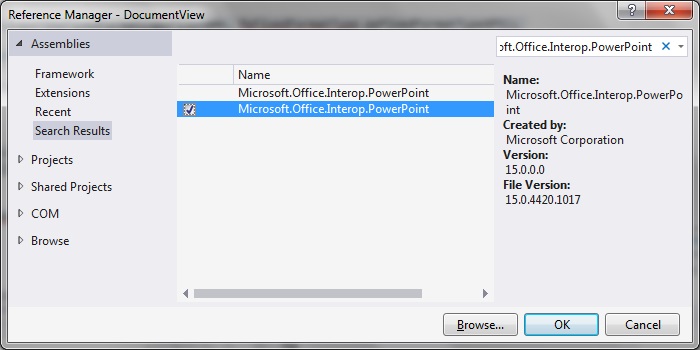
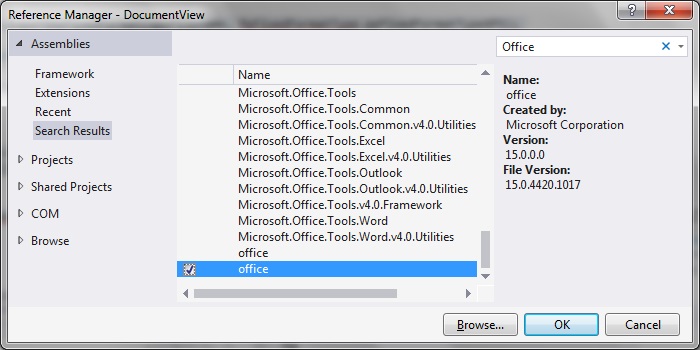 Microsoft.Office.Interop.PowerPoint
 Reach Framework
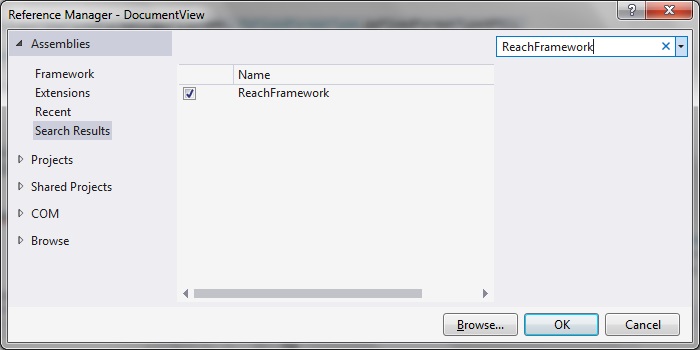 Step 6: Update MainWindow.xaml.cs
[code language="csharp"]
using System.Windows.Controls;
namespace DocumentView
{
public partial class MainWindow
{
private static DocumentViewer _docViewer;
public MainWindow()
{
InitializeComponent();
_docViewer = DocumentViewPowerPoint;
}
public static DocumentViewer GetInstance()
{
return _docViewer;
}
}
}
[/code]
Step 7: Run the code
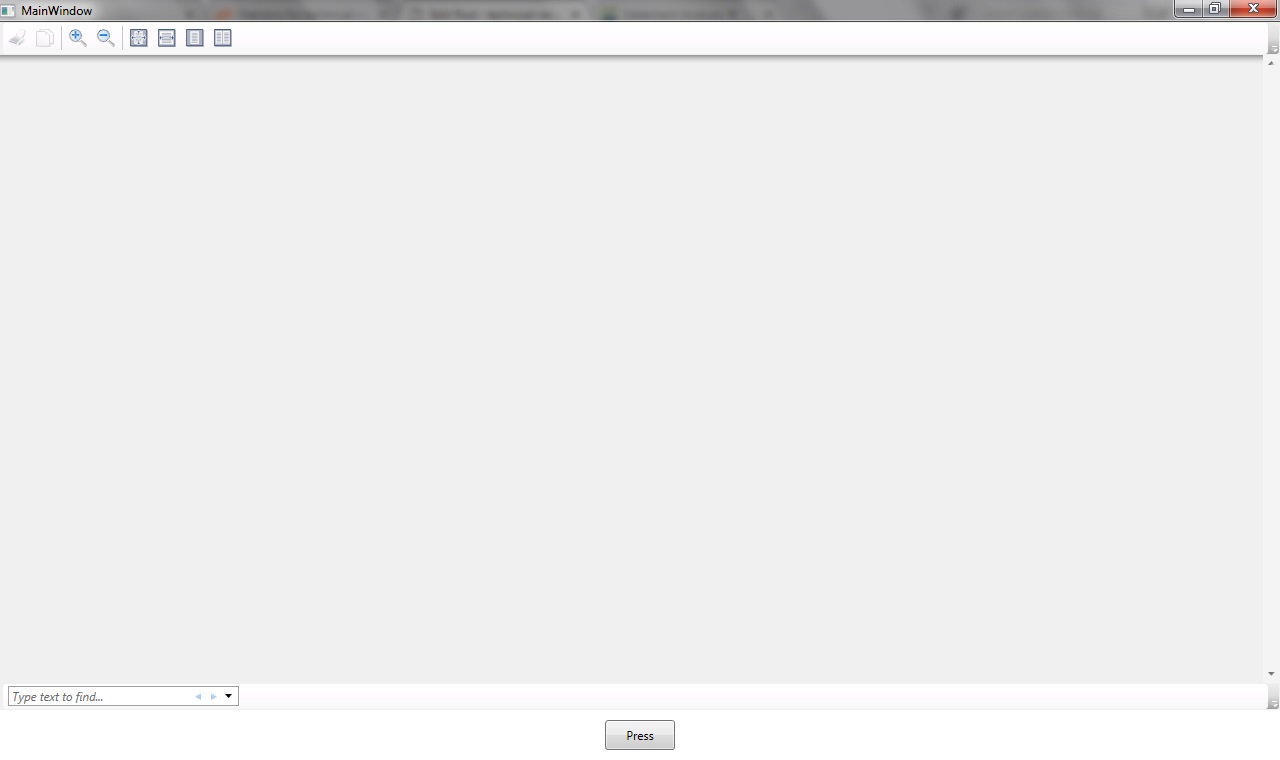
On building and running the app we see the empty DocumentViewer control as shown:
Step 6: Update MainWindow.xaml.cs
[code language="csharp"]
using System.Windows.Controls;
namespace DocumentView
{
public partial class MainWindow
{
private static DocumentViewer _docViewer;
public MainWindow()
{
InitializeComponent();
_docViewer = DocumentViewPowerPoint;
}
public static DocumentViewer GetInstance()
{
return _docViewer;
}
}
}
[/code]
Step 7: Run the code
On building and running the app we see the empty DocumentViewer control as shown:
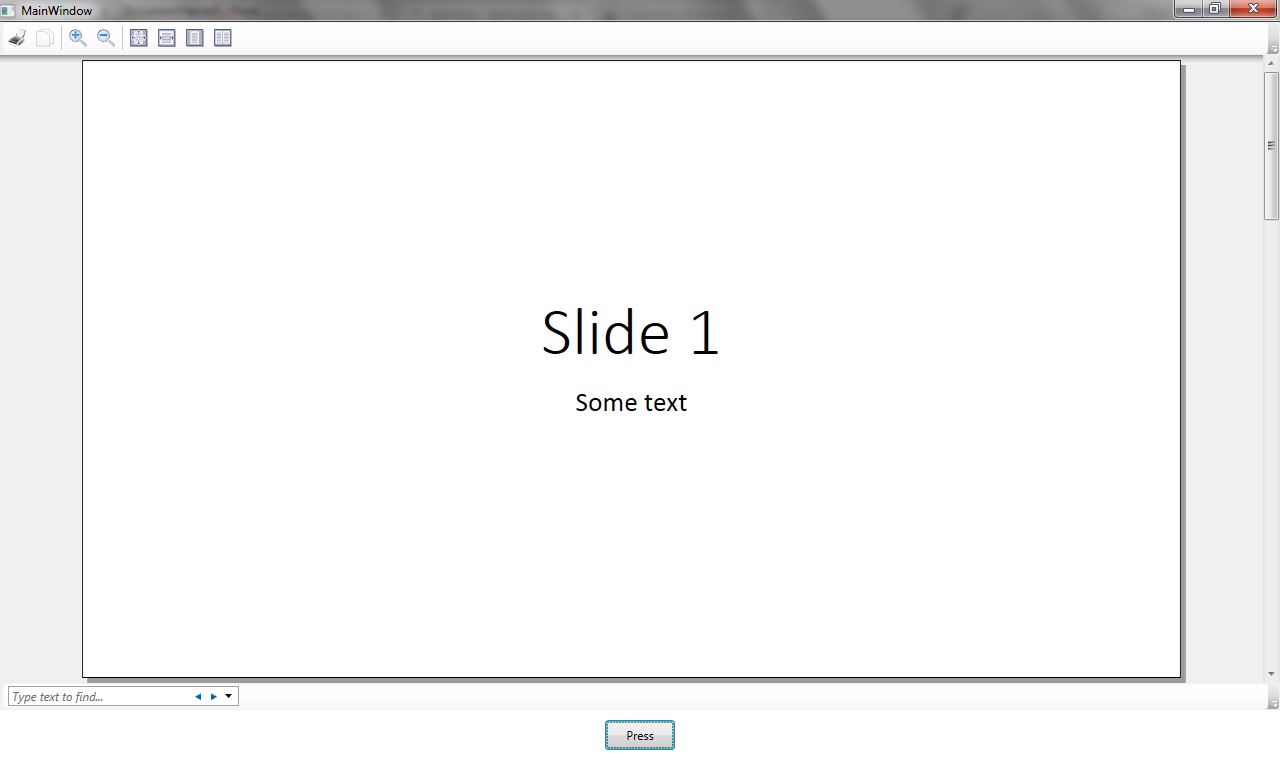
 Pressing the button converts the PowerPoint into xps file format and the view property is applied so that the whole slide id displayed completely:
 Download sample Visual Studio 2015 project from here:
www.technical-recipes.com/Downloads/PowerPoint2.zip
Download sample Visual Studio 2015 project from here:
www.technical-recipes.com/Downloads/PowerPoint2.zip
Step 2: Create the Main Window view
Just a simple view to house the DocumentViewer control and a button with which to tell it to launch the PowerPoint presentation.
We will fill in the various command binding a bit later.
[code language="xml"]
<Window x:Class="DocumentView.MainWindow"
xmlns="http://schemas.microsoft.com/winfx/2006/xaml/presentation"
xmlns:x="http://schemas.microsoft.com/winfx/2006/xaml"
xmlns:d="http://schemas.microsoft.com/expression/blend/2008"
xmlns:mc="http://schemas.openxmlformats.org/markup-compatibility/2006"
xmlns:local="clr-namespace:DocumentView"
mc:Ignorable="d"
WindowState="{Binding WindowState, Mode=TwoWay}"
Title="MainWindow" Height="350" Width="525">
<Window.DataContext>
<local:MainWindowViewModel />
</Window.DataContext>
<Grid>
<Grid.RowDefinitions>
<RowDefinition Height="*" />
<RowDefinition Height="50" />
</Grid.RowDefinitions>
<DocumentViewer
Grid.Row="0"
Document="{Binding FixedFixedDocumentSequence}"
Name="DocumentViewPowerPoint"
VerticalAlignment="Top"
HorizontalAlignment="Left" />
<Button
Grid.Row="1"
Command="{Binding Command}"
Width="70" Height="30" Content="Press" />
</Grid>
</Window>
[/code]
Step 3: Add the event handling classes
EventArgs.cs
[code language="csharp"]
using System;
namespace DocumentView
{
public class EventArgs<T> : EventArgs
{
public EventArgs(T value)
{
Value = value;
}
public T Value { get; private set; }
}
}
[/code]
EventRaiser.cs
[code language="csharp"]
using System;
namespace DocumentView
{
public static class EventRaiser
{
public static void Raise(this EventHandler handler, object sender)
{
if (handler != null)
{
handler(sender, EventArgs.Empty);
}
}
public static void Raise<T>(this EventHandler<EventArgs<T>> handler, object sender, T value)
{
if (handler != null)
{
handler(sender, new EventArgs<T>(value));
}
}
public static void Raise<T>(this EventHandler<T> handler, object sender, T value) where T : EventArgs
{
if (handler != null)
{
handler(sender, value);
}
}
public static void Raise<T>(this EventHandler<EventArgs<T>> handler, object sender, EventArgs<T> value)
{
if (handler != null)
{
handler(sender, value);
}
}
}
}
[/code]
RelayCommand.cs
[code language="csharp"]
using System;
using System.Windows.Input;
namespace DocumentView
{
public class RelayCommand<T> : ICommand
{
private readonly Predicate<T> _canExecute;
private readonly Action<T> _execute;
public RelayCommand(Action<T> execute)
: this(execute, null)
{
_execute = execute;
}
public RelayCommand(Action<T> execute, Predicate<T> canExecute)
{
if (execute == null)
{
throw new ArgumentNullException("execute");
}
_execute = execute;
_canExecute = canExecute;
}
public bool CanExecute(object parameter)
{
return _canExecute == null || _canExecute((T)parameter);
}
public void Execute(object parameter)
{
_execute((T)parameter);
}
public event EventHandler CanExecuteChanged
{
add { CommandManager.RequerySuggested += value; }
remove { CommandManager.RequerySuggested -= value; }
}
}
public class RelayCommand : ICommand
{
private readonly Predicate<object> _canExecute;
private readonly Action<object> _execute;
public RelayCommand(Action<object> execute)
: this(execute, null)
{
_execute = execute;
}
public RelayCommand(Action<object> execute, Predicate<object> canExecute)
{
if (execute == null)
{
throw new ArgumentNullException("execute");
}
_execute = execute;
_canExecute = canExecute;
}
public bool CanExecute(object parameter)
{
return _canExecute == null || _canExecute(parameter);
}
public void Execute(object parameter)
{
_execute(parameter);
}
// Ensures WPF commanding infrastructure asks all RelayCommand objects whether their
// associated views should be enabled whenever a command is invoked
public event EventHandler CanExecuteChanged
{
add
{
CommandManager.RequerySuggested += value;
CanExecuteChangedInternal += value;
}
remove
{
CommandManager.RequerySuggested -= value;
CanExecuteChangedInternal -= value;
}
}
private event EventHandler CanExecuteChangedInternal;
public void RaiseCanExecuteChanged()
{
CanExecuteChangedInternal.Raise(this);
}
}
}
[/code]
Step 4: Create the ViewModel classes
MainWindowViewModel.cs
[code language="csharp"]
using System;
using System.IO;
using System.Windows;
using System.Windows.Controls;
using System.Windows.Xps.Packaging;
using Microsoft.Office.Core;
using Microsoft.Office.Interop.PowerPoint;
using Application = Microsoft.Office.Interop.PowerPoint.Application;
using System.Windows.Documents;
using System.Windows.Input;
namespace DocumentView
{
public class MainWindowViewModel : ViewModelBase
{
private ICommand _command;
private DocumentViewer _documentViewer;
public DocumentViewer DocumentViewer
{
get
{
return _documentViewer;
}
set
{
_documentViewer = value;
OnPropertyChanged("DocumentViewer");
}
}
private IDocumentPaginatorSource _fixedDocumentSequence;
public IDocumentPaginatorSource FixedFixedDocumentSequence
{
get
{
return _fixedDocumentSequence;
}
set
{
_fixedDocumentSequence = value;
OnPropertyChanged("DocViewer");
}
}
public ICommand Command
{
get
{
return _command ?? (_command = new RelayCommand(
x =>
{
DocumentViewer = MainWindow.GetInstance();
const string powerPointFile = @"c:\temp\ppt.pptx";
var xpsFile = Path.GetTempPath() + Guid.NewGuid() + ".xps";
var xpsDocument = ConvertPowerPointToXps(powerPointFile, xpsFile);
FixedFixedDocumentSequence = xpsDocument.GetFixedDocumentSequence();
DocumentViewer.Document = FixedFixedDocumentSequence;
DocumentViewer.GoToPage(1);
DocumentViewer.FitToMaxPagesAcross(1);
WindowState = WindowState.Maximized;
DocumentViewer.FitToMaxPagesAcross(1);
}));
}
}
private WindowState _windowState;
public WindowState WindowState
{
get
{
return _windowState;
}
set
{
_windowState = value;
base.OnPropertyChanged("WindowState");
}
}
public MainWindowViewModel()
{
FixedFixedDocumentSequence = null;
WindowState = WindowState.Maximized;
}
private static XpsDocument ConvertPowerPointToXps(string pptFilename, string xpsFilename)
{
var pptApp = new Application();
var presentation = pptApp.Presentations.Open(pptFilename, MsoTriState.msoTrue, MsoTriState.msoFalse,
MsoTriState.msoFalse);
try
{
presentation.ExportAsFixedFormat(xpsFilename, PpFixedFormatType.ppFixedFormatTypeXPS);
}
catch (Exception ex)
{
MessageBox.Show("Failed to export to XPS format: " + ex);
}
finally
{
presentation.Close();
pptApp.Quit();
}
return new XpsDocument(xpsFilename, FileAccess.Read);
}
}
}
[/code]
ViewModelBase.cs
[code language="csharp"]
using System.ComponentModel;
namespace DocumentView
{
public class ViewModelBase : INotifyPropertyChanged
{
public event PropertyChangedEventHandler PropertyChanged;
protected void OnPropertyChanged(string propertyName)
{
var handler = PropertyChanged;
if (handler != null)
{
handler(this, new PropertyChangedEventArgs(propertyName));
}
}
}
}
[/code]
Step 5: Add the references
Office
Microsoft.Office.Interop.PowerPoint
Reach Framework
Step 6: Update MainWindow.xaml.cs
[code language="csharp"]
using System.Windows.Controls;
namespace DocumentView
{
public partial class MainWindow
{
private static DocumentViewer _docViewer;
public MainWindow()
{
InitializeComponent();
_docViewer = DocumentViewPowerPoint;
}
public static DocumentViewer GetInstance()
{
return _docViewer;
}
}
}
[/code]
Step 7: Run the code
On building and running the app we see the empty DocumentViewer control as shown:
Pressing the button converts the PowerPoint into xps file format and the view property is applied so that the whole slide id displayed completely:
Download sample Visual Studio 2015 project from here:
www.technical-recipes.com/Downloads/PowerPoint2.zip


Comments
Post a Comment