Setting the application icon in WPF XAML
Some instructions on how to set the application icon in a WPF / XAML application to something other than the default icon.
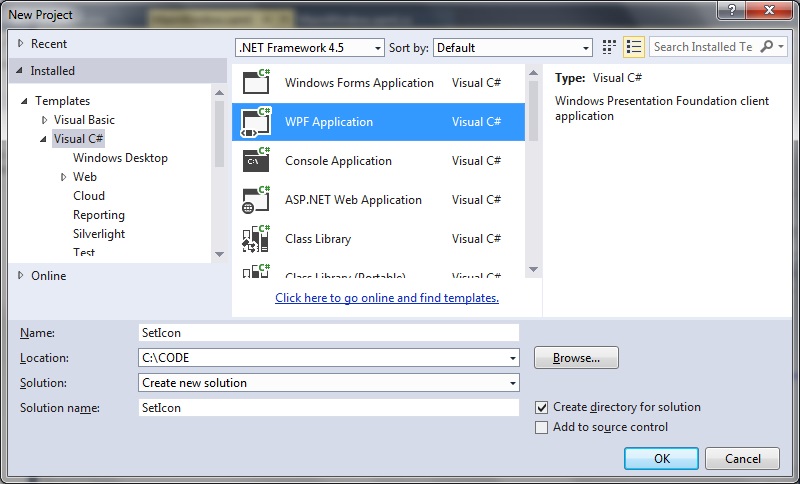
Step 1: Create a new WPF application:
 Step 2: Right click your project folder and set properties:
Select the Application tab:
Step 2: Right click your project folder and set properties:
Select the Application tab:
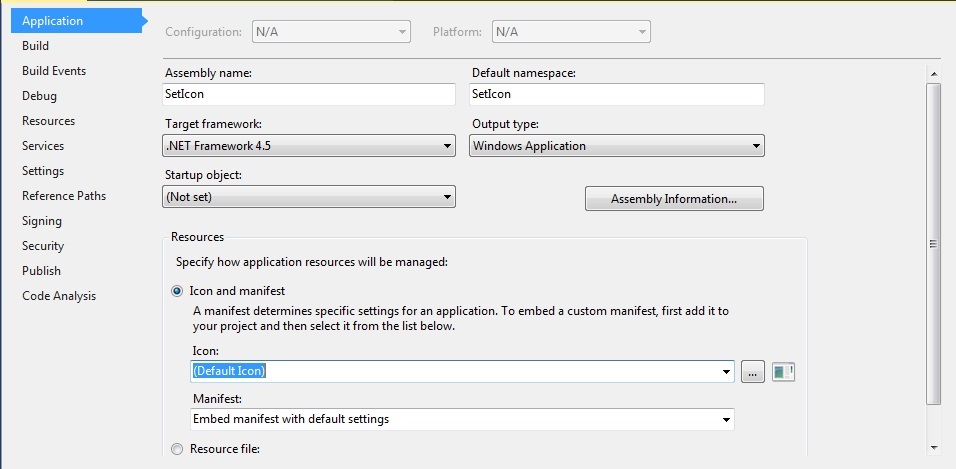 We are interested in configuring the 'Icon and manifest' section.
Click the button next the Icon drop-down menu and select your *.ico file.
Example *.ico file downloadable from here:
https://www.technical-recipes.com/Downloads/icon.ico
We are interested in configuring the 'Icon and manifest' section.
Click the button next the Icon drop-down menu and select your *.ico file.
Example *.ico file downloadable from here:
https://www.technical-recipes.com/Downloads/icon.ico
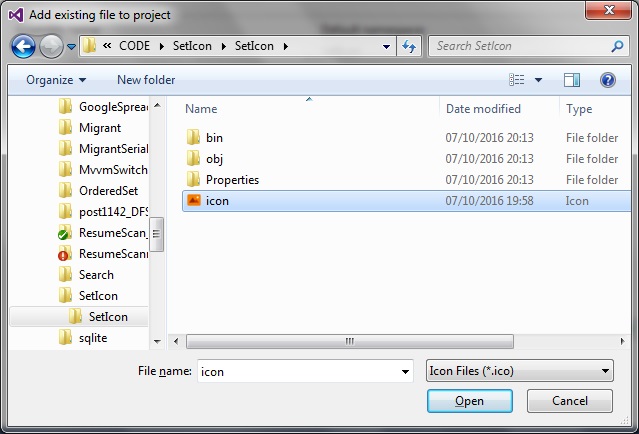 Step 3: Set the Main Window properties
We want to be able to display the application even in Debug (F5) mode as well.
To do this just set the Icon property in the MainWindow.xaml:
I added the icon file to my project folder, so there is no need for me to set any relative or absolute path, but this can be easily done if necessary:
[code language="xml"]
<Window x:Class="SetIcon.MainWindow"
xmlns="http://schemas.microsoft.com/winfx/2006/xaml/presentation"
xmlns:x="http://schemas.microsoft.com/winfx/2006/xaml"
Icon="Icon.ico"
Title="MainWindow"
Height="350" Width="525">
<Grid>
</Grid>
</Window>
[/code]
Step 4: Rebuild and run your project
The icon should appear in the top-left of the window, even in Debug mode, as shown
Step 3: Set the Main Window properties
We want to be able to display the application even in Debug (F5) mode as well.
To do this just set the Icon property in the MainWindow.xaml:
I added the icon file to my project folder, so there is no need for me to set any relative or absolute path, but this can be easily done if necessary:
[code language="xml"]
<Window x:Class="SetIcon.MainWindow"
xmlns="http://schemas.microsoft.com/winfx/2006/xaml/presentation"
xmlns:x="http://schemas.microsoft.com/winfx/2006/xaml"
Icon="Icon.ico"
Title="MainWindow"
Height="350" Width="525">
<Grid>
</Grid>
</Window>
[/code]
Step 4: Rebuild and run your project
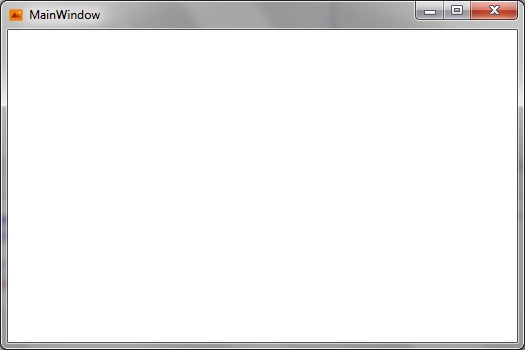
The icon should appear in the top-left of the window, even in Debug mode, as shown
Step 2: Right click your project folder and set properties:
Select the Application tab:
We are interested in configuring the 'Icon and manifest' section.
Click the button next the Icon drop-down menu and select your *.ico file.
Example *.ico file downloadable from here:
https://www.technical-recipes.com/Downloads/icon.ico
Step 3: Set the Main Window properties
We want to be able to display the application even in Debug (F5) mode as well.
To do this just set the Icon property in the MainWindow.xaml:
I added the icon file to my project folder, so there is no need for me to set any relative or absolute path, but this can be easily done if necessary:
[code language="xml"]
<Window x:Class="SetIcon.MainWindow"
xmlns="http://schemas.microsoft.com/winfx/2006/xaml/presentation"
xmlns:x="http://schemas.microsoft.com/winfx/2006/xaml"
Icon="Icon.ico"
Title="MainWindow"
Height="350" Width="525">
<Grid>
</Grid>
</Window>
[/code]
Step 4: Rebuild and run your project
The icon should appear in the top-left of the window, even in Debug mode, as shown


Comments
Post a Comment