Binding the visibility of WPF elements to a property
How to set the visibility of your WPF user interface item so that it may be hidden/collapsed or shown as desired
Step 1: Create a new WPF Application
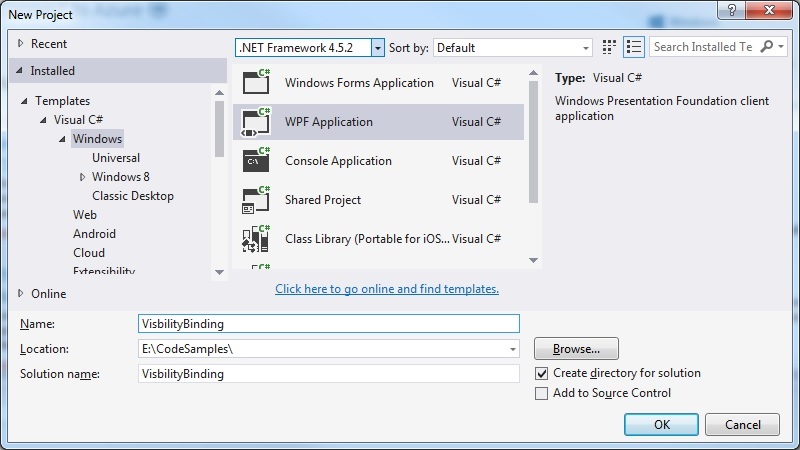 Step 2: Modify the MainWindow.xaml to create a User control
Let's keep it simple - a button:
[code language="xml"]
<Window x:Class="VisbilityBinding.MainWindow"
xmlns="http://schemas.microsoft.com/winfx/2006/xaml/presentation"
xmlns:x="http://schemas.microsoft.com/winfx/2006/xaml"
xmlns:d="http://schemas.microsoft.com/expression/blend/2008"
xmlns:mc="http://schemas.openxmlformats.org/markup-compatibility/2006"
xmlns:local="clr-namespace:VisbilityBinding"
mc:Ignorable="d"
Title="MainWindow" Height="350" Width="525">
<Grid>
<Button
Width="100" Height="30"
Content="OK!" />
</Grid>
</Window>
[/code]
Step 3: Create the ViewModel classes
This is primarily to implement the INotifyPropertyChanged members
BaseViewModel.cs
[code language="csharp"]
using System;
using System.ComponentModel;
using System.Diagnostics;
namespace VisibilityBinding
{
public abstract class BaseViewModel : INotifyPropertyChanged
{
#region INotifyPropertyChanged Members
public event PropertyChangedEventHandler PropertyChanged;
#endregion
protected void OnPropertyChanged(string propertyName)
{
VerifyPropertyName(propertyName);
PropertyChangedEventHandler handler = PropertyChanged;
if (handler != null)
{
handler(this, new PropertyChangedEventArgs(propertyName));
}
}
[Conditional("DEBUG")]
private void VerifyPropertyName(string propertyName)
{
if (TypeDescriptor.GetProperties(this)[propertyName] == null)
throw new ArgumentNullException(GetType().Name + " does not contain property: " + propertyName);
}
}
}
[/code]
MainWindowViewModel.cs
[code language="csharp"]
namespace VisibilityBinding
{
public class MainWindowViewModel : BaseViewModel
{
private bool _hasInstalled;
public MainWindowViewModel()
{
HasInstalled = false;
}
public bool HasInstalled
{
get { return _hasInstalled; }
private set
{
_hasInstalled = value;
OnPropertyChanged("HasInstalled");
}
}
}
}
[/code]
Step 4: Update the MainWindow.xaml to bind to this visibility property
Nexct up is to update the MainWindow.xaml by including the DataContext, Visibility converter etc:
[code language="xml"]
<Window x:Class="BindingVisibility.MainWindow"
xmlns="http://schemas.microsoft.com/winfx/2006/xaml/presentation"
xmlns:x="http://schemas.microsoft.com/winfx/2006/xaml"
xmlns:d="http://schemas.microsoft.com/expression/blend/2008"
xmlns:mc="http://schemas.openxmlformats.org/markup-compatibility/2006"
xmlns:local="clr-namespace:BindingVisibility"
mc:Ignorable="d"
Title="MainWindow" Height="350" Width="525"
d:DataContext="{d:DesignInstance Type=local:MainWindowViewModel, IsDesignTimeCreatable=True}">
<Window.DataContext>
<local:MainWindowViewModel/>
</Window.DataContext>
<Window.Resources >
<BooleanToVisibilityConverter x:Key="BoolToVisibilityConverter" />
</Window.Resources>
<Grid>
<Button
Visibility="{Binding HasInstalled, Converter={StaticResource BoolToVisibilityConverter}}"
Width="100" Height="30"
Content="OK!" />
</Grid>
</Window>
[/code]
Step 5: Try it!
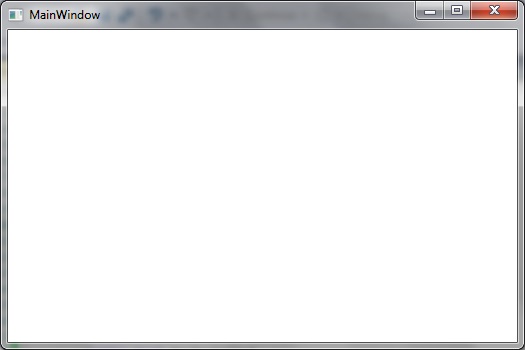
So that when switch HasInstalled = false the OK button disappears:
Step 2: Modify the MainWindow.xaml to create a User control
Let's keep it simple - a button:
[code language="xml"]
<Window x:Class="VisbilityBinding.MainWindow"
xmlns="http://schemas.microsoft.com/winfx/2006/xaml/presentation"
xmlns:x="http://schemas.microsoft.com/winfx/2006/xaml"
xmlns:d="http://schemas.microsoft.com/expression/blend/2008"
xmlns:mc="http://schemas.openxmlformats.org/markup-compatibility/2006"
xmlns:local="clr-namespace:VisbilityBinding"
mc:Ignorable="d"
Title="MainWindow" Height="350" Width="525">
<Grid>
<Button
Width="100" Height="30"
Content="OK!" />
</Grid>
</Window>
[/code]
Step 3: Create the ViewModel classes
This is primarily to implement the INotifyPropertyChanged members
BaseViewModel.cs
[code language="csharp"]
using System;
using System.ComponentModel;
using System.Diagnostics;
namespace VisibilityBinding
{
public abstract class BaseViewModel : INotifyPropertyChanged
{
#region INotifyPropertyChanged Members
public event PropertyChangedEventHandler PropertyChanged;
#endregion
protected void OnPropertyChanged(string propertyName)
{
VerifyPropertyName(propertyName);
PropertyChangedEventHandler handler = PropertyChanged;
if (handler != null)
{
handler(this, new PropertyChangedEventArgs(propertyName));
}
}
[Conditional("DEBUG")]
private void VerifyPropertyName(string propertyName)
{
if (TypeDescriptor.GetProperties(this)[propertyName] == null)
throw new ArgumentNullException(GetType().Name + " does not contain property: " + propertyName);
}
}
}
[/code]
MainWindowViewModel.cs
[code language="csharp"]
namespace VisibilityBinding
{
public class MainWindowViewModel : BaseViewModel
{
private bool _hasInstalled;
public MainWindowViewModel()
{
HasInstalled = false;
}
public bool HasInstalled
{
get { return _hasInstalled; }
private set
{
_hasInstalled = value;
OnPropertyChanged("HasInstalled");
}
}
}
}
[/code]
Step 4: Update the MainWindow.xaml to bind to this visibility property
Nexct up is to update the MainWindow.xaml by including the DataContext, Visibility converter etc:
[code language="xml"]
<Window x:Class="BindingVisibility.MainWindow"
xmlns="http://schemas.microsoft.com/winfx/2006/xaml/presentation"
xmlns:x="http://schemas.microsoft.com/winfx/2006/xaml"
xmlns:d="http://schemas.microsoft.com/expression/blend/2008"
xmlns:mc="http://schemas.openxmlformats.org/markup-compatibility/2006"
xmlns:local="clr-namespace:BindingVisibility"
mc:Ignorable="d"
Title="MainWindow" Height="350" Width="525"
d:DataContext="{d:DesignInstance Type=local:MainWindowViewModel, IsDesignTimeCreatable=True}">
<Window.DataContext>
<local:MainWindowViewModel/>
</Window.DataContext>
<Window.Resources >
<BooleanToVisibilityConverter x:Key="BoolToVisibilityConverter" />
</Window.Resources>
<Grid>
<Button
Visibility="{Binding HasInstalled, Converter={StaticResource BoolToVisibilityConverter}}"
Width="100" Height="30"
Content="OK!" />
</Grid>
</Window>
[/code]
Step 5: Try it!
So that when switch HasInstalled = false the OK button disappears:
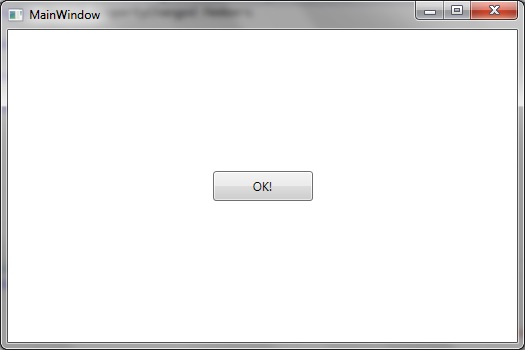
 And by reinstating HasInstalled = true the OK button is visible again:
Step 2: Modify the MainWindow.xaml to create a User control
Let's keep it simple - a button:
[code language="xml"]
<Window x:Class="VisbilityBinding.MainWindow"
xmlns="http://schemas.microsoft.com/winfx/2006/xaml/presentation"
xmlns:x="http://schemas.microsoft.com/winfx/2006/xaml"
xmlns:d="http://schemas.microsoft.com/expression/blend/2008"
xmlns:mc="http://schemas.openxmlformats.org/markup-compatibility/2006"
xmlns:local="clr-namespace:VisbilityBinding"
mc:Ignorable="d"
Title="MainWindow" Height="350" Width="525">
<Grid>
<Button
Width="100" Height="30"
Content="OK!" />
</Grid>
</Window>
[/code]
Step 3: Create the ViewModel classes
This is primarily to implement the INotifyPropertyChanged members
BaseViewModel.cs
[code language="csharp"]
using System;
using System.ComponentModel;
using System.Diagnostics;
namespace VisibilityBinding
{
public abstract class BaseViewModel : INotifyPropertyChanged
{
#region INotifyPropertyChanged Members
public event PropertyChangedEventHandler PropertyChanged;
#endregion
protected void OnPropertyChanged(string propertyName)
{
VerifyPropertyName(propertyName);
PropertyChangedEventHandler handler = PropertyChanged;
if (handler != null)
{
handler(this, new PropertyChangedEventArgs(propertyName));
}
}
[Conditional("DEBUG")]
private void VerifyPropertyName(string propertyName)
{
if (TypeDescriptor.GetProperties(this)[propertyName] == null)
throw new ArgumentNullException(GetType().Name + " does not contain property: " + propertyName);
}
}
}
[/code]
MainWindowViewModel.cs
[code language="csharp"]
namespace VisibilityBinding
{
public class MainWindowViewModel : BaseViewModel
{
private bool _hasInstalled;
public MainWindowViewModel()
{
HasInstalled = false;
}
public bool HasInstalled
{
get { return _hasInstalled; }
private set
{
_hasInstalled = value;
OnPropertyChanged("HasInstalled");
}
}
}
}
[/code]
Step 4: Update the MainWindow.xaml to bind to this visibility property
Nexct up is to update the MainWindow.xaml by including the DataContext, Visibility converter etc:
[code language="xml"]
<Window x:Class="BindingVisibility.MainWindow"
xmlns="http://schemas.microsoft.com/winfx/2006/xaml/presentation"
xmlns:x="http://schemas.microsoft.com/winfx/2006/xaml"
xmlns:d="http://schemas.microsoft.com/expression/blend/2008"
xmlns:mc="http://schemas.openxmlformats.org/markup-compatibility/2006"
xmlns:local="clr-namespace:BindingVisibility"
mc:Ignorable="d"
Title="MainWindow" Height="350" Width="525"
d:DataContext="{d:DesignInstance Type=local:MainWindowViewModel, IsDesignTimeCreatable=True}">
<Window.DataContext>
<local:MainWindowViewModel/>
</Window.DataContext>
<Window.Resources >
<BooleanToVisibilityConverter x:Key="BoolToVisibilityConverter" />
</Window.Resources>
<Grid>
<Button
Visibility="{Binding HasInstalled, Converter={StaticResource BoolToVisibilityConverter}}"
Width="100" Height="30"
Content="OK!" />
</Grid>
</Window>
[/code]
Step 5: Try it!
So that when switch HasInstalled = false the OK button disappears:
And by reinstating HasInstalled = true the OK button is visible again:


Comments
Post a Comment