Using Google Docs Viewer to embed online documents into your web page
Some instructions on using Google Docs Viewer to embed online documents into your web page.
Step 1: use the iframe tag to create an “internal” frame within your document
So the essential part of embedding online documents into your we page is to use the iframe tag in your html.
The iframe tag accepts 3 x attributes: “src”, “width” and “height”
If you are interested in removing the border from the iframe tag simply do this by the frameBorder attribute (remember - frameBorder is case-sensitive):
frameBorder=”0”
Step 2: Use the Google Docs link within your src attribute
This is the Google docs link that you will append to the 'src' section of the iframe tag:
https://docs.google.com/gview?
So that all you need to do is supply the URL that Google docs view needs to point to.
In this example, we are interested in embedding the following document, which is a Microsoft PowerPoint presentation that you can download from the Adobe site:
https://www.adobe.com/support/ovation/ts/docs/ovation_test_show.ppt
Example HTML code listing
HTML markup is shown here:
[code language="html"]
<!DOCTYPE html>
<html>
<body>
<iframe
src="https://docs.google.com/gview?url=https://www.adobe.com/support/ovation/ts/docs/ovation_test_show.ppt&embedded=true"
style="width: 90%;
height: 1000px">
<p>Your browser does not support iframes.</p>
</iframe>
</body>
</html>
[/code]
So that when we save the code as a HTML file and open it in our browser, the PowerPoint presentation pointed to by the Google Docs Viewer is embedded in our html and displayed as shown:
[caption id="attachment_7258" align="alignnone" width="798"]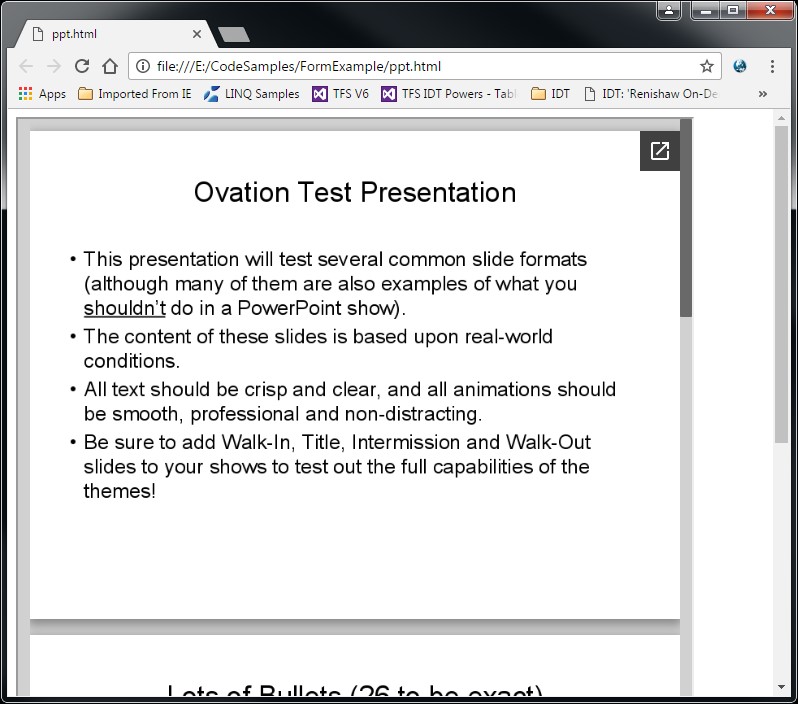 Google Docs Viewer[/caption]
Google Docs Viewer[/caption]


Comments
Post a Comment