How to remove the 'forgot your password?' link on your WordPress login page
A guide to making your Wordpress website a little more secure by getting rid of the 'forgot your password?' link/text (highlighted in red) that by default will appear on the login page:
 The solution is very simple and was originally discovered at this following site:
http://wpsnipp.com/index.php/functions-php/remove-the-lost-your-password-link/
To summarize, all the webmaster has to do is locate the functions.php file and insert the following code snippet:
[code language="php"]
function remove_lostpassword_text ( $text ) {
if ($text == 'Lost your password?'){$text = '';}
return $text;
}
add_filter( 'gettext', 'remove_lostpassword_text' );
[/code]
And that is it!
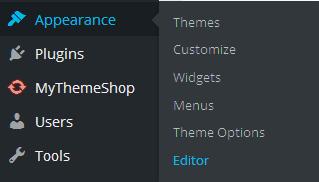
Log in to your Wordpress dashboard and select Appearance > Editor:
The solution is very simple and was originally discovered at this following site:
http://wpsnipp.com/index.php/functions-php/remove-the-lost-your-password-link/
To summarize, all the webmaster has to do is locate the functions.php file and insert the following code snippet:
[code language="php"]
function remove_lostpassword_text ( $text ) {
if ($text == 'Lost your password?'){$text = '';}
return $text;
}
add_filter( 'gettext', 'remove_lostpassword_text' );
[/code]
And that is it!
Log in to your Wordpress dashboard and select Appearance > Editor:
 And then locate the 'functions.php' file so that you can edit it:
 And paste in the php code snippet, I just inserted it right at the bottom:
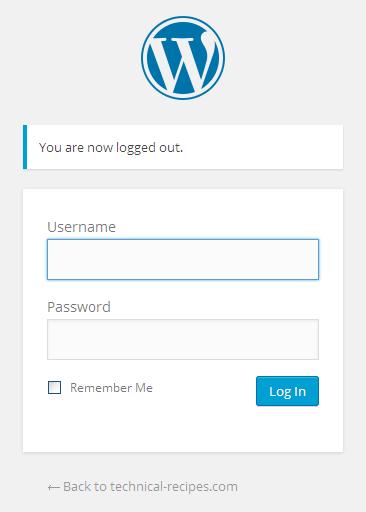
 Once saved, the 'lost your password?' text will have disappeared when re-visiting the WordPress login page:
 To disable the allow password reset feature completely, also append the following php code snippet to your 'function.php' similar to previously:
[code language="php"]
function disable_password_reset() {
return false;
}
add_filter ( 'allow_password_reset', 'disable_password_reset' );
[/code]
To disable the allow password reset feature completely, also append the following php code snippet to your 'function.php' similar to previously:
[code language="php"]
function disable_password_reset() {
return false;
}
add_filter ( 'allow_password_reset', 'disable_password_reset' );
[/code]
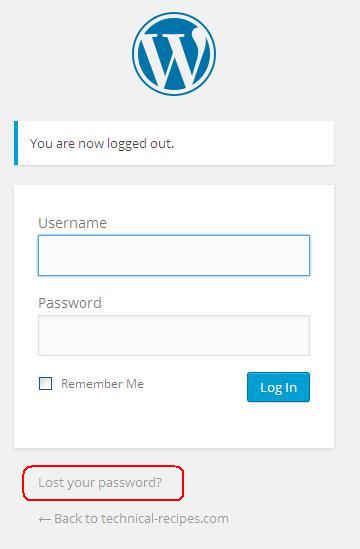 The solution is very simple and was originally discovered at this following site:
http://wpsnipp.com/index.php/functions-php/remove-the-lost-your-password-link/
To summarize, all the webmaster has to do is locate the functions.php file and insert the following code snippet:
[code language="php"]
function remove_lostpassword_text ( $text ) {
if ($text == 'Lost your password?'){$text = '';}
return $text;
}
add_filter( 'gettext', 'remove_lostpassword_text' );
[/code]
And that is it!
Log in to your Wordpress dashboard and select Appearance > Editor:
The solution is very simple and was originally discovered at this following site:
http://wpsnipp.com/index.php/functions-php/remove-the-lost-your-password-link/
To summarize, all the webmaster has to do is locate the functions.php file and insert the following code snippet:
[code language="php"]
function remove_lostpassword_text ( $text ) {
if ($text == 'Lost your password?'){$text = '';}
return $text;
}
add_filter( 'gettext', 'remove_lostpassword_text' );
[/code]
And that is it!
Log in to your Wordpress dashboard and select Appearance > Editor:
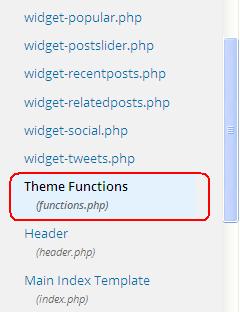
 And then locate the 'functions.php' file so that you can edit it:
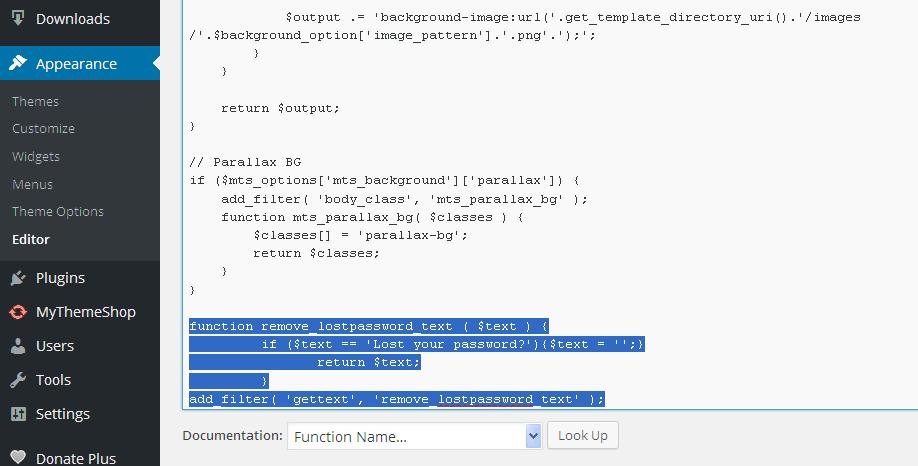
 And paste in the php code snippet, I just inserted it right at the bottom:
 Once saved, the 'lost your password?' text will have disappeared when re-visiting the WordPress login page:
 To disable the allow password reset feature completely, also append the following php code snippet to your 'function.php' similar to previously:
[code language="php"]
function disable_password_reset() {
return false;
}
add_filter ( 'allow_password_reset', 'disable_password_reset' );
[/code]
To disable the allow password reset feature completely, also append the following php code snippet to your 'function.php' similar to previously:
[code language="php"]
function disable_password_reset() {
return false;
}
add_filter ( 'allow_password_reset', 'disable_password_reset' );
[/code]


Comments
Post a Comment