Configuring Code::Blocks to use the Boost Libraries in Windows and Linux
Some examples of how to configure Code::Blocks to use the Boost C++ libraries:
1. Header-only (Windows)
2. Compiled libraries (Windows)
3. Compiled libraries (Ubuntu Linux)
1. Header-only (Windows)
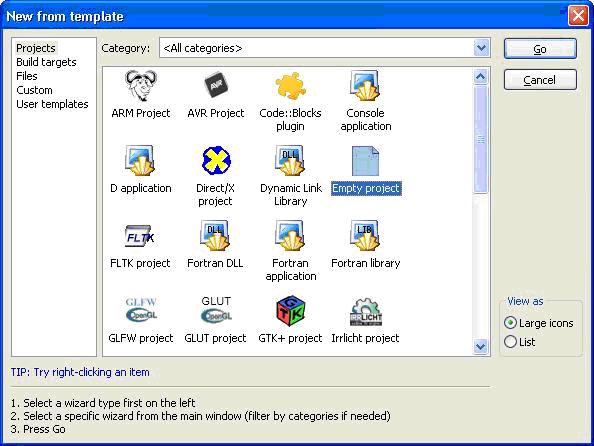
To configure Code::Blocks to use a header-only Boost library: Boost.DateTime. Select File > New > Project > Empty Project:
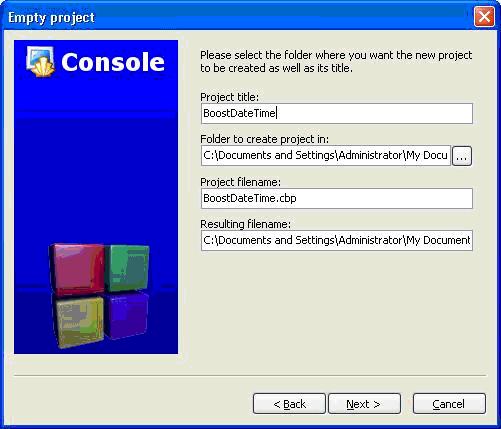
 Give the project a name and click Next:
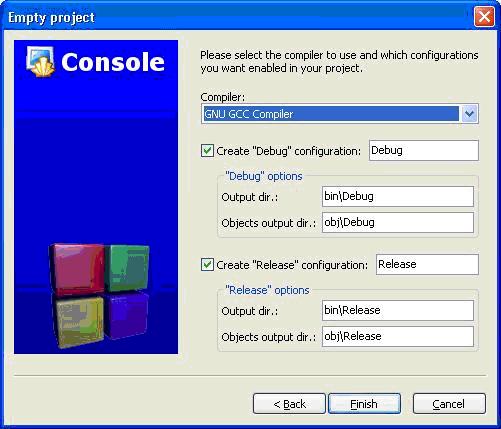
 Choose the C++ compiler you are currently using, such as Cygwin or MinGW and then click Finish:
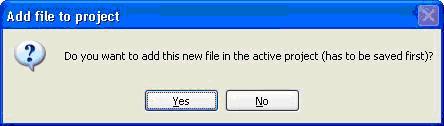
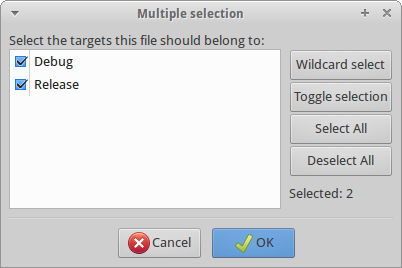
 Add the main.cpp source file by selecting File > New > Empty File. Click Yes when prompted if we wish to add this to the current active project:
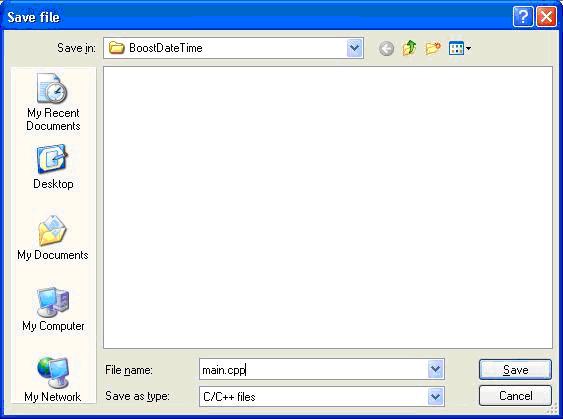
 And then save your file:
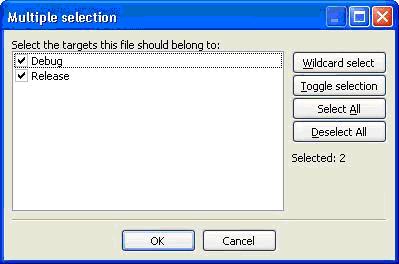
 Then make sure the Debug and Release checkboxes are set:
 An example that only requires the use of non-compiled libraries, the Boost.DateTime example. Paste the following into the main.cpp file you just created:
[code language="cpp"]
#include <boost/format.hpp>
#include <boost/date_time.hpp>
#include <iostream>
int main()
{
const boost::posix_time::ptime now = boost::posix_time::second_clock::local_time();
const boost::wformat f = boost::wformat( L"%02d.%02d.%s %02d:%02d" )
% now.date().year_month_day().day.as_number()
% now.date().year_month_day().month.as_number()
% now.date().year_month_day().year
% now.time_of_day().hours()
% now.time_of_day().minutes();
std::wcout << f.str() << std::endl;
}
[/code]
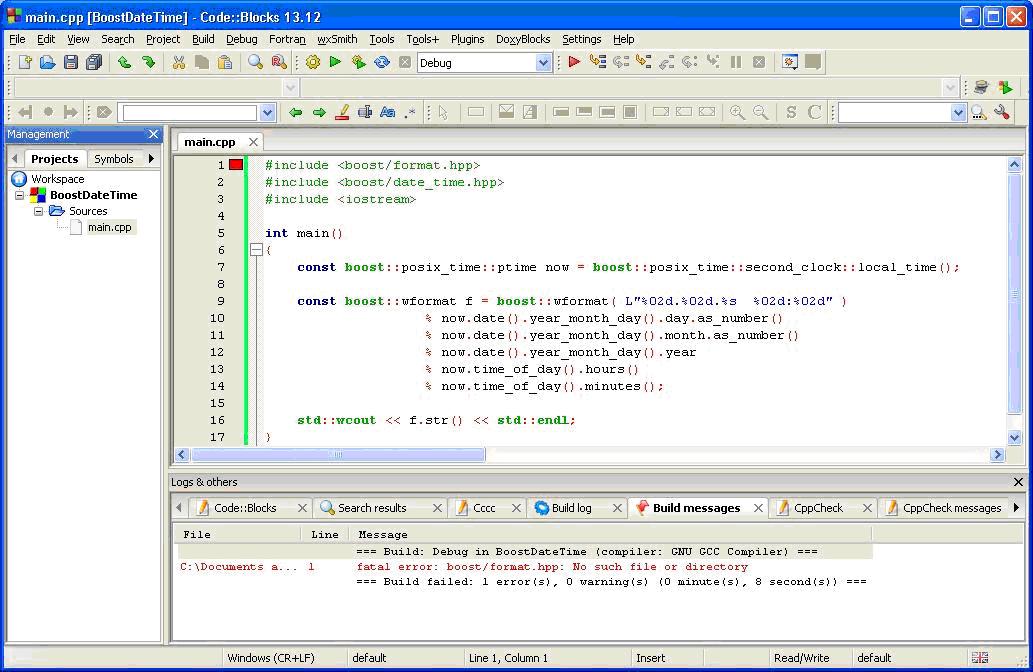
Notice that the Code::Blocks compiler still needs to know where to find the Boost.Format and Boost.Datetime libraries otherwise it will not successfully compile:
An example that only requires the use of non-compiled libraries, the Boost.DateTime example. Paste the following into the main.cpp file you just created:
[code language="cpp"]
#include <boost/format.hpp>
#include <boost/date_time.hpp>
#include <iostream>
int main()
{
const boost::posix_time::ptime now = boost::posix_time::second_clock::local_time();
const boost::wformat f = boost::wformat( L"%02d.%02d.%s %02d:%02d" )
% now.date().year_month_day().day.as_number()
% now.date().year_month_day().month.as_number()
% now.date().year_month_day().year
% now.time_of_day().hours()
% now.time_of_day().minutes();
std::wcout << f.str() << std::endl;
}
[/code]
Notice that the Code::Blocks compiler still needs to know where to find the Boost.Format and Boost.Datetime libraries otherwise it will not successfully compile:
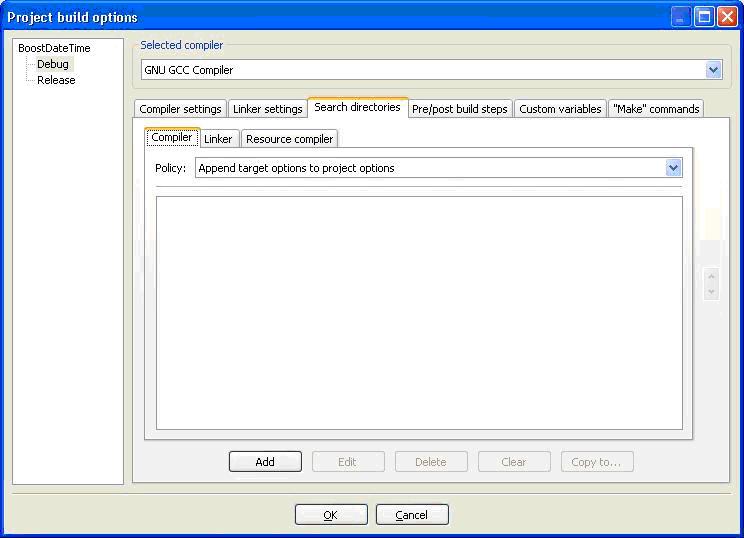
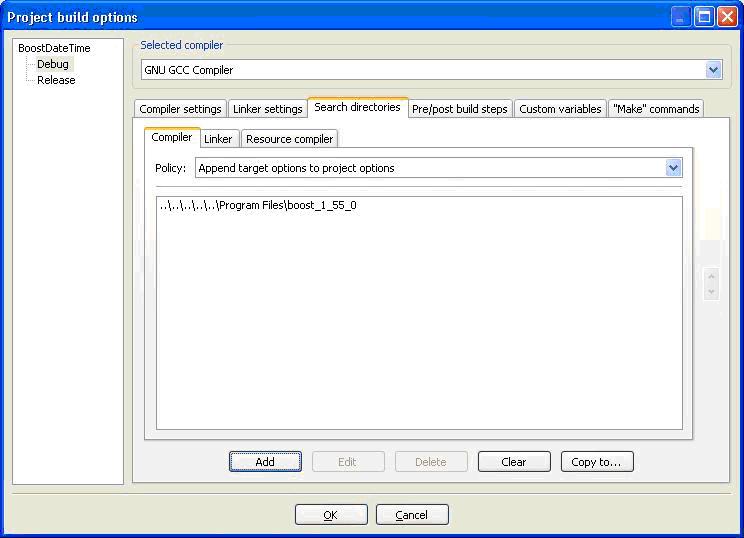
 Right-click your project folder and select Build Options. Select the Search Directories tab and then select the Compiler tab:
 Click the Add button and notice that the Add Directory dialog defaults to the current project folder location:
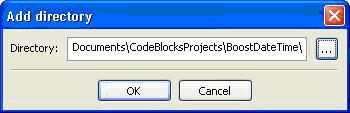 Click the browse button to the right in order to locate and select your Boost root directory:
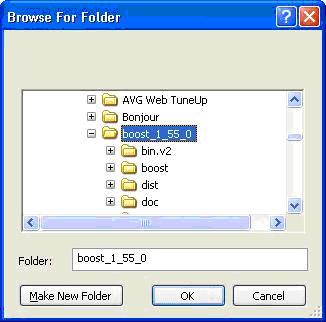 Click OK and choose Yes to keep this as a relative path if prompted:
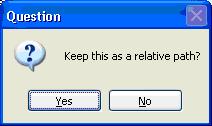 Like so:
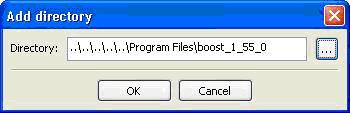 You are then returned to the Project Build Options dialog. Click OK.
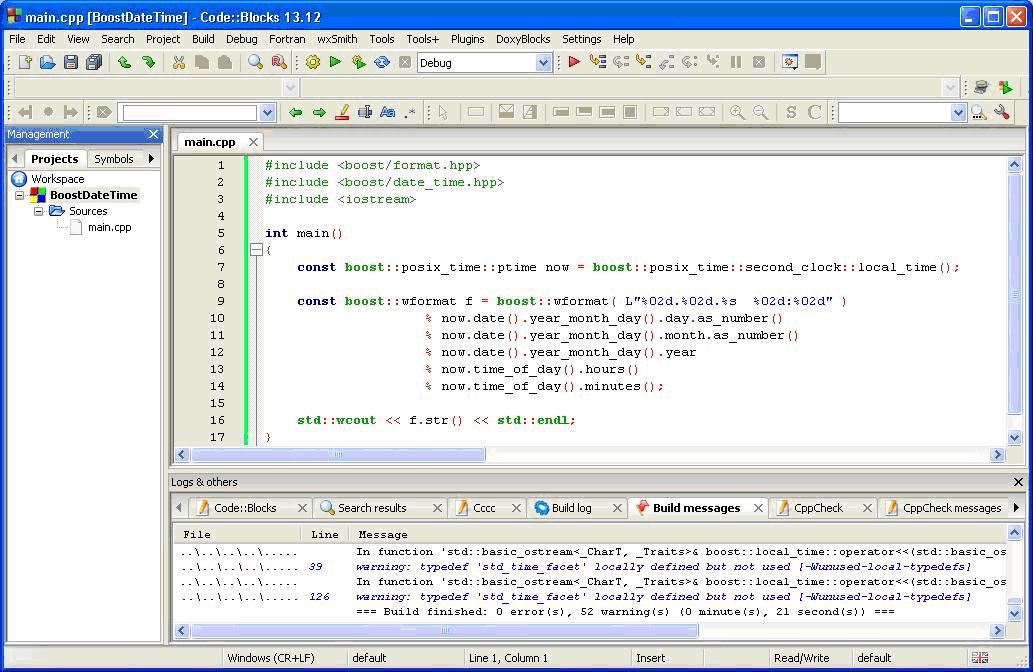
 Choose Build again and this time the project will build successfully:
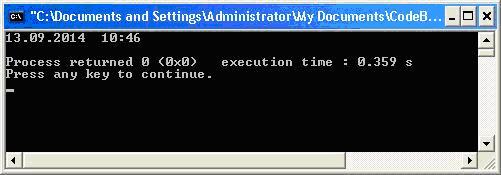
 Clicking the run button will the give the following output:
 2. Compiled libraries (Windows)
An example this time using a Boost library requiring additional compilation, Boost.FileSystem.
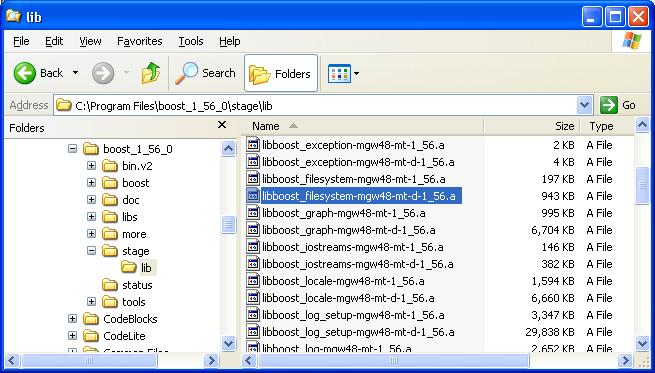
To generate the necessary library files, open a command prompt, navigate to the Boost root directory and execute the commands. In this example I am using compiled libraries generated for MinGW:
2. Compiled libraries (Windows)
An example this time using a Boost library requiring additional compilation, Boost.FileSystem.
To generate the necessary library files, open a command prompt, navigate to the Boost root directory and execute the commands. In this example I am using compiled libraries generated for MinGW:
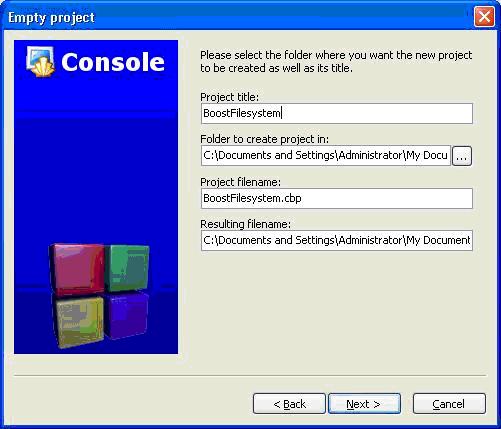
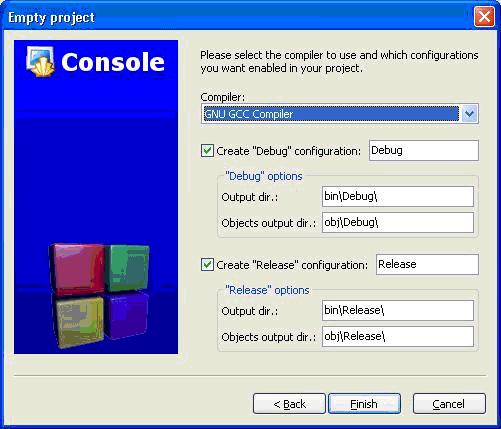
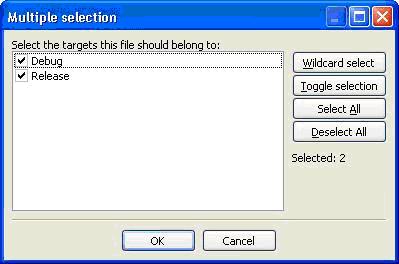
 As with the header-only example, create the empty project, set the compiler choice and set the Debug/Release targets:
 Insert a new empty file and save it as our main.cpp. Insert the following code which exercises the file system library:
[code language="cpp"]
#include "boost/filesystem.hpp"
#include "boost/foreach.hpp"
#include <iostream>
int main()
{
boost::filesystem::path targetDir( "C:\\MyStuff" );
boost::filesystem::directory_iterator it( targetDir ), eod;
BOOST_FOREACH( boost::filesystem::path const &p, std::make_pair( it, eod ) )
{
if( is_regular_file( p ) )
{
std::string filename = p.filename().string();
std::cout << filename << std::endl;
}
}
std::getchar();
return 0;
}
[/code]
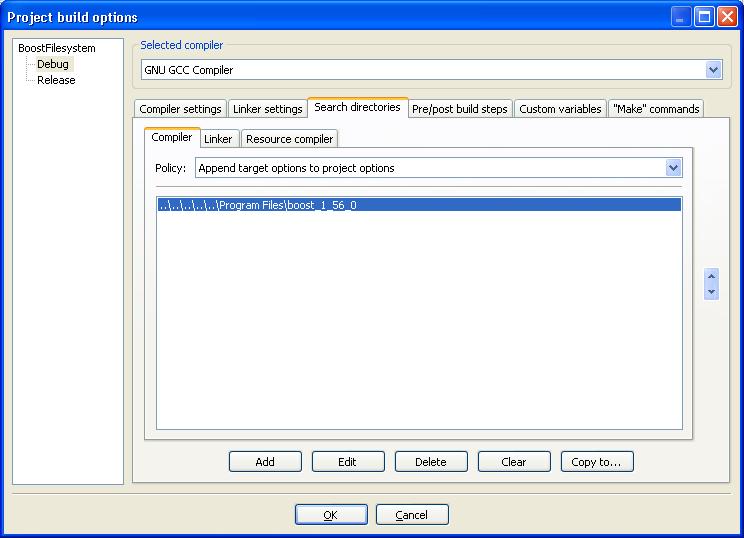
As before, right-click your project folder and select Build Options. Select the Search Directories tab and then select the Compiler tab. Set the location of the Boost root directory:
Insert a new empty file and save it as our main.cpp. Insert the following code which exercises the file system library:
[code language="cpp"]
#include "boost/filesystem.hpp"
#include "boost/foreach.hpp"
#include <iostream>
int main()
{
boost::filesystem::path targetDir( "C:\\MyStuff" );
boost::filesystem::directory_iterator it( targetDir ), eod;
BOOST_FOREACH( boost::filesystem::path const &p, std::make_pair( it, eod ) )
{
if( is_regular_file( p ) )
{
std::string filename = p.filename().string();
std::cout << filename << std::endl;
}
}
std::getchar();
return 0;
}
[/code]
As before, right-click your project folder and select Build Options. Select the Search Directories tab and then select the Compiler tab. Set the location of the Boost root directory:
 Select the Linker tab and set the location of the library files:
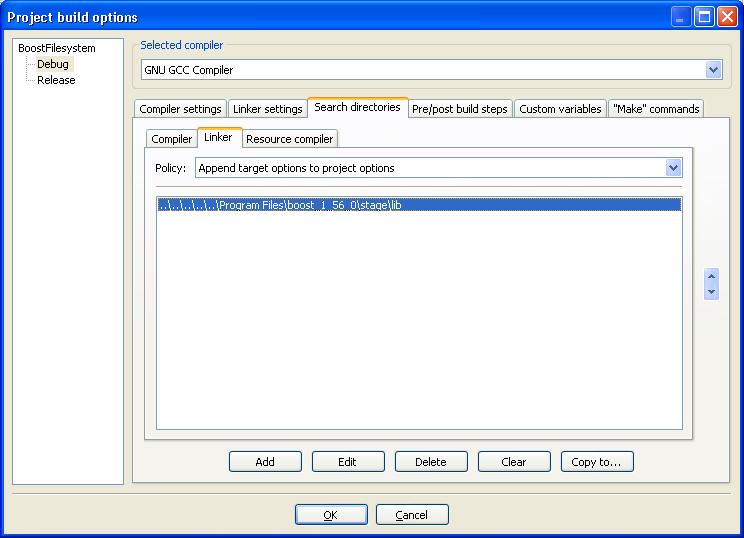 In the Linker Setting tab add the necessary library names, which in this example will be the filesystem and system libraries:
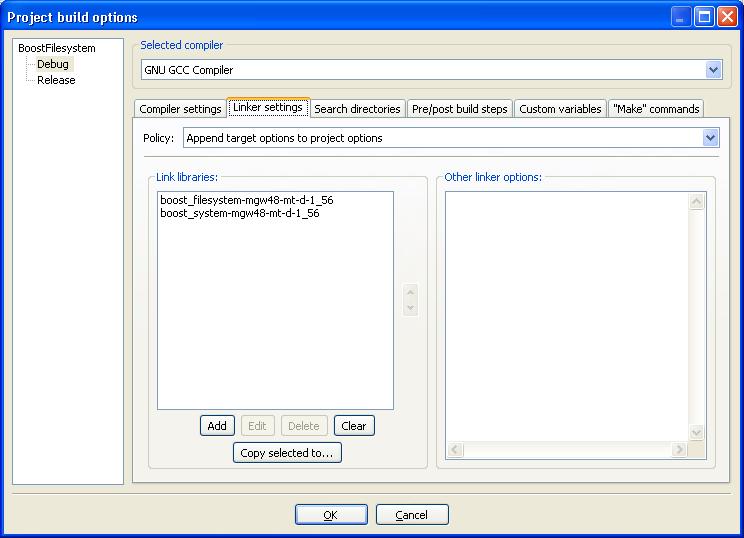 These are the libraries that are generated through running the bootstrap.bat and b2.exe via command line in the Boost root directory.
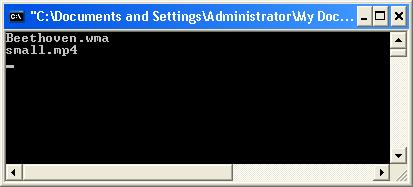
The compiled-library example should now compile and run the example to read and display the file names inside my "MyStuff" directory:
These are the libraries that are generated through running the bootstrap.bat and b2.exe via command line in the Boost root directory.
The compiled-library example should now compile and run the example to read and display the file names inside my "MyStuff" directory:
 3. Compiled libraries (Ubuntu Linux)
One more example, this time using Code::Blocks in a Linux (Ubuntu) environment, using Boost.Threads as the compiled library example.
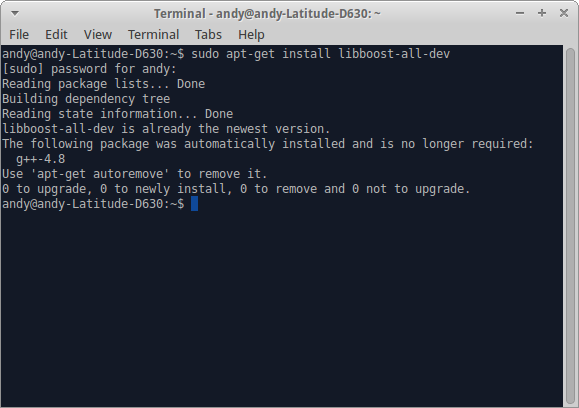
First make sure you have an up-to-date Boost installed using the apt-get command:
[code language="cpp"]
sudo apt-get install libboost-all-dev
[/code]
3. Compiled libraries (Ubuntu Linux)
One more example, this time using Code::Blocks in a Linux (Ubuntu) environment, using Boost.Threads as the compiled library example.
First make sure you have an up-to-date Boost installed using the apt-get command:
[code language="cpp"]
sudo apt-get install libboost-all-dev
[/code]
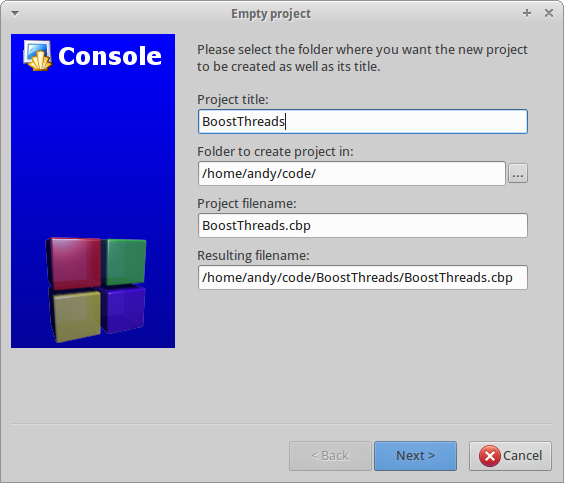
 Create a new Empty Project as with the previous Windows examples. This time we will call it BoostThreads:
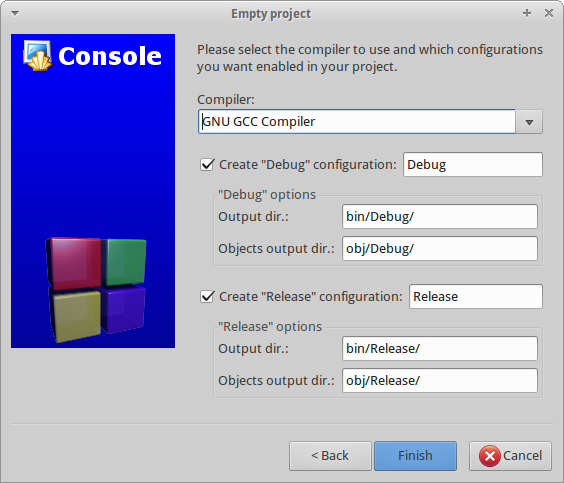
 Set the Compiler configuration and click Finish:
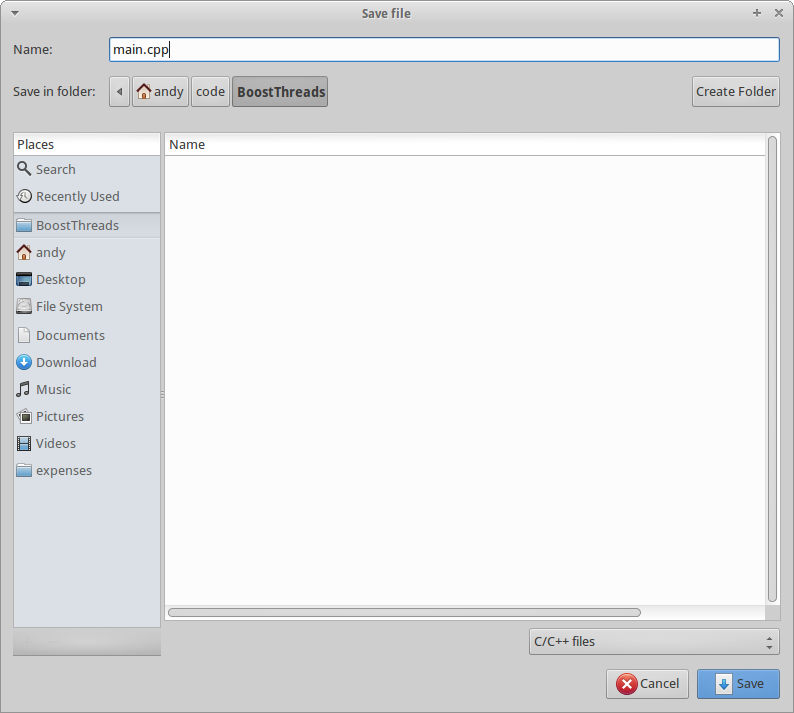
 Insert a new empty file and save it as our main.cpp. Do this by selecting New > Empty File:
 Insert the following code in main.cpp which exercises the Boost Threads library:
[code language="cpp"]
#include <iostream>
#include <boost/thread.hpp>
#include <boost/date_time.hpp>
void workerFunc()
{
boost::posix_time::seconds workTime(3);
std::cout << "Worker: running" << std::endl;
// Pretend to do something useful...
boost::this_thread::sleep(workTime);
std::cout << "Worker: finished" << std::endl;
}
int main(int argc, char* argv[])
{
std::cout << "main: startup" << std::endl;
boost::thread workerThread(workerFunc);
std::cout << "main: waiting for thread" << std::endl;
workerThread.join();
std::cout << "main: done" << std::endl;
return 0;
}
[/code]
We now configure the include and library paths etc. If you are unsure of where your Boost libraries have been installed in Linux, the [code]locate[/code] can be fairly useful:
[code language="cpp"]locate libboost[/code]
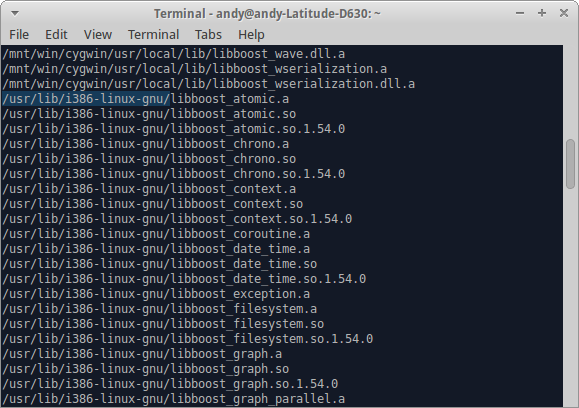
On my machine the compiled library files were located in the /usr/lib/i386-linux-gnu/ folder:
Insert the following code in main.cpp which exercises the Boost Threads library:
[code language="cpp"]
#include <iostream>
#include <boost/thread.hpp>
#include <boost/date_time.hpp>
void workerFunc()
{
boost::posix_time::seconds workTime(3);
std::cout << "Worker: running" << std::endl;
// Pretend to do something useful...
boost::this_thread::sleep(workTime);
std::cout << "Worker: finished" << std::endl;
}
int main(int argc, char* argv[])
{
std::cout << "main: startup" << std::endl;
boost::thread workerThread(workerFunc);
std::cout << "main: waiting for thread" << std::endl;
workerThread.join();
std::cout << "main: done" << std::endl;
return 0;
}
[/code]
We now configure the include and library paths etc. If you are unsure of where your Boost libraries have been installed in Linux, the [code]locate[/code] can be fairly useful:
[code language="cpp"]locate libboost[/code]
On my machine the compiled library files were located in the /usr/lib/i386-linux-gnu/ folder:
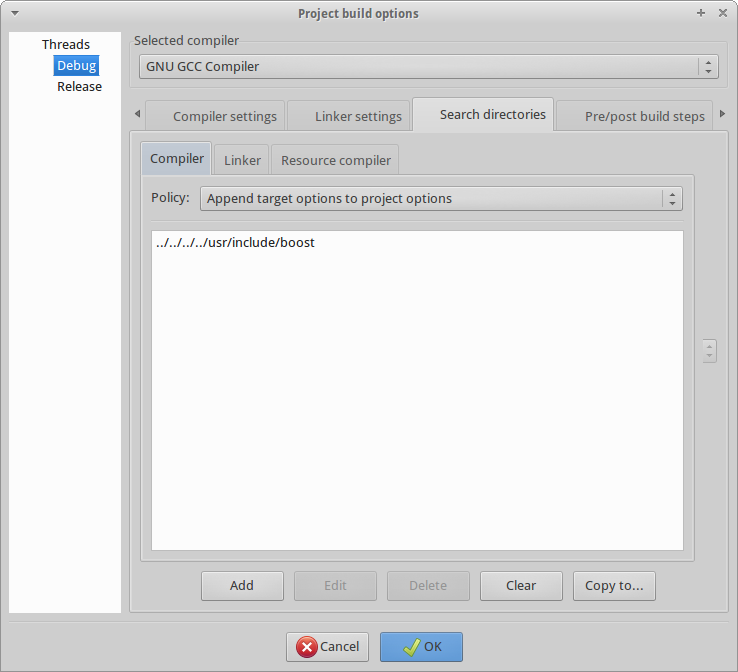
 As with the Windows compiled library example, right-click your project folder and select Build Options. Select the Search Directories tab and then select the Compiler tab. Set the location of the include directory:
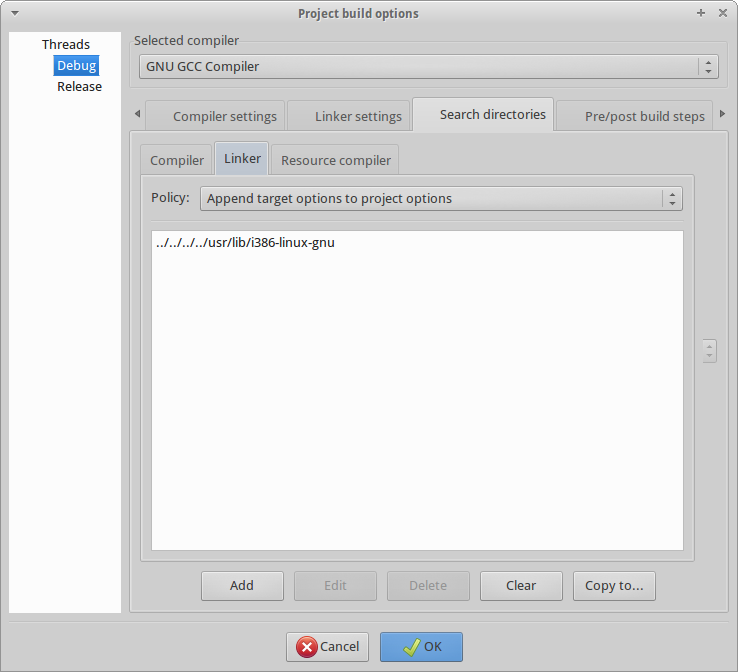
 Click the Linker tab, and select the location of the compiled libraries
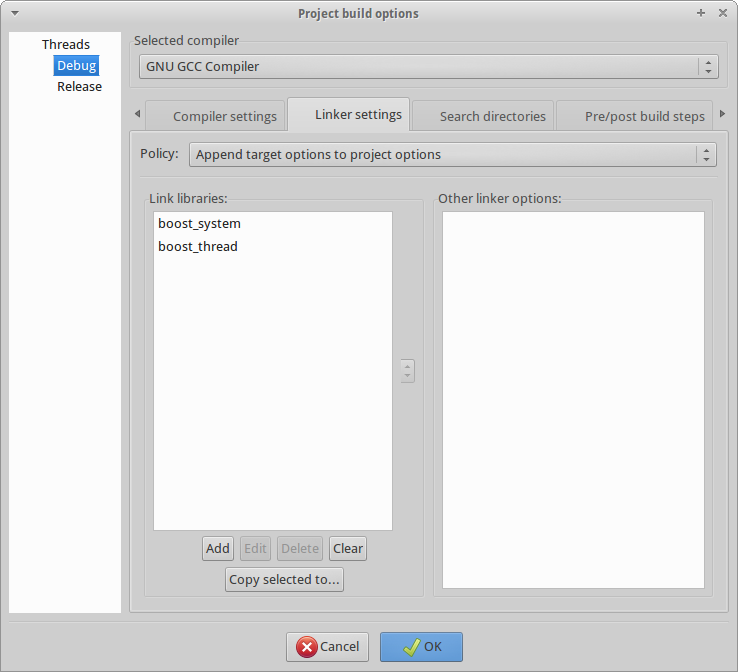
 Select the 'Linker Settings' tab and add the names of the compiled Boost libraries that we will need: boost_thread and boost_system (for some reason any program using Boost threads needs to use this)
 This should then compile.
Give the project a name and click Next:
Choose the C++ compiler you are currently using, such as Cygwin or MinGW and then click Finish:
Add the main.cpp source file by selecting File > New > Empty File. Click Yes when prompted if we wish to add this to the current active project:
And then save your file:
Then make sure the Debug and Release checkboxes are set:
An example that only requires the use of non-compiled libraries, the Boost.DateTime example. Paste the following into the main.cpp file you just created:
[code language="cpp"]
#include <boost/format.hpp>
#include <boost/date_time.hpp>
#include <iostream>
int main()
{
const boost::posix_time::ptime now = boost::posix_time::second_clock::local_time();
const boost::wformat f = boost::wformat( L"%02d.%02d.%s %02d:%02d" )
% now.date().year_month_day().day.as_number()
% now.date().year_month_day().month.as_number()
% now.date().year_month_day().year
% now.time_of_day().hours()
% now.time_of_day().minutes();
std::wcout << f.str() << std::endl;
}
[/code]
Notice that the Code::Blocks compiler still needs to know where to find the Boost.Format and Boost.Datetime libraries otherwise it will not successfully compile:
Right-click your project folder and select Build Options. Select the Search Directories tab and then select the Compiler tab:
Click the Add button and notice that the Add Directory dialog defaults to the current project folder location:
Click the browse button to the right in order to locate and select your Boost root directory:
Click OK and choose Yes to keep this as a relative path if prompted:
Like so:
You are then returned to the Project Build Options dialog. Click OK.
Choose Build again and this time the project will build successfully:
Clicking the run button will the give the following output:
2. Compiled libraries (Windows)
An example this time using a Boost library requiring additional compilation, Boost.FileSystem.
To generate the necessary library files, open a command prompt, navigate to the Boost root directory and execute the commands. In this example I am using compiled libraries generated for MinGW:
As with the header-only example, create the empty project, set the compiler choice and set the Debug/Release targets:
Insert a new empty file and save it as our main.cpp. Insert the following code which exercises the file system library:
[code language="cpp"]
#include "boost/filesystem.hpp"
#include "boost/foreach.hpp"
#include <iostream>
int main()
{
boost::filesystem::path targetDir( "C:\\MyStuff" );
boost::filesystem::directory_iterator it( targetDir ), eod;
BOOST_FOREACH( boost::filesystem::path const &p, std::make_pair( it, eod ) )
{
if( is_regular_file( p ) )
{
std::string filename = p.filename().string();
std::cout << filename << std::endl;
}
}
std::getchar();
return 0;
}
[/code]
As before, right-click your project folder and select Build Options. Select the Search Directories tab and then select the Compiler tab. Set the location of the Boost root directory:
Select the Linker tab and set the location of the library files:
In the Linker Setting tab add the necessary library names, which in this example will be the filesystem and system libraries:
These are the libraries that are generated through running the bootstrap.bat and b2.exe via command line in the Boost root directory.
The compiled-library example should now compile and run the example to read and display the file names inside my "MyStuff" directory:
3. Compiled libraries (Ubuntu Linux)
One more example, this time using Code::Blocks in a Linux (Ubuntu) environment, using Boost.Threads as the compiled library example.
First make sure you have an up-to-date Boost installed using the apt-get command:
[code language="cpp"]
sudo apt-get install libboost-all-dev
[/code]
Create a new Empty Project as with the previous Windows examples. This time we will call it BoostThreads:
Set the Compiler configuration and click Finish:
Insert a new empty file and save it as our main.cpp. Do this by selecting New > Empty File:
Insert the following code in main.cpp which exercises the Boost Threads library:
[code language="cpp"]
#include <iostream>
#include <boost/thread.hpp>
#include <boost/date_time.hpp>
void workerFunc()
{
boost::posix_time::seconds workTime(3);
std::cout << "Worker: running" << std::endl;
// Pretend to do something useful...
boost::this_thread::sleep(workTime);
std::cout << "Worker: finished" << std::endl;
}
int main(int argc, char* argv[])
{
std::cout << "main: startup" << std::endl;
boost::thread workerThread(workerFunc);
std::cout << "main: waiting for thread" << std::endl;
workerThread.join();
std::cout << "main: done" << std::endl;
return 0;
}
[/code]
We now configure the include and library paths etc. If you are unsure of where your Boost libraries have been installed in Linux, the [code]locate[/code] can be fairly useful:
[code language="cpp"]locate libboost[/code]
On my machine the compiled library files were located in the /usr/lib/i386-linux-gnu/ folder:
As with the Windows compiled library example, right-click your project folder and select Build Options. Select the Search Directories tab and then select the Compiler tab. Set the location of the include directory:
Click the Linker tab, and select the location of the compiled libraries
Select the 'Linker Settings' tab and add the names of the compiled Boost libraries that we will need: boost_thread and boost_system (for some reason any program using Boost threads needs to use this)
This should then compile.


Comments
Post a Comment