How to use the Boost compiled libraries in Windows
As stated on the boost.org Getting Started for Windows page, most Boost libraries are header-based that require no separate compilation. But there exist some Boost libraries that require a separate compilation in order to use them. This page essentially reiterates what is already explained in section 5.2.1 of the Getting Started page, but with additional screenshots to make it easier for newcomers.
A previous post dealt with the separate compilation of Boost library binaries using BoostPro, but this package is no longer supported, alas.
Step 1
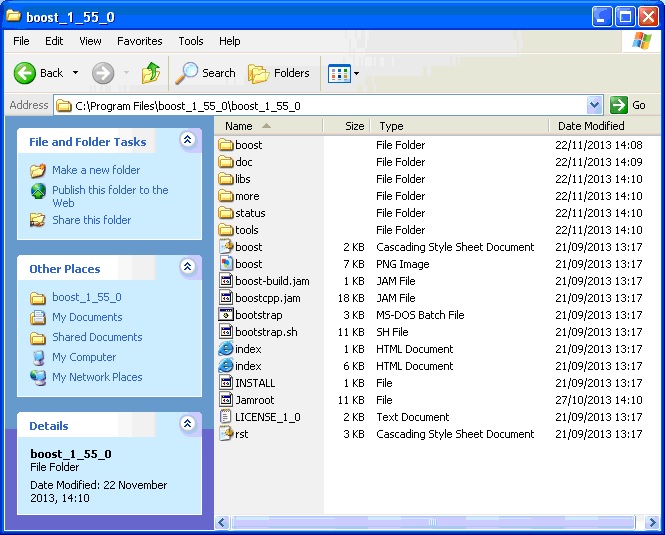
Unzip your boost download to the folder of your choice. The following screenshot shows what mine looks like. Ignore this step if you have previously done this.
 Step 2.
Open a command prompt and navigate ( '
Step 2.
Open a command prompt and navigate ( '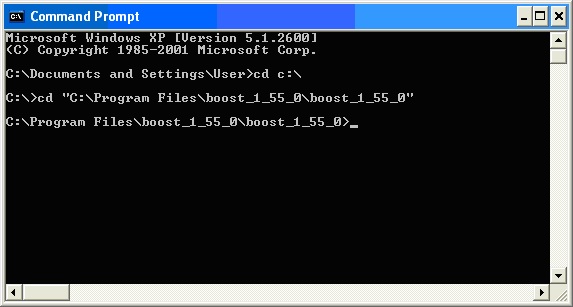 Step 3.
Run the
Step 3.
Run the 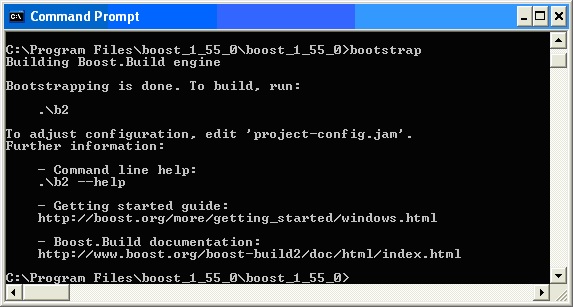 Step 4.
Run
Step 4.
Run 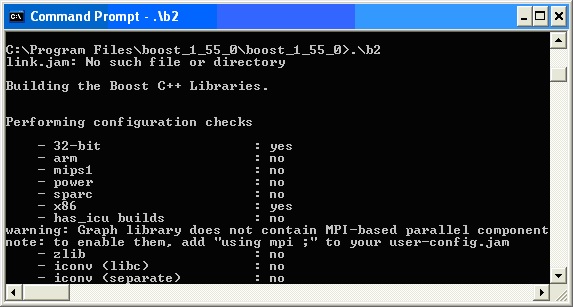 Step 5.
Try it out on a Boost library that is known to require separate compilation:
Step 5.
Try it out on a Boost library that is known to require separate compilation: 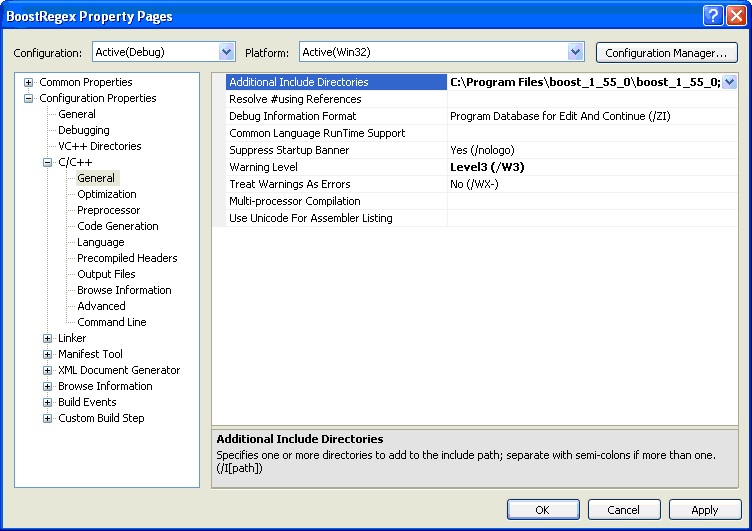 Then set the location of the additional library directories. Failing to do this will result in the following link error:
 And that's it. Your Boost.Regex Visual Studio project should now compile.
Step 2.
Open a command prompt and navigate ( 'cd' ) to the location of your boost root folder. You may want to enclose the path in quotation (“) marks if the path contains any whitespaces:
Step 3.
Run the bootstrap command:
Step 4.
Run .\b2 from the command prompt. This can take quite some time to finish:
Step 5.
Try it out on a Boost library that is known to require separate compilation: Boost.Regex for example.
- In Visual Studio, select File > New > Project > Visual C++ > Empty Project. Call it BoostRegex.
- Select New > File > C++ File. Call it main.cpp.
- Copy and paste the following code snippet into main.cpp:
[code lang="cpp"]
#include <boost/regex.hpp>
#include <iostream>
#include <string>
int main()
{
std::string line;
boost::regex pat( "^Subject: (Re: |Aw: )*(.*)" );
while (std::cin)
{
std::getline(std::cin, line);
boost::smatch matches;
if (boost::regex_match(line, matches, pat))
std::cout << matches[2] << std::endl;
}
}[/code]
Step 6.
In order to make this compile, set the include directory for boost.regex. Failing to do this will result in the following compilation error:
[code language="text"]
fatal error C1083: Cannot open include file: 'boost/regex.hpp': No such file or directory
[/code]
Right-click your project folder and select Properties. In the C/C++ > General tab set the Additional Include Directories field. Click on the image for a close-up:
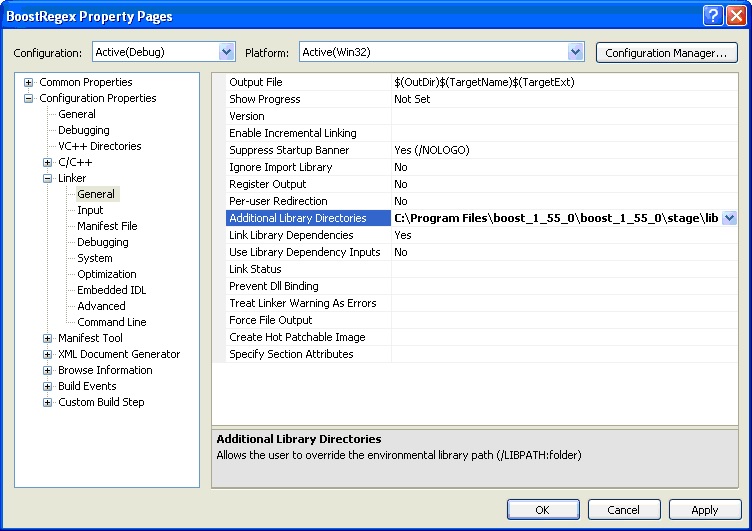
Then set the location of the additional library directories. Failing to do this will result in the following link error:
LINK : fatal error LNK1104: cannot open file 'libboost_regex-vc100-mt-gd-1_55.lib'
Right-click your project folder and select Properties.
In the Linker > General tab set the Additional Library Directories field.
Typically the library files are contained within the stage\lib subfolder.
Again, click on the image for a close-up:
And that's it. Your Boost.Regex Visual Studio project should now compile.


Comments
Post a Comment