Getting started with Qt in Ubuntu Linux
A quick recipe on how to get started with Qt in Ubuntu Linux using a simple example program.
1. Obtain QT4
Run these from the command line:
[code language="text"]
$ sudo apt-get update
$ sudo apt-get install libqt4-dev qt4-qmake cmake r-base-dev libcurl4-gnutls-dev
[/code]
2. Create and edit the qmake project file
To generate and edit the project file itself use something like:
[code language="text"]
$ mkdir qt
$ cd qt/
$ cat > main.pro &
[/code]
This example project file, main.pro, is essentially a set of declarations required by qmake to enable you to build your application.
Using a text editor of your choice, just copy this into your main.pro text file and save:
[code language="text"]
TEMPLATE = app
SOURCES = main.cpp
HEADERS =
CONFIG += qt warn_on release
TARGET = main
QT += gui
QT += widgets
CONFIG += qt
[/code]
3. Create the example application
First chttp://www.informit.com/articles/article.aspx?p=412354&seqNum=4reate your sample main.cpp. I often prefer the 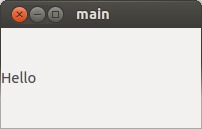
cat command to create new files:
[code language="text"]
$ cat > main.cpp &
[/code]
And using your own Linux-based text editor of choice, create this simple Qt example and save as main.cpp:
[code language="cpp"]
#include <QtWidgets>
#include <QtCore>
#include <QLabel>
int main( int argc, char *argv[] )
{
QApplication *my=new QApplication( argc, argv );
QMainWindow x;
QString str = "Hello";
QLabel *label = new QLabel( str, 0 );
x.setCentralWidget( label );
x.show();
return my->exec();
}
[/code]
4. Use qmake to create the example project
[code language="text"]
$ qmake -o Makefile main.pro
[/code]
5. Build and run the project
[code language="text"]
$ make
$ ./main
[/code]
Giving you your first Qt dialog:


Comments
Post a Comment