Getting Started with Java in NetBeans
1. Create a new project
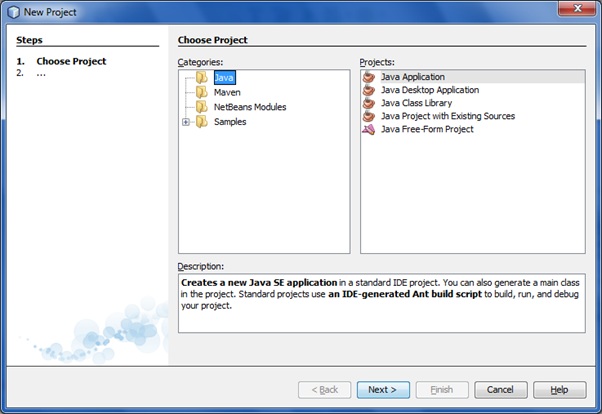
In the File menu, select New Project:
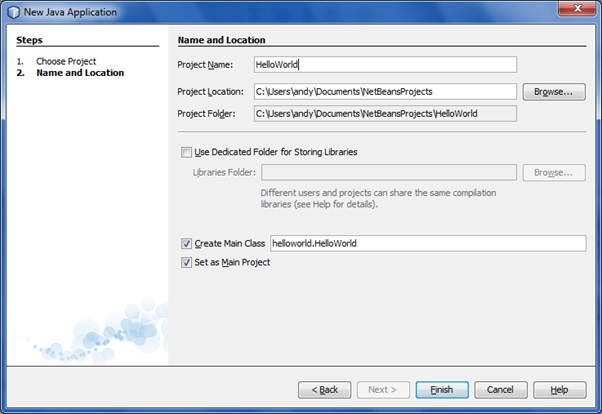
 And complete the remaining wizard step(s):
 2. Write the code
As with writing the "Hello World" example in the Eclipse IDE, fill in the bit of auto generated code:
[code language="java"]
/*
* To change this template, choose Tools | Templates
* and open the template in the editor.
*/
package helloworld;
/**
*
* @author andy
*/
public class HelloWorld {
/**
* @param args the command line arguments
*/
public static void main(String[] args) {
System.out.println( "Hello World!" );
}
}
[/code]
3. Build and run the project
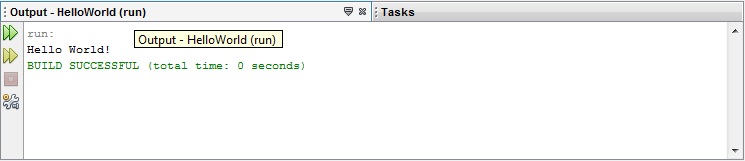
Hit F11 to build the project and F6 in order to run. Sample Console output shown below:
2. Write the code
As with writing the "Hello World" example in the Eclipse IDE, fill in the bit of auto generated code:
[code language="java"]
/*
* To change this template, choose Tools | Templates
* and open the template in the editor.
*/
package helloworld;
/**
*
* @author andy
*/
public class HelloWorld {
/**
* @param args the command line arguments
*/
public static void main(String[] args) {
System.out.println( "Hello World!" );
}
}
[/code]
3. Build and run the project
Hit F11 to build the project and F6 in order to run. Sample Console output shown below:

 And complete the remaining wizard step(s):
 2. Write the code
As with writing the "Hello World" example in the Eclipse IDE, fill in the bit of auto generated code:
[code language="java"]
/*
* To change this template, choose Tools | Templates
* and open the template in the editor.
*/
package helloworld;
/**
*
* @author andy
*/
public class HelloWorld {
/**
* @param args the command line arguments
*/
public static void main(String[] args) {
System.out.println( "Hello World!" );
}
}
[/code]
3. Build and run the project
Hit F11 to build the project and F6 in order to run. Sample Console output shown below:
2. Write the code
As with writing the "Hello World" example in the Eclipse IDE, fill in the bit of auto generated code:
[code language="java"]
/*
* To change this template, choose Tools | Templates
* and open the template in the editor.
*/
package helloworld;
/**
*
* @author andy
*/
public class HelloWorld {
/**
* @param args the command line arguments
*/
public static void main(String[] args) {
System.out.println( "Hello World!" );
}
}
[/code]
3. Build and run the project
Hit F11 to build the project and F6 in order to run. Sample Console output shown below:


Comments
Post a Comment