Getting Started with Java in Eclipse
1. Open Eclipse and create a new project
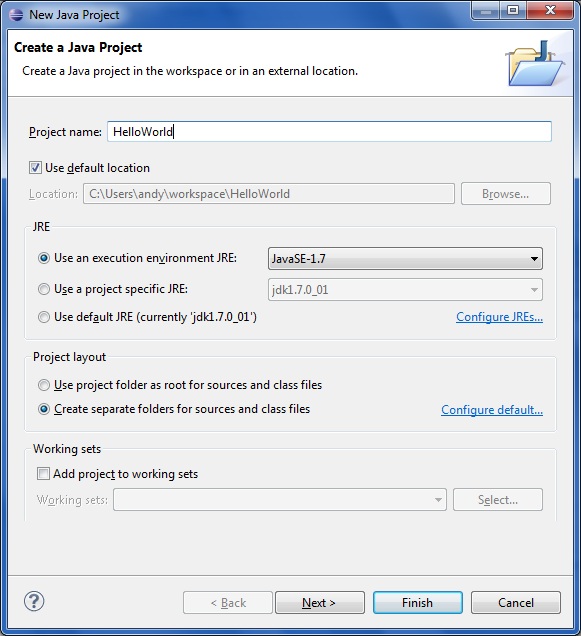
Select File -> New -> Java Project. Give your project a name and change the default locxation of the folder location, if desired. Click the Finish button:
 2. Create a new Java class
Select File -> New -> Class. Give your class a name eg “Main” and make sure public static void main is checked. Then click finish.
2. Create a new Java class
Select File -> New -> Class. Give your class a name eg “Main” and make sure public static void main is checked. Then click finish.
 3. Write the code
In the Main.java file, simply fill in the bit of auto generated code to print out “Hello World!”. Save the file – this will automatically compile your code – you don’t need to press any other buttons or anything like that.
[code language="java"]
public class Main {
/**
* @param args
*/
public static void main(String[] args) {
System.out.println( "Hello World!" );
}
}
[/code]
4. Run the application
In the main menu, select Run -> Run As -> Java Application and view the output in the Console window:
3. Write the code
In the Main.java file, simply fill in the bit of auto generated code to print out “Hello World!”. Save the file – this will automatically compile your code – you don’t need to press any other buttons or anything like that.
[code language="java"]
public class Main {
/**
* @param args
*/
public static void main(String[] args) {
System.out.println( "Hello World!" );
}
}
[/code]
4. Run the application
In the main menu, select Run -> Run As -> Java Application and view the output in the Console window:
 NetBeans equivalent is here.
 2. Create a new Java class
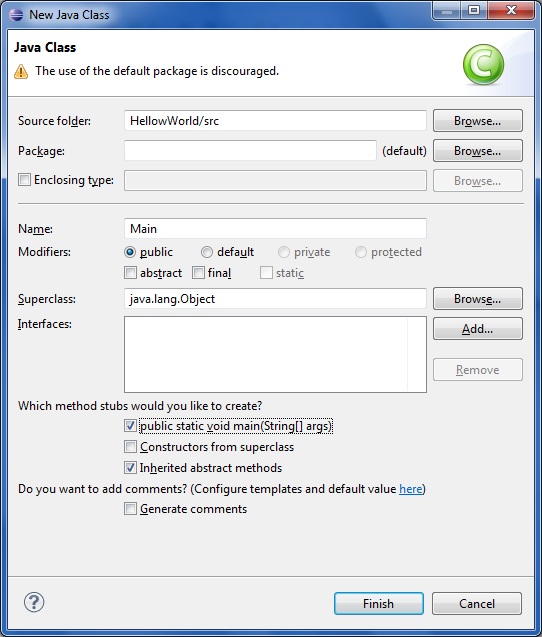
Select File -> New -> Class. Give your class a name eg “Main” and make sure public static void main is checked. Then click finish.
2. Create a new Java class
Select File -> New -> Class. Give your class a name eg “Main” and make sure public static void main is checked. Then click finish.
 3. Write the code
In the Main.java file, simply fill in the bit of auto generated code to print out “Hello World!”. Save the file – this will automatically compile your code – you don’t need to press any other buttons or anything like that.
[code language="java"]
public class Main {
/**
* @param args
*/
public static void main(String[] args) {
System.out.println( "Hello World!" );
}
}
[/code]
4. Run the application
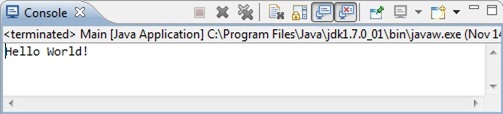
In the main menu, select Run -> Run As -> Java Application and view the output in the Console window:
3. Write the code
In the Main.java file, simply fill in the bit of auto generated code to print out “Hello World!”. Save the file – this will automatically compile your code – you don’t need to press any other buttons or anything like that.
[code language="java"]
public class Main {
/**
* @param args
*/
public static void main(String[] args) {
System.out.println( "Hello World!" );
}
}
[/code]
4. Run the application
In the main menu, select Run -> Run As -> Java Application and view the output in the Console window:
 NetBeans equivalent is here.


Comments
Post a Comment