How to Set up a Subversion (SVN) Server in Linux
This guide details the steps taken to create a proper SVN server, as opposed to using a not-recommended network share, as means of creating and accessing repositories.
These steps detail the steps that were needed to (eventually) get the thing working, enabling you to check out source code, projects etc remotely and is hopefully much simpler to follow than a lot of the stuff that is currently already out there. If it saves you the faffs and headaches I encountered as a Linux non-expert, then all the better.
1. Download the Subversion tarball
Download the software to a chosen location on your Linux hard drive. At present the latest version is 1.6.17 and you can get the tarball (my preference) from here or get the complete install package from here.
2. Install Subversion
Once downloaded, open up a command prompt, cd to the directory where it was downloaded and extract:
[code language="text"]
$gunzip subversion-1.6.17.tar.gz
$tar -xvf subversion-1.6.17.tar
[/code]
Then cd to the subversion-1.6.17/ directory and run the following commands:
[code language="text"]
$./configure
$make
$make install
[/code]
3. Deal with install problems, if any
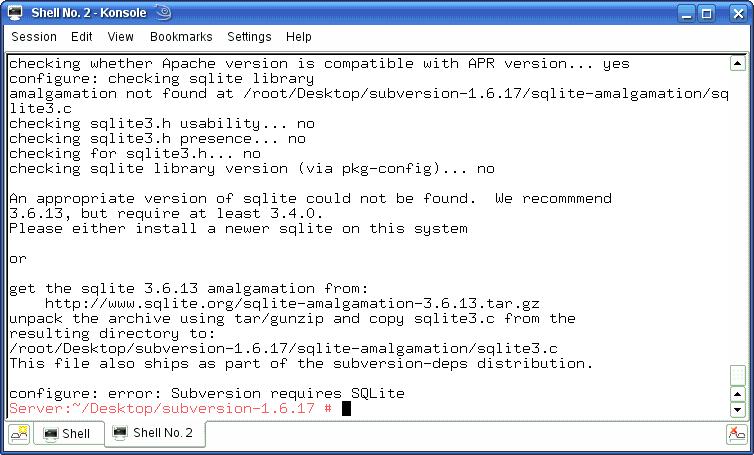
If you get problems when running ./configure, just follow the instructions given from the command line. See example screenshot below. Depending what prerequisites you already have installed, you may get the following install error when attempting to run ./configure, that complains of a missing sqlite3.c file:
 If this is the case, download the sqlite-amalgamation-3.6.13 as suggested in the install error message from the following location...
http://www.sqlite.org/sqlite-amalgamation-3.6.13.tar.gz
... and unzip it as before:
[code language="text"]
$gunzip sqlite-amalgamation-3.6.13.tar.gz
$tar -xvf sqlite-amalgamation-3.6.13.tar
[/code]
Then copy the sqlite3.c file contained in the resulting sqlite-amalgamation-3.6.13 directory into your subversion-1.6.17/sqlite-amalgamation folder. The sqlite-amalgamation directory will not yet be present so cd into the subversion-1.6.17 directory and create it:
[code language="text"]
$mkdir sqlite-amalgamation
[/code]
Then copy the sqlite3.c file into it:
[code language="text"]
$cp sqlite-3.16.13/sqlite3.c subversion-1.6.17/sqlite-amalgamtion/
[/code]
Then cd into the subversion-1.6.17/ directory and try running the './configure' command again, followed by the 'make' and 'make install' commands if this is successful.
4. Create a Subversion Repository
Use svnadmin to create a repository of your choice eg "MyRepos" located at the path of your choice:
[code language="text"]
$svnadmin create /MyPath/MyRepos
[/code]
5. Edit the repository configuration file
Using your Linux-based text editor of choice (eg vi, emacs, kate etc) open up the svnserve file so that we can modify it's access settings for authenticated/non-authenticated users:
[code language="text"]
$vi /MyPath/MyRepos/conf/svnserve.conf
[/code]
In that file, add the following three lines:
[code language="text"]
anon-access = none
auth-access = write
password-db = passwd
[/code]
Please note: don't just insert these three lines at the very end, like I did. They need to go in the [general] section, not the [sasl] section, otherwise "Authorization failed" type errors will occur whenever you try to check in any new stuff.
6. Modify the password file
Again using your text editor, open the password file so that we can add users. You will probably need to login with root privileges in order to do tasks like these:
[code language="text"]
$vi /MyPath/MyRepos/conf/passwd
[/code]
In that file add the users:
[code language="text"]
# add users in the format : user = password
andy = mypassword
[/code]
7. Import your project
Assuming you have a project folder somewhere containing code etc that you wish to put under version control, use the svn import command to do this:
[code language="text"]
$svn import /MyProjects/MyProj file:///MyPath/MyRepos/MyProj -m "New Import"
[/code]
If you get an error message similar to the following when doing a new import...
[code language="text"]
svn: Could not use external editor to fetch log message; consider setting the $SVN_EDITOR environment variable or using the --message (-m) or --file (-F) options
svn: None of the environment variables SVN_EDITOR, VISUAL or EDITOR are set, and no 'editor-cmd' run-time configuration option was found
[/code]
... then make sure you have included -m "New import" on to the end of the import command. Then it will work.
8. Start the SVN server as Daemon
The easiest way is to run svnserve as a standalone “daemon” process, using the -d option:
[code language="text"]
$svnserve -d
[/code]
Use this if you don't mind having to re-start the SVN server every time the machine is re-started.
9. Check project out of the repository
Try this on other remote machines as well:
[code language="text"]
$svn co svn://192.168.0.99/MyPath/MyRepos/MyProj
[/code]
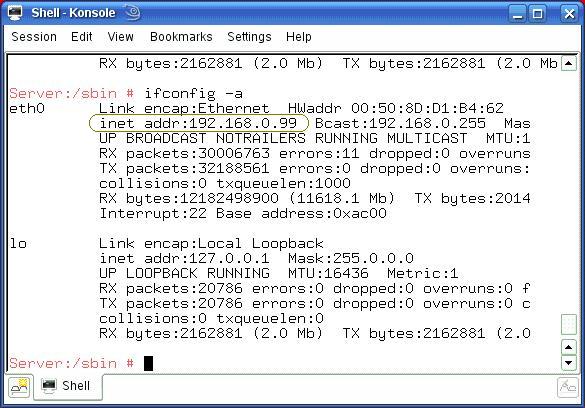
The IP address 192.168.0.99 listed may not work for you. To obain the necessary Linux server IP address you will need to run the ifconfig command:
[code language="text"]
$ifconfig -a
[/code]
This will give you an output something like this giving you the information you need:
If this is the case, download the sqlite-amalgamation-3.6.13 as suggested in the install error message from the following location...
http://www.sqlite.org/sqlite-amalgamation-3.6.13.tar.gz
... and unzip it as before:
[code language="text"]
$gunzip sqlite-amalgamation-3.6.13.tar.gz
$tar -xvf sqlite-amalgamation-3.6.13.tar
[/code]
Then copy the sqlite3.c file contained in the resulting sqlite-amalgamation-3.6.13 directory into your subversion-1.6.17/sqlite-amalgamation folder. The sqlite-amalgamation directory will not yet be present so cd into the subversion-1.6.17 directory and create it:
[code language="text"]
$mkdir sqlite-amalgamation
[/code]
Then copy the sqlite3.c file into it:
[code language="text"]
$cp sqlite-3.16.13/sqlite3.c subversion-1.6.17/sqlite-amalgamtion/
[/code]
Then cd into the subversion-1.6.17/ directory and try running the './configure' command again, followed by the 'make' and 'make install' commands if this is successful.
4. Create a Subversion Repository
Use svnadmin to create a repository of your choice eg "MyRepos" located at the path of your choice:
[code language="text"]
$svnadmin create /MyPath/MyRepos
[/code]
5. Edit the repository configuration file
Using your Linux-based text editor of choice (eg vi, emacs, kate etc) open up the svnserve file so that we can modify it's access settings for authenticated/non-authenticated users:
[code language="text"]
$vi /MyPath/MyRepos/conf/svnserve.conf
[/code]
In that file, add the following three lines:
[code language="text"]
anon-access = none
auth-access = write
password-db = passwd
[/code]
Please note: don't just insert these three lines at the very end, like I did. They need to go in the [general] section, not the [sasl] section, otherwise "Authorization failed" type errors will occur whenever you try to check in any new stuff.
6. Modify the password file
Again using your text editor, open the password file so that we can add users. You will probably need to login with root privileges in order to do tasks like these:
[code language="text"]
$vi /MyPath/MyRepos/conf/passwd
[/code]
In that file add the users:
[code language="text"]
# add users in the format : user = password
andy = mypassword
[/code]
7. Import your project
Assuming you have a project folder somewhere containing code etc that you wish to put under version control, use the svn import command to do this:
[code language="text"]
$svn import /MyProjects/MyProj file:///MyPath/MyRepos/MyProj -m "New Import"
[/code]
If you get an error message similar to the following when doing a new import...
[code language="text"]
svn: Could not use external editor to fetch log message; consider setting the $SVN_EDITOR environment variable or using the --message (-m) or --file (-F) options
svn: None of the environment variables SVN_EDITOR, VISUAL or EDITOR are set, and no 'editor-cmd' run-time configuration option was found
[/code]
... then make sure you have included -m "New import" on to the end of the import command. Then it will work.
8. Start the SVN server as Daemon
The easiest way is to run svnserve as a standalone “daemon” process, using the -d option:
[code language="text"]
$svnserve -d
[/code]
Use this if you don't mind having to re-start the SVN server every time the machine is re-started.
9. Check project out of the repository
Try this on other remote machines as well:
[code language="text"]
$svn co svn://192.168.0.99/MyPath/MyRepos/MyProj
[/code]
The IP address 192.168.0.99 listed may not work for you. To obain the necessary Linux server IP address you will need to run the ifconfig command:
[code language="text"]
$ifconfig -a
[/code]
This will give you an output something like this giving you the information you need:
 10. To back up a Subversion repository
Don't try and copy and paste the repository or anything like that.
Create a gzipped Subversion file as follows:
[code language="text"]
$svnadmin dump /MyPath/MyRepos | gzip > MyBackupRepos.svn.gz
[/code]
Then you can copy the gzipped file to your backup medium of choice: CD, online, external drive etc.
11. To restore a backed-up Subversion respository
Unzip the backup *.gz file to give you the Subversion file (*.svn) you need.
[code language="text"]
$gunzip MyBackupRepos.svn.gz
[/code]
Then use svnadmin to create a new repository, calling it what you like:
[code language="text"]
$svnadmin create /MyPath/MyRestoredRepos
[/code]
And load the Subversion file you unzipped into it:
[code language="text"]
$svnadmin load /MyPath/MyRestoredRepos < /PathWhereSVNfileLives/MyBackupRepos.svn
[/code]
You should then be in a position to check out the repository and use it as normal.
10. To back up a Subversion repository
Don't try and copy and paste the repository or anything like that.
Create a gzipped Subversion file as follows:
[code language="text"]
$svnadmin dump /MyPath/MyRepos | gzip > MyBackupRepos.svn.gz
[/code]
Then you can copy the gzipped file to your backup medium of choice: CD, online, external drive etc.
11. To restore a backed-up Subversion respository
Unzip the backup *.gz file to give you the Subversion file (*.svn) you need.
[code language="text"]
$gunzip MyBackupRepos.svn.gz
[/code]
Then use svnadmin to create a new repository, calling it what you like:
[code language="text"]
$svnadmin create /MyPath/MyRestoredRepos
[/code]
And load the Subversion file you unzipped into it:
[code language="text"]
$svnadmin load /MyPath/MyRestoredRepos < /PathWhereSVNfileLives/MyBackupRepos.svn
[/code]
You should then be in a position to check out the repository and use it as normal.
 If this is the case, download the sqlite-amalgamation-3.6.13 as suggested in the install error message from the following location...
http://www.sqlite.org/sqlite-amalgamation-3.6.13.tar.gz
... and unzip it as before:
[code language="text"]
$gunzip sqlite-amalgamation-3.6.13.tar.gz
$tar -xvf sqlite-amalgamation-3.6.13.tar
[/code]
Then copy the sqlite3.c file contained in the resulting sqlite-amalgamation-3.6.13 directory into your subversion-1.6.17/sqlite-amalgamation folder. The sqlite-amalgamation directory will not yet be present so cd into the subversion-1.6.17 directory and create it:
[code language="text"]
$mkdir sqlite-amalgamation
[/code]
Then copy the sqlite3.c file into it:
[code language="text"]
$cp sqlite-3.16.13/sqlite3.c subversion-1.6.17/sqlite-amalgamtion/
[/code]
Then cd into the subversion-1.6.17/ directory and try running the './configure' command again, followed by the 'make' and 'make install' commands if this is successful.
4. Create a Subversion Repository
Use svnadmin to create a repository of your choice eg "MyRepos" located at the path of your choice:
[code language="text"]
$svnadmin create /MyPath/MyRepos
[/code]
5. Edit the repository configuration file
Using your Linux-based text editor of choice (eg vi, emacs, kate etc) open up the svnserve file so that we can modify it's access settings for authenticated/non-authenticated users:
[code language="text"]
$vi /MyPath/MyRepos/conf/svnserve.conf
[/code]
In that file, add the following three lines:
[code language="text"]
anon-access = none
auth-access = write
password-db = passwd
[/code]
Please note: don't just insert these three lines at the very end, like I did. They need to go in the [general] section, not the [sasl] section, otherwise "Authorization failed" type errors will occur whenever you try to check in any new stuff.
6. Modify the password file
Again using your text editor, open the password file so that we can add users. You will probably need to login with root privileges in order to do tasks like these:
[code language="text"]
$vi /MyPath/MyRepos/conf/passwd
[/code]
In that file add the users:
[code language="text"]
# add users in the format : user = password
andy = mypassword
[/code]
7. Import your project
Assuming you have a project folder somewhere containing code etc that you wish to put under version control, use the svn import command to do this:
[code language="text"]
$svn import /MyProjects/MyProj file:///MyPath/MyRepos/MyProj -m "New Import"
[/code]
If you get an error message similar to the following when doing a new import...
[code language="text"]
svn: Could not use external editor to fetch log message; consider setting the $SVN_EDITOR environment variable or using the --message (-m) or --file (-F) options
svn: None of the environment variables SVN_EDITOR, VISUAL or EDITOR are set, and no 'editor-cmd' run-time configuration option was found
[/code]
... then make sure you have included -m "New import" on to the end of the import command. Then it will work.
8. Start the SVN server as Daemon
The easiest way is to run svnserve as a standalone “daemon” process, using the -d option:
[code language="text"]
$svnserve -d
[/code]
Use this if you don't mind having to re-start the SVN server every time the machine is re-started.
9. Check project out of the repository
Try this on other remote machines as well:
[code language="text"]
$svn co svn://192.168.0.99/MyPath/MyRepos/MyProj
[/code]
The IP address 192.168.0.99 listed may not work for you. To obain the necessary Linux server IP address you will need to run the ifconfig command:
[code language="text"]
$ifconfig -a
[/code]
This will give you an output something like this giving you the information you need:
If this is the case, download the sqlite-amalgamation-3.6.13 as suggested in the install error message from the following location...
http://www.sqlite.org/sqlite-amalgamation-3.6.13.tar.gz
... and unzip it as before:
[code language="text"]
$gunzip sqlite-amalgamation-3.6.13.tar.gz
$tar -xvf sqlite-amalgamation-3.6.13.tar
[/code]
Then copy the sqlite3.c file contained in the resulting sqlite-amalgamation-3.6.13 directory into your subversion-1.6.17/sqlite-amalgamation folder. The sqlite-amalgamation directory will not yet be present so cd into the subversion-1.6.17 directory and create it:
[code language="text"]
$mkdir sqlite-amalgamation
[/code]
Then copy the sqlite3.c file into it:
[code language="text"]
$cp sqlite-3.16.13/sqlite3.c subversion-1.6.17/sqlite-amalgamtion/
[/code]
Then cd into the subversion-1.6.17/ directory and try running the './configure' command again, followed by the 'make' and 'make install' commands if this is successful.
4. Create a Subversion Repository
Use svnadmin to create a repository of your choice eg "MyRepos" located at the path of your choice:
[code language="text"]
$svnadmin create /MyPath/MyRepos
[/code]
5. Edit the repository configuration file
Using your Linux-based text editor of choice (eg vi, emacs, kate etc) open up the svnserve file so that we can modify it's access settings for authenticated/non-authenticated users:
[code language="text"]
$vi /MyPath/MyRepos/conf/svnserve.conf
[/code]
In that file, add the following three lines:
[code language="text"]
anon-access = none
auth-access = write
password-db = passwd
[/code]
Please note: don't just insert these three lines at the very end, like I did. They need to go in the [general] section, not the [sasl] section, otherwise "Authorization failed" type errors will occur whenever you try to check in any new stuff.
6. Modify the password file
Again using your text editor, open the password file so that we can add users. You will probably need to login with root privileges in order to do tasks like these:
[code language="text"]
$vi /MyPath/MyRepos/conf/passwd
[/code]
In that file add the users:
[code language="text"]
# add users in the format : user = password
andy = mypassword
[/code]
7. Import your project
Assuming you have a project folder somewhere containing code etc that you wish to put under version control, use the svn import command to do this:
[code language="text"]
$svn import /MyProjects/MyProj file:///MyPath/MyRepos/MyProj -m "New Import"
[/code]
If you get an error message similar to the following when doing a new import...
[code language="text"]
svn: Could not use external editor to fetch log message; consider setting the $SVN_EDITOR environment variable or using the --message (-m) or --file (-F) options
svn: None of the environment variables SVN_EDITOR, VISUAL or EDITOR are set, and no 'editor-cmd' run-time configuration option was found
[/code]
... then make sure you have included -m "New import" on to the end of the import command. Then it will work.
8. Start the SVN server as Daemon
The easiest way is to run svnserve as a standalone “daemon” process, using the -d option:
[code language="text"]
$svnserve -d
[/code]
Use this if you don't mind having to re-start the SVN server every time the machine is re-started.
9. Check project out of the repository
Try this on other remote machines as well:
[code language="text"]
$svn co svn://192.168.0.99/MyPath/MyRepos/MyProj
[/code]
The IP address 192.168.0.99 listed may not work for you. To obain the necessary Linux server IP address you will need to run the ifconfig command:
[code language="text"]
$ifconfig -a
[/code]
This will give you an output something like this giving you the information you need:
 10. To back up a Subversion repository
Don't try and copy and paste the repository or anything like that.
Create a gzipped Subversion file as follows:
[code language="text"]
$svnadmin dump /MyPath/MyRepos | gzip > MyBackupRepos.svn.gz
[/code]
Then you can copy the gzipped file to your backup medium of choice: CD, online, external drive etc.
11. To restore a backed-up Subversion respository
Unzip the backup *.gz file to give you the Subversion file (*.svn) you need.
[code language="text"]
$gunzip MyBackupRepos.svn.gz
[/code]
Then use svnadmin to create a new repository, calling it what you like:
[code language="text"]
$svnadmin create /MyPath/MyRestoredRepos
[/code]
And load the Subversion file you unzipped into it:
[code language="text"]
$svnadmin load /MyPath/MyRestoredRepos < /PathWhereSVNfileLives/MyBackupRepos.svn
[/code]
You should then be in a position to check out the repository and use it as normal.
10. To back up a Subversion repository
Don't try and copy and paste the repository or anything like that.
Create a gzipped Subversion file as follows:
[code language="text"]
$svnadmin dump /MyPath/MyRepos | gzip > MyBackupRepos.svn.gz
[/code]
Then you can copy the gzipped file to your backup medium of choice: CD, online, external drive etc.
11. To restore a backed-up Subversion respository
Unzip the backup *.gz file to give you the Subversion file (*.svn) you need.
[code language="text"]
$gunzip MyBackupRepos.svn.gz
[/code]
Then use svnadmin to create a new repository, calling it what you like:
[code language="text"]
$svnadmin create /MyPath/MyRestoredRepos
[/code]
And load the Subversion file you unzipped into it:
[code language="text"]
$svnadmin load /MyPath/MyRestoredRepos < /PathWhereSVNfileLives/MyBackupRepos.svn
[/code]
You should then be in a position to check out the repository and use it as normal.


Comments
Post a Comment