Getting Started with Boost Threads in Visual Studio
Introduction
This post aims to be an accessible introduction to getting set up with the Boost threads in Visual Studio environments for the first time. Like with many technical subjects, there is a great deal of information out on the internet, that tells you a lot without actually showing you anything!
Following in the same vein as previous posts, these are instructions on how to get from A to B when installing Boost threads. For a general introduction to getting started with Boost in Visual Studio environments see this post. Stackoverflow.com has a comprehensive list of Boost thread tutorials also.
There is no in-depth discussion here on how to actually use the boost thread library, that's for another time or another post or a different web page. This is to merely help you get up and running, which for many can often seem the hardest part.
A simple boost::thread example
A nice introduction to boost thread programming exists over at Gavin Baker's "antonymn.org" page which I will take the liberty of reproducing here:
 Then select which of the libraries you wish to install - it does not have to be all of them, just the thread libraries if you wish:
 3. Create the bjam.exe executable
When this is installed, go to the C:\Program Files\boost_1_46_1\tools\build\v2\engine\src directory and run build.bat from the command prompt. Running the build.bat script will create the bjam.exe executable inside this directory:
C:\Program Files\boost_1_46_1\tools\build\v2\engine\src\bin.ntx86
4. Update the PATH environment variable
You now need to select the bjam.exe into in your PATH environment variables. In Windows 7 for example, right-click Computer, select Properties and Advanced System Settings:
3. Create the bjam.exe executable
When this is installed, go to the C:\Program Files\boost_1_46_1\tools\build\v2\engine\src directory and run build.bat from the command prompt. Running the build.bat script will create the bjam.exe executable inside this directory:
C:\Program Files\boost_1_46_1\tools\build\v2\engine\src\bin.ntx86
4. Update the PATH environment variable
You now need to select the bjam.exe into in your PATH environment variables. In Windows 7 for example, right-click Computer, select Properties and Advanced System Settings:
 Click on the Environment Variables... button and select the Edit button:
 Include the directory C:\Program Files\boost_1_46_1\tools\build\v2\engine\src\bin.ntx86 as another environment variable, making sure each variable is separated by a colon (;):
 5. Run the bjam executable
At the command prompt, go to the C:\Program Files\boost_1_46_1 directory, enter "bjam", waiting for approximately 5-10 minutes while the program gets created:
5. Run the bjam executable
At the command prompt, go to the C:\Program Files\boost_1_46_1 directory, enter "bjam", waiting for approximately 5-10 minutes while the program gets created:
 6. Set Visual Studio project properties
In your Visual Studio project select Configuration Properties -> Linker -> Input -> Additional Dependencies and enter
6. Set Visual Studio project properties
In your Visual Studio project select Configuration Properties -> Linker -> Input -> Additional Dependencies and enter  In your Visual Studio project set the project configuration properties -> Linker -> General -> Additional Include Directories, telling it the location of the stage/lib folder:
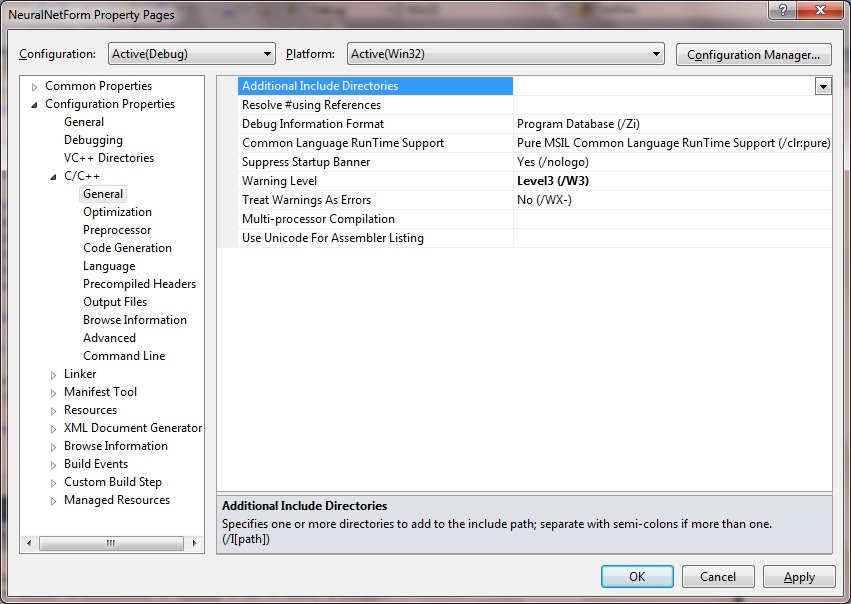
 In Configuration properties, select C/C++ -> General -> Additional Include Directories...
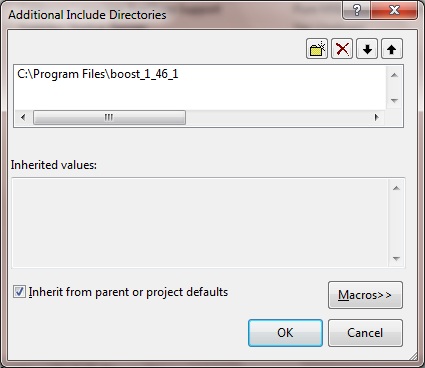
 ... and use this to set the location of where you installed the Boost library folder:
 7. Deal with compiler error messages, if any:
Try building your Visual Studio project now. You may get a compiler error message similar to the following:
7. Deal with compiler error messages, if any:
Try building your Visual Studio project now. You may get a compiler error message similar to the following:
 Sometimes in Release Mode you will get error messages, or other different error messages.
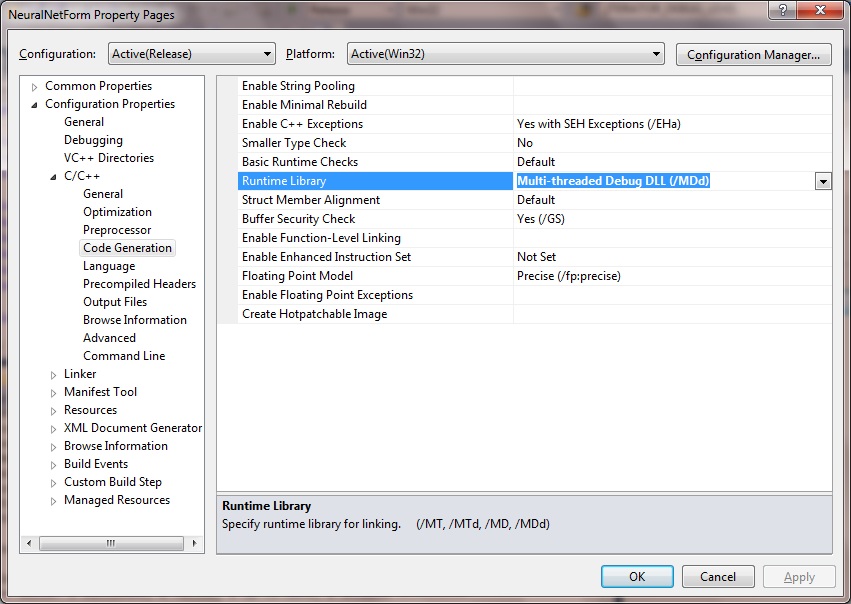
 Also, in properties -> C/C++ -> Code Generation -> Runtime Library be sure that this is set to the same value for Debug / Release modes:
 And that's it! This example boost thread program should now compile and run giving the following output:
#include <iostream>
#include <boost/thread.hpp>
#include <boost/date_time.hpp>

void workerFunc()
{
    boost::posix_time::seconds workTime(3);

    std::cout << "Worker: running" << std::endl;

    // Pretend to do something useful...
    boost::this_thread::sleep(workTime);

    std::cout << "Worker: finished" << std::endl;
}

int main(int argc, char* argv[])
{
    std::cout << "main: startup" << std::endl;

    boost::thread workerThread(workerFunc);

    std::cout << "main: waiting for thread" << std::endl;

    workerThread.join();

    std::cout << "main: done" << std::endl;

    return 0;
}
This code creates a boost thread object, passes it an example worker function and exits the thread when complete. The following sections describe the steps necessary to get started with boost::thread:
1. download and install Boost
Assuming that you have downloaded, unzipped and installed the boost libraries in your Visual Studio environment, and told the Visual Studio project where the Boost libraries live (see this post), you are not quite finished yet. It is likely that you will encounter a linker error similar to this when trying this simple example for the first time:
LINK : fatal error LNK1104: cannot open file 'libboost_thread-vc100-mt-gd-1_46_1.lib'
It's telling you that it does not know anything about this library file. There exist a number of Boost libraries that you will need to build yourself and this library is one of them.
2. Obtain bjam
The next stage will be to build the bjam.exe program. Probably the simplest way to do this is to use the installers provided by BoostPro. In my example this was the boostpro 1.46.1 installer. Download and run this program. For me it was the VS 2003 .NET and VS 2010 versions I was interested in:
Then select which of the libraries you wish to install - it does not have to be all of them, just the thread libraries if you wish:
3. Create the bjam.exe executable
When this is installed, go to the C:\Program Files\boost_1_46_1\tools\build\v2\engine\src directory and run build.bat from the command prompt. Running the build.bat script will create the bjam.exe executable inside this directory:
C:\Program Files\boost_1_46_1\tools\build\v2\engine\src\bin.ntx86
4. Update the PATH environment variable
You now need to select the bjam.exe into in your PATH environment variables. In Windows 7 for example, right-click Computer, select Properties and Advanced System Settings:
Click on the Environment Variables... button and select the Edit button:
Include the directory C:\Program Files\boost_1_46_1\tools\build\v2\engine\src\bin.ntx86 as another environment variable, making sure each variable is separated by a colon (;):
5. Run the bjam executable
At the command prompt, go to the C:\Program Files\boost_1_46_1 directory, enter "bjam", waiting for approximately 5-10 minutes while the program gets created:
6. Set Visual Studio project properties
In your Visual Studio project select Configuration Properties -> Linker -> Input -> Additional Dependencies and enter libboost_thread-vc100-mt-gd-1_46_1.lib, or whatever the appropriate name for your boost thread library file is:
In your Visual Studio project set the project configuration properties -> Linker -> General -> Additional Include Directories, telling it the location of the stage/lib folder:
In Configuration properties, select C/C++ -> General -> Additional Include Directories...
... and use this to set the location of where you installed the Boost library folder:
7. Deal with compiler error messages, if any:
Try building your Visual Studio project now. You may get a compiler error message similar to the following:
error C2472: 'boost::detail::win32::interlocked_bit_test_and_set' cannot be generated in managed code: 'Found an intrinsic not supported in managed code'; compile with /clr to generate a mixed image
error C2472: 'boost::detail::basic_timed_mutex::unlock' cannot be generated in managed code: 'Found an intrinsic not supported in managed code'; compile with /clr to generate a mixed image
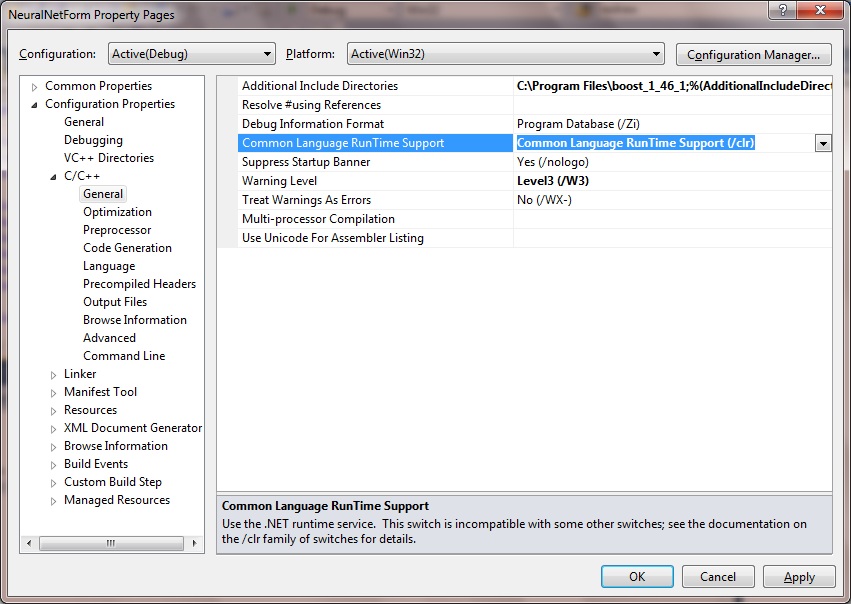
If this is the case then return to your project properties once more (via Properties → C/C++ → General) and edit the Common Language RunTime Support, and make sure it is set to (/clr) as highlighted:
Sometimes in Release Mode you will get error messages, or other different error messages.
error LNK2038: mismatch detected for '_ITERATOR_DEBUG_LEVEL': value '2' doesn't match value '0' in DataCollection.obj
error LNK2038: mismatch detected for '_ITERATOR_DEBUG_LEVEL': value '2' doesn't match value '0' in DataCollection.obj
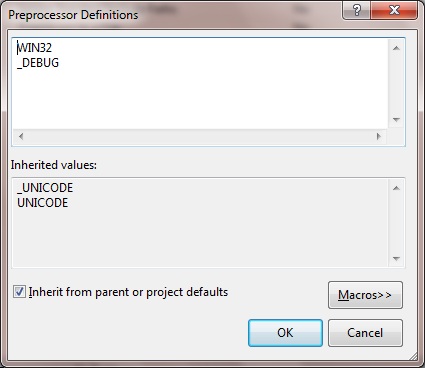
The final part of the Visual Studio setup would be to ensure there are no mismatches between the Debug and Release mode property settings. In particular, in properties -> C/C++ -> Preprocessor make sure the preprocessor definitions are consistent:
Also, in properties -> C/C++ -> Code Generation -> Runtime Library be sure that this is set to the same value for Debug / Release modes:
And that's it! This example boost thread program should now compile and run giving the following output:
main: startup
main: waiting for thread
Worker: running
Worker: finished
main: done
Code Project® article available here. More code examples on the next page: 1. Worker thread using functors In this example we achieve exactly the same worker threads but this time by using functors, which are objects that can be called in the same way as functions, and are defined by overloading the
operator(). For more information on Functors see this post.
#include <iostream>
#include <boost/thread.hpp>
#include <boost/date_time.hpp>

class Worker
{
public:
	void operator()()
	{
		boost::posix_time::seconds workTime(3);
		std::cout << "workerFunc: running" << std::endl;

		// Pretend to do something useful...
		boost::this_thread::sleep(workTime);
		std::cout << "workerFunc: finished" << std::endl;
	}
};

int main(int argc, char* argv[])
{
    std::cout << "main: startup" << std::endl;

	// Boost thread constructor
	Worker worker;
    boost::thread workerThread(worker);
    std::cout << "main: waiting for thread" << std::endl;

	// Causes main() thread to sleep until worker thread(s) completed
	workerThread.join();
    std::cout << "main: done" << std::endl;

    return 0;
}
2. Worker threads through object methods
Here we define an object's instance method to run on its own thread. The only significant difference to that of making a regular function into a thread is that we specify the method using its class qualifier and we use the & operator to pass the address of the method, along with any other arguments it may need.
#include <iostream>
#include <boost/thread.hpp>
#include <boost/date_time.hpp>

class Worker
{
public:
	void DoStuff(const int& time, const char* msg)
	{
		boost::posix_time::seconds workTime(time);
		std::cout << msg << " running" << std::endl;

		// Pretend to do something useful...
		boost::this_thread::sleep(workTime);
		std::cout << msg << " finished" << std::endl;
	}
};

int main(int argc, char* argv[])
{
    std::cout << "main: startup" << std::endl;

	// Boost thread constructor
	Worker worker;
    //boost::thread workerThread(worker);
	boost::thread workerThread(&Worker::DoStuff, &worker, 3, "Worker thread");
    std::cout << "main: waiting for thread" << std::endl;

	// Causes main() thread to sleep until worker thread(s) completed
	workerThread.join();
    std::cout << "main: done" << std::endl;

    return 0;
}
3. Managing threads within the object
You may wish your objects to be able to encapsulate and hence manage their own threads. In this case we keep the thread as a data member, which gets assigned its value in a start() method. The default constructor for boost::thread maintains it in an invalid state until it is actually assigned it's own value. The only real difference in the assignement is that we pass it the this value.
#include <iostream>
#include <boost/thread.hpp>
#include <boost/date_time.hpp>

class Worker
{
public:

	void start()
	{
		m_Thread = boost::thread(
							&Worker::DoStuff,
			                this,
							3,
							"Worker thread" );
	}

	void join()
	{
		m_Thread.join();
	}

	void DoStuff(const int& time, const char* msg)
	{
		boost::posix_time::seconds workTime(time);
		std::cout << msg << " running" << std::endl;

		// Pretend to do something useful...
		boost::this_thread::sleep(workTime);
		std::cout << msg << " finished" << std::endl;
	}

private:
	boost::thread m_Thread;
};

int main(int argc, char* argv[])
{
    std::cout << "main: startup" << std::endl;

	Worker worker;
	worker.start();

    std::cout << "main: waiting for thread" << std::endl;

	worker.join();
    std::cout << "main: done" << std::endl;

    return 0;
}
4. Using mutexes to ensure exclusive access to resources
#include <boost/thread/mutex.hpp>
#include <boost/thread/thread.hpp>
#include <iostream>

class SharedResource
{
private:
	int value;
	boost::mutex mtx;

public:

	SharedResource(const int& val) : value(val) {}

	void Add(const int& val)
	{
		mtx.lock();
		std::cout << "\nLocked Add 2";
		value += val;
		std::cout << "\nCurrent value = " << value;
		mtx.unlock();
		std::cout << "\nUnlocked Add 2";
	}

	void Subtract(const int& val)
	{
		mtx.lock();
		std::cout << "\nLocked Subtract 1";
		value -= val;
		std::cout << "\nCurrent value = " << value;
		mtx.unlock();
		std::cout << "\nUnlocked Subtract 1";
	}

	int Value()
	{
		mtx.lock();
		std::cout << "\nLocked Value";
		int v = value;
		std::cout << "\nCurrent value = " << value;
		mtx.unlock();
		std::cout << "\nUnlocked Value";

		return value;
	}
};

SharedResource sharedResource( 5 );

void Worker1()
{
	for ( int i = 4; i > 0; --i )
	{
		sharedResource.Add( 2 );
	}
}

void Worker2()
{
	for ( int i = 4; i > 0; --i )
	{
		sharedResource.Subtract( 1 );
	}
}

int main(int, char*[])
{
	boost::thread thread1( Worker1 ); // start concurrent execution of Worker1
    boost::thread thread2( Worker2 ); // start concurrent execution of Worker2

	thread1.join();
    thread2.join();

    return 0;
}
Giving the following output:
Locked Add 2
Current value = 7
Unlocked Add 2
Locked Subtract 1
Current value = 6
Locked Add 2
Current value = 8
Unlocked Subtract 1
Locked Subtract 1
Current value = 7
Unlocked Subtract 1
Unlocked Add 2
Locked Subtract 1
Current value = 6
Unlocked Subtract 1
Locked Add 2
Current value = 8
Unlocked Add 2
Locked Subtract 1
Current value = 7
Unlocked Subtract 1
Locked Add 2
Current value = 9
Unlocked Add 2


Comments
Post a Comment